Sort traces
Arranging seismic traces in orderly manner
Theory
Seismic data acquired in the field usually in shot sequence. Sorting the seismic data is very important moving forward in seismic data processing. An orderly manner data gives an advantage to perform noise analysis, velocity analysis etc. Sort traces module allows the user to sort the data in a structured manner like Common Shot Point (CSP), Common Receiver Point (CRP) & Common Depth Point (CDP)/Common Mid Point (CMP).
 Sort traces module doesn't generate any Vista items for display, however, the user can visualize the sorted gathers by using Seismic loop module.
Input data
Input DataItem
Input gather
connect/reference to the output gather vector.
Use trace vector on disk
this option is applicable when the input data is too big/large. For this option, the user should use"Open seismic traces" module to read the input data.
UseInputTraceVectorOnDisk - true
By default, FALSE (Unchecked). If it is checked, it allows the user to connect/reference the input data.
Input traces data handle
connect/reference the "Output traces data handle" vector.
Parameters
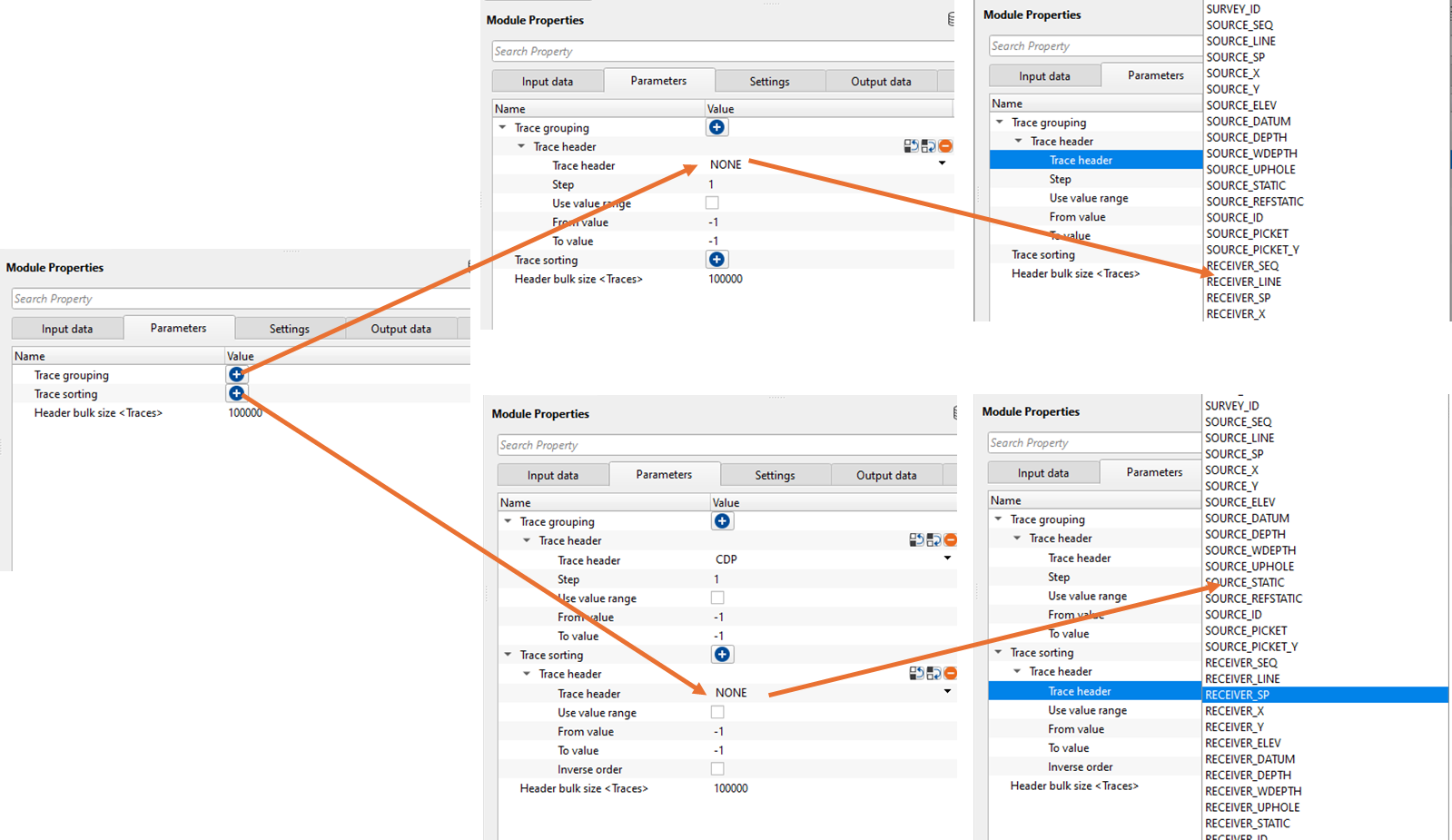
Trace grouping - formation of one seismogram in accordance with the user specified trace headers. For example, source seismogram, receiver or CDP.
Trace header
Use can select as many as trace headers by clicking  icon to add additional trace header. This acts as primary key.
Trace header
choose the desired trace header from the drop down menu.
Step
specify the trace header step size. By default, 1. Based on the user defined step size, the gather will read accordingly.
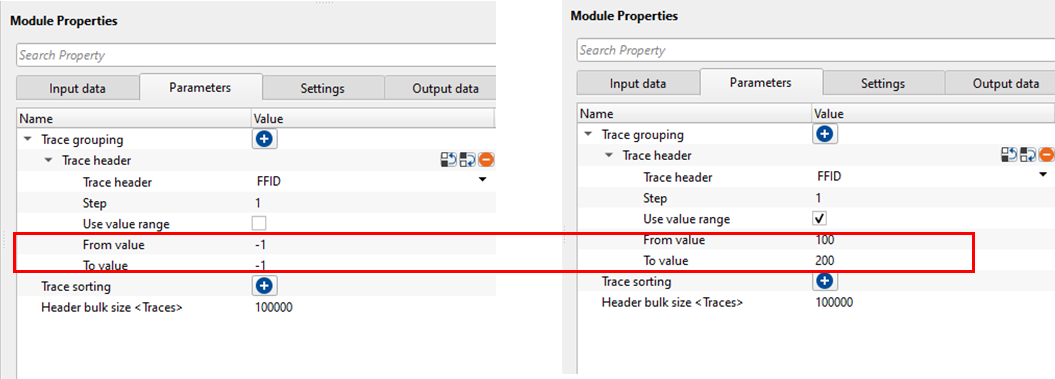
Use value range
this allows the user to specify any particular trace header range. For example, if the user wants to display only FFIDs from 100 to 200 only, check this option and provide the values in the next parameters i.e. from value and to value.
From value
provide the starting value of the trace header to consider.
To value
provide the ending value of the trace header to consider.
Trace sorting - trace sorting in accordance with the user specified trace headers. Sorting cannot be created without grouping. This acts as secondary key.
Trace header
like trace grouping, user can select as many trace headers by clicking icon to add additional trace header.
Trace header
choose the desired trace header from the drop down menu.
Use value range
by default, FALSE (Unchecked). If checked, it will consider the user specified trace headers values. For example, the user wants to display OFFSET from 0 to 1000 m then it will display the gathers with offset till 1000 m only.
From value
specify the staring value of the trace sorting trace header.
To value
specify the ending value of the trace sorting trace header.
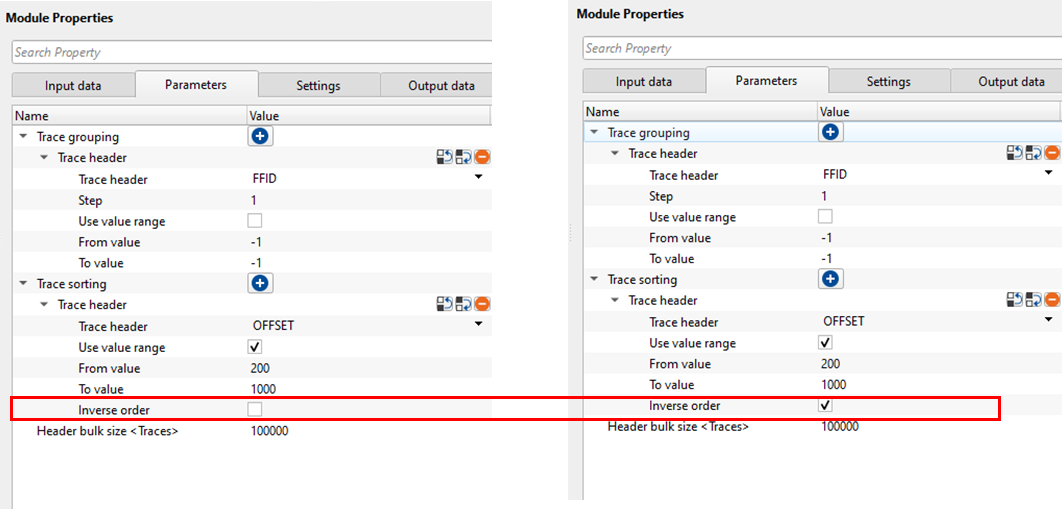
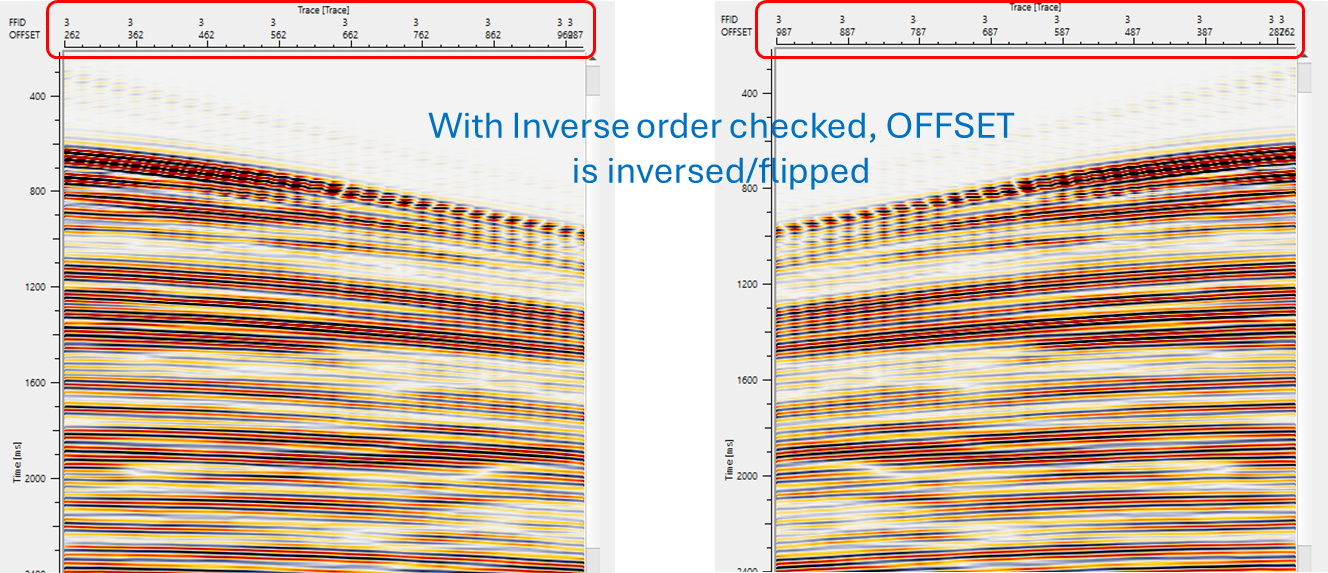
Inverse order
By default, FALSE (Unchecked). It will reverse the trace sorting values. For example, the user wants to display OFFSET from 200 to 1000m without Inverse order, it will display the gather with OFFSET range from 200 to 1000 m, however, if the inverse order is checked, it will display the gather with OFFSET range from 1000 to 200 m.
Header bulk size
this parameter takes care of total number of traces to be read as bulk or store it in the memory.
Settings
Auto-connection
By default, TRUE(Checked).It will automatically connects to the next module. To avoid auto-connect, the user should uncheck this option.
Number of threads
One less than total no of nodes/threads to execute a job in multi-thread mode. Limit number of threads on main machine.
Skip
By default, FALSE(Unchecked). This option helps to bypass the module from the workflow.
Output data
Output DataItem
Output sorted headers
generates user specified output sorted trace headers.
Information
First 0 value
displays the starting value of the trace grouping trace header.
Last 0 value
displays the last value of the trace grouping trace header.
First 1 value
In case the user selects multiple trace groupings, displays the starting value of the trace grouping 2nd trace header.
Last 1 value
displays the last value of the trace grouping 2nd trace header.
Total number of sorted gathers
displays total number of sorted trace headers.
Total number of traces
displays total number of traces of the input data.
Examples
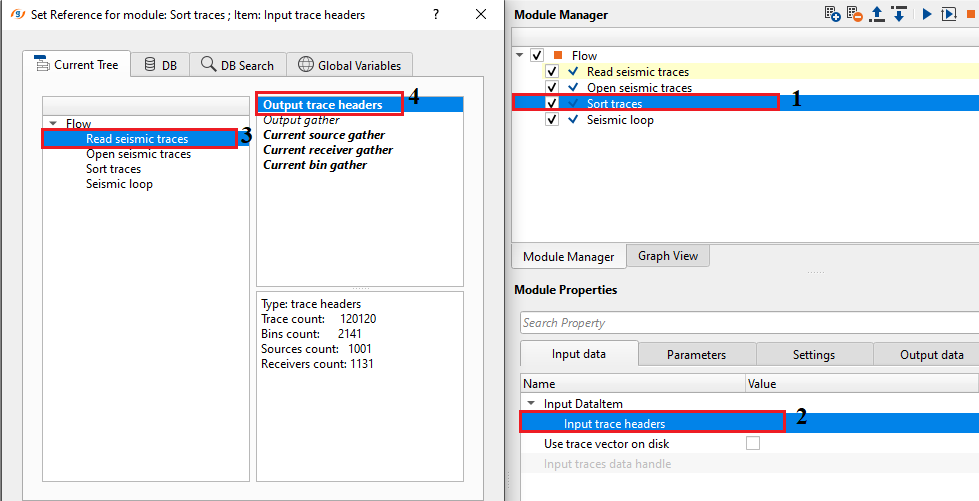
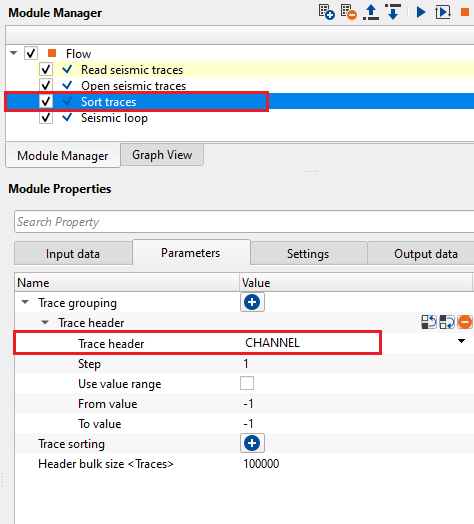
In this example workflow, we are creating a Near Trace Gather (NTG). Sort the data by CHANNEL as Trace Grouping. Trace sorting is not necessary.
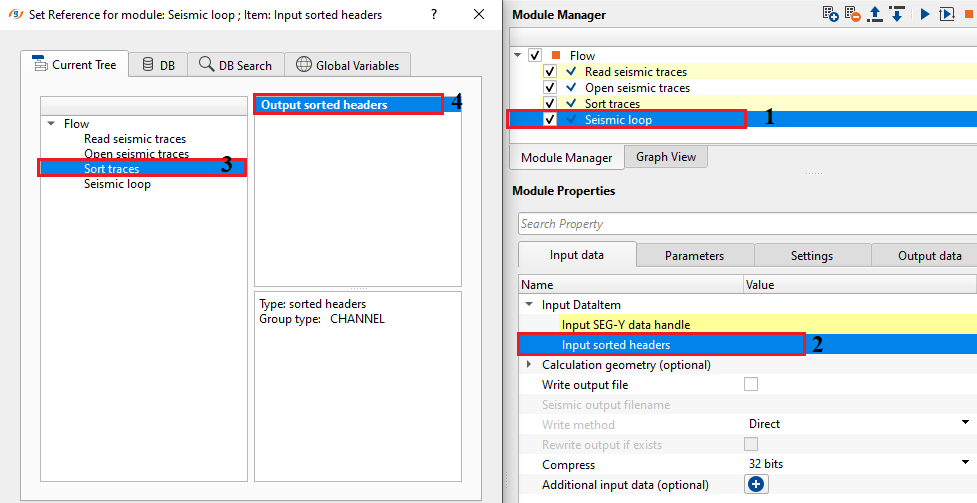
By using Seismic loop, the user can display the NTG by executing the Seismic loop. To make the connection/references to the Seismic loop, the user should connect/reference the Input SEG-Y data handle to "Read seismic traces" and Input sorted headers to Sort traces module.
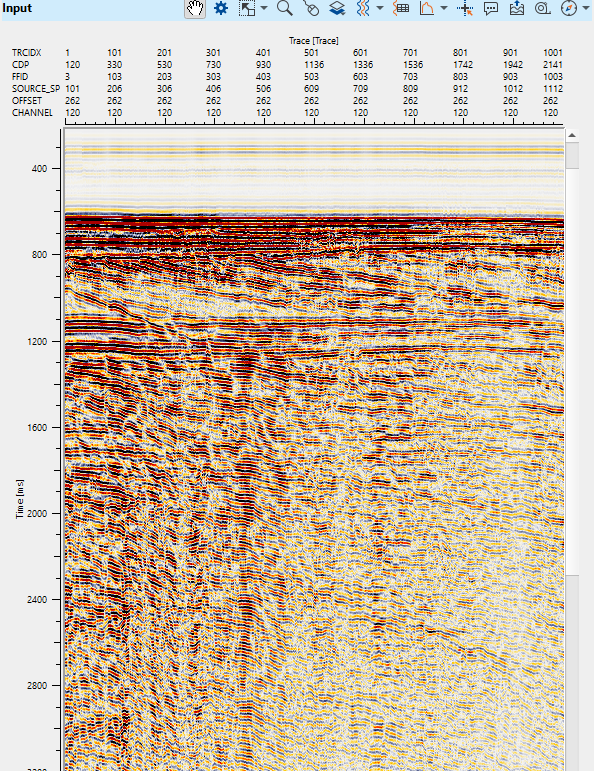
Here, we are displaying a Near Trace Gather of CHANNEL 120. Likewise, the user can generate NTG for any channel.
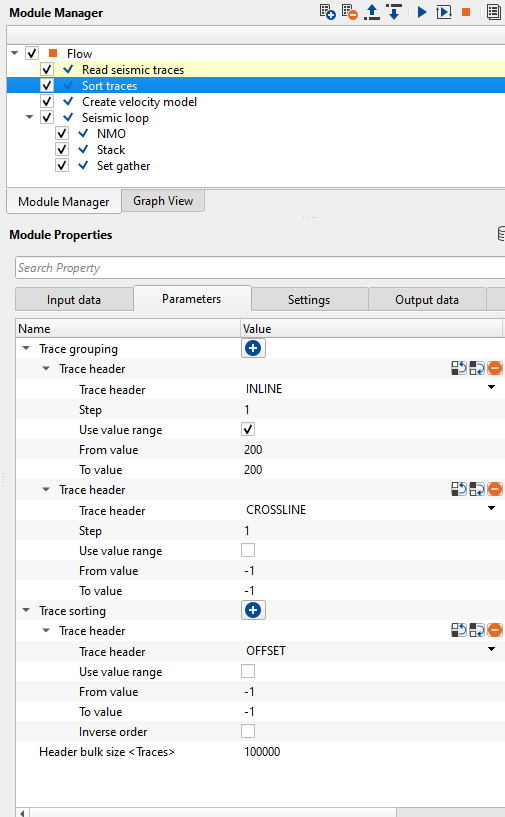
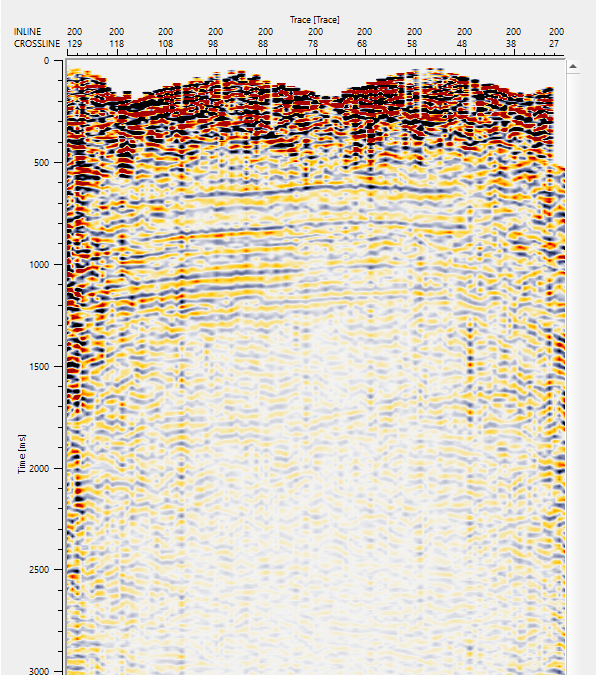
To create a stack (INLINE) section of a 3D survey by sorting the input data as INLINE & CROSSLINE as Trace Grouping & OFFSET as Trace Sorting. Also, to create stack for a specific INLINE, specify the from & to value of INLINE value.
Actions
There are no action items available for this module so the user can ignore it.
Video lesson
YouTube video lesson, click here to open [VIDEO IN PROCESS...]
Related articles
Yilmaz. O., 1987, Seismic data processing: Society of Exploration Geophysicist
 * * * If you have any questions, please send an e-mail to: support@geomage.com * * *