Mute by expression
Muting the seismic data using an expression
Theory
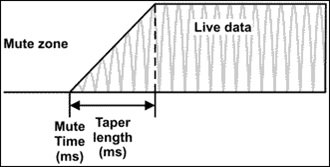
Mute plays an important role in seismic processing/imaging. Muting the gathers improves the stack resolution.
We have different kinds of mute modules in g-Platform to address different scenarios. Mute by expression can be very useful if user is looking for a unique solution.
Use any of the following mathematical operations to create equation/expression.
g-Platform uses following mathematical expressions in designing the expression/equation.
- Mathematical operators (+, -, *, /, %, ^)
- Functions (min, max, avg, sum, abs, ceil, floor, round, roundn, exp, log, log10, logn, root, sqrt, clamp, inrange)
- Trigonometry (sin, cos, tan, acos, asin, atan, atan2, cosh, cot, csc, sec, sinh, tanh, d2r, r2d, d2g, g2d, hyp)
- Equalities, Inequalities (=, ==, <>, !=, <, <=, >, >=)
- Assignment (:=, +=, -=, *=, /=)
- Boolean logic (and, nand, nor, not, or, xor, xnor, mand, mor)
- Control Structures (if-then-else, ternary conditional, switch case)
- Loop Structures (while loop, for loop, repeat until loop, break, continue)
For detailed information about the mathematical expression, go through this link (https://www.w3schools.com/python/python_regex.asp)
Input data
Input DataItem
Input gather
connect/reference to the Output gather that needs to be muted by using an expression.
Parameters
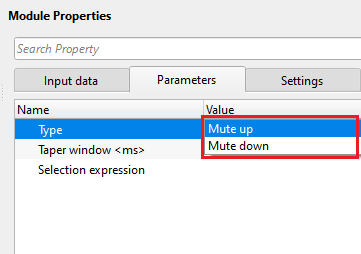
Type { Mute up, Mute down }
select the type of mute to be applied from the drop down menu.
Mute up - all of the data above the picked mute line will be zeroed
Mute down - all of the data below the picked mute line will be zeroed
Taper window
taper helps in smooth transitioning of the seismic data to avoid any sharp edges at the muting zone.
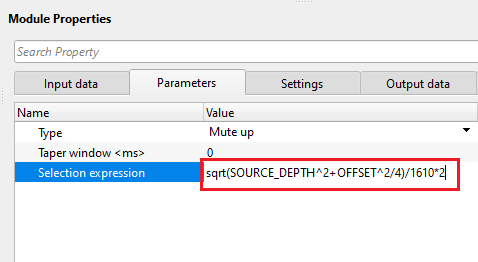
Selection expression
define the mathematical expression to perform the mute.
Settings
Auto-connection
By default, TRUE(Checked).It will automatically connects to the next module. To avoid auto-connect, the user should uncheck this option.
Bad data values option { Fix, Notify, Continue }
This is applicable whenever there is a bad value or NaN (Not a Number) in the data. By default, Notify. While testing, it is good to opt as Notify option. Once we understand the root cause of it, the user can either choose the option Fix or Continue. In this way, the job won't stop/fail during the production.
Notify
It will notify the issue if there are any bad values or NaN. This is halt the workflow execution.
Fix
It will fix the bad values and continue executing the workflow.
Continue
This option will continue the execution of the workflow however if there are any bad values or NaN, it won't fix it.
Calculate difference
This option creates the difference display gather between input and output gathers. By default Unchecked. To create a difference, check the option.
Number of threads
One less than total no of nodes/threads to execute a job in multi-thread mode. Limit number of threads on main machine.
Skip
By default, FALSE(Unchecked). This option helps to bypass the module from the workflow.
Output data
Output DataItem
Output gather
generates the output gather with user defined mute expression.
Gather of difference
generates the difference gather between the input gather vs output muted gather
Information
There is no information available for this module so the user can ignore it.
Examples
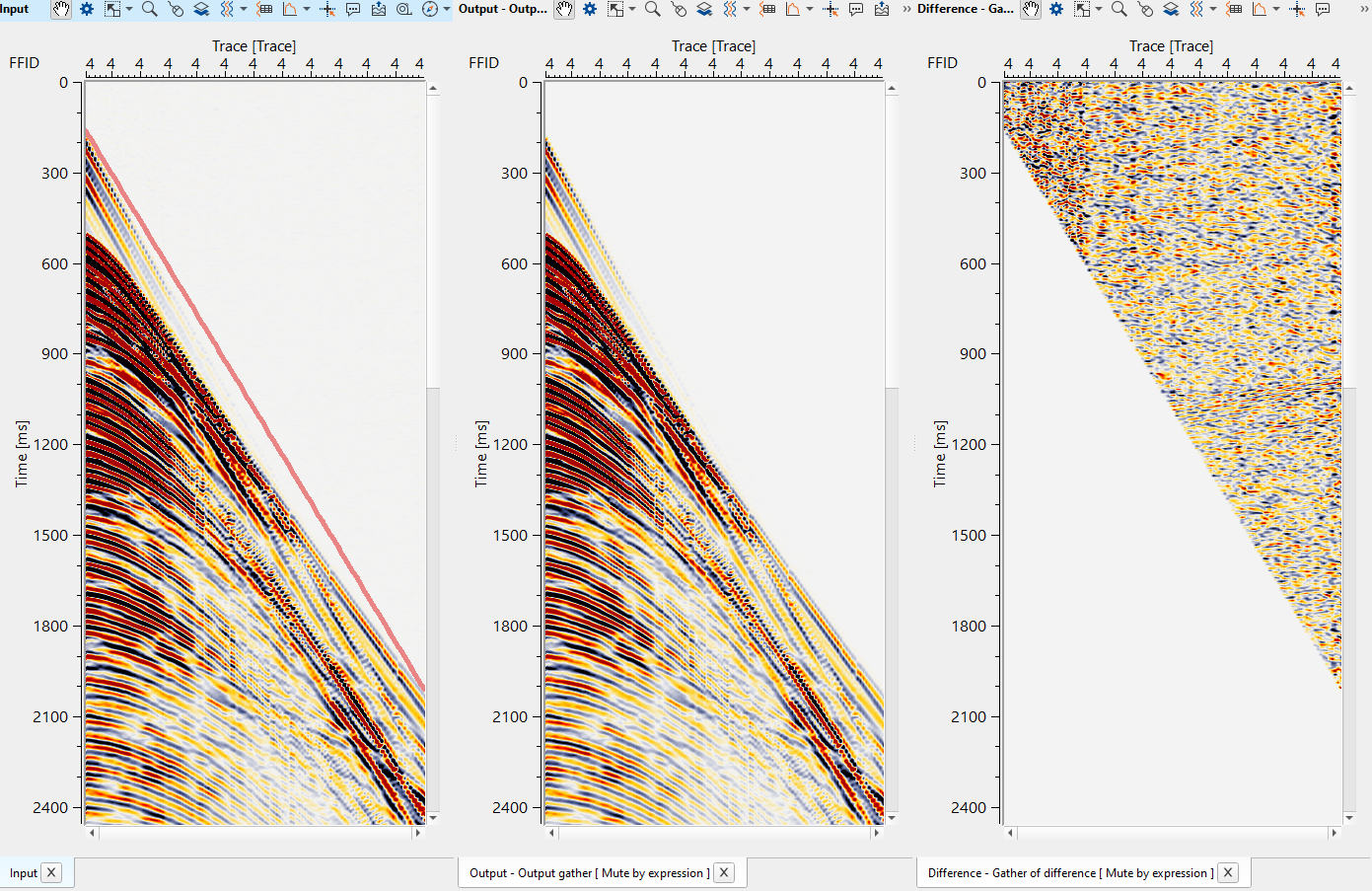
In this example workflow, we define an expression to mute the data before the first arrivals.
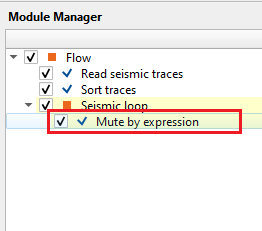
Choose the mute type (up/down) & define the expression in the Selection expression.
Execute the module and launch Vista item. There will be Input, Output & Difference displays. On the Input gather, mute line will be displayed.
Actions
There are no action items available for this module so the user can ignore it.
Video lesson
YouTube video lesson, click here to open [VIDEO IN PROCESS...]
Related articles
Yilmaz. O., 1987, Seismic data processing: Society of Exploration Geophysicist
 * * * If you have any questions, please send an e-mail to: support@geomage.com * * *