Convert SEG2 to SEG-Y
Converting SEG-2 files to SEG-Y format
Theory
What is SEG-2 Data Format?
SEG-2 is a lightweight, PC-friendly seismic recording format using ASCII-based headers and trace-level metadata, widely used in engineering, refraction, and shallow seismic acquisition systems. SEG-2 is a digital seismic data file format introduced in the late 1980s for field recording, mainly for:
- Land seismic surveys
- Refraction seismic
- MASW / surface-wave surveys
- Engineering geophysics
- Shallow seismic applications
It was designed to be simple, flexible, and PC-compatible, unlike older tape formats such as SEG-B and SEG-C.
Key Features of SEG-2
1. Header + Trace Data Structure
A SEG-2 file generally contains:
- A file-level header
- Followed by a series of trace records
- Each trace record has:
Headers store:
- Trace number
- Shot number
- Receiver/channel number
- Sample interval
- Number of samples
- Coordinate info (if available)
2. Human-Readable Text Headers
SEG-2 uses embedded ASCII text inside headers, making it easier to inspect or diagnose compared to SEG-B.
Example:
CHANNEL_NUMBER = 5
SAMPLE_INTERVAL = 0.5
NUM_SAMPLES = 2048
3. Designed for Disk Files (Not Tape)
- Stores data in little-endian byte order (Intel PC format).
- Works well on Windows/DOS systems.
- Popular with geotechnical and refraction instruments.
4. Flexible and Lightweight
- No rigid fixed-size headers like SEG-Y.
- Instrument vendors can add custom fields easily (e.g., GPS time, sensor ID).
Where SEG-2 is Commonly Used
- Shallow seismic (< 500 m)
- MASW and refraction surveys
- Electrical resistivity instruments with seismic add-ons
- VSP in small-scale engineering studies
- Academic experiments
- Scintrex, Geometrics, OYO/ABEM instruments
Advantages
- Easy to read and parse
- Human-readable header components
- Compact file size
- Flexible structure for many acquisitions systems
Limitations
- Not ideal for large exploration surveys
- No universal standard for geometry fields
- Many vendor-specific variations
- Not suitable for major processing environments compared to SEG-Y
Input data
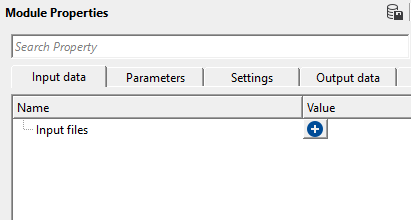
Input files - click on  icon. It will open a new window. Click on icon again. Click inside SEG-2 source file name field and provide the input files. For multiple input files, hold SHIFT key and select all the input files.
A list of one or more SEG-2 source files to convert. Click the add button to browse for files with the extensions .dat, .seg2, or .sg2. You may add multiple files from the same or different directories; all files in the list will be converted and concatenated into the single output SEG-Y file when the module executes. After adding files, click Read headers to scan their headers and populate the inspection tables.
Parameters
Output file
this section deals with output file name, file type, trace header format etc.
This group of settings controls how the converted data is written to disk. You must specify a valid output file path and choose an appropriate trace header format before running the conversion. The output file will be written in industry-standard SEG-Y format (file extensions .sgy or .segy), which is fully compatible with g-Platform and virtually all other seismic processing and interpretation packages. The sub-parameters are documented individually below.
File type { SEG-Y }
specify the output file type. By default, SEG-Y
Output file name
provide output file name after
Trace header format { Geomage format, SegFormat, Seg-Y, rev.1, 2002, Geomage Office Post, Coordinates Only, Constant Elevation, VSP format, teapot_dome_3d, segy_v2, Kingdom format, attaphol, d-001, Test_gom }
choose the SEG-Y trace header format from the drop down menu. By default, Geomage format which is SEG standard rev.1, 2002 format.
Geomage format
this is Geomage internal format which is equivalent to SEG-Y standard rev.1, 2002 format.
File type — Fixed to SEG-Y. The output file will be written in SEG-Y format, the industry-standard for seismic data exchange.
Output file name — The full path and file name for the SEG-Y file to be created. Use the file browser to navigate to the output folder. Supported extensions are .sgy and .segy.
Trace header format — Controls how trace header fields are arranged and labelled in the output SEG-Y file. Default is GeomageFormat. Select the format required by the software that will subsequently read the SEG-Y file.
Load full data - it will load all the data in the file. By default, FALSE (Unchecked).
When checked, this option causes the module to read and load all trace amplitude data from the selected SEG-2 file into the seismic viewer (the Current SEG2 file vista item) when you click on a row in the Common Information table. This is useful for visually inspecting data quality before converting. By default this option is disabled (unchecked) and only header information is loaded, which is faster when working with large numbers of files. Enable this option only when you need to preview trace amplitudes interactively.
Get FFID from file name - extracts the FFID information from the input file name. By default, FALSE (Unchecked).
When enabled, the module attempts to parse the FFID (Field File Identifier) number directly from the input SEG-2 file name, rather than reading it from the internal file header. This is useful when the file was acquired by an instrument that encodes the FFID in the file name (for example, shot00123.seg2) but may not write the FFID correctly to the SEG-2 internal header. By default this option is disabled (unchecked) and the FFID is taken from the file's internal trace header. Enable this option only if you know your instrument uses the file name to store the FFID and the internal header value is incorrect or missing.
Settings
Skip
By default, FALSE(Unchecked). This option helps to bypass the module from the workflow.
When checked, this module is bypassed entirely and no conversion is performed when the workflow executes. Use this option to temporarily disable the conversion step without removing the module from your workflow configuration. By default this option is unchecked and the conversion runs normally.
Output data
Current SEG2 file - this is an output vista item of current SEG-2 file among the Vista items generated by the module.
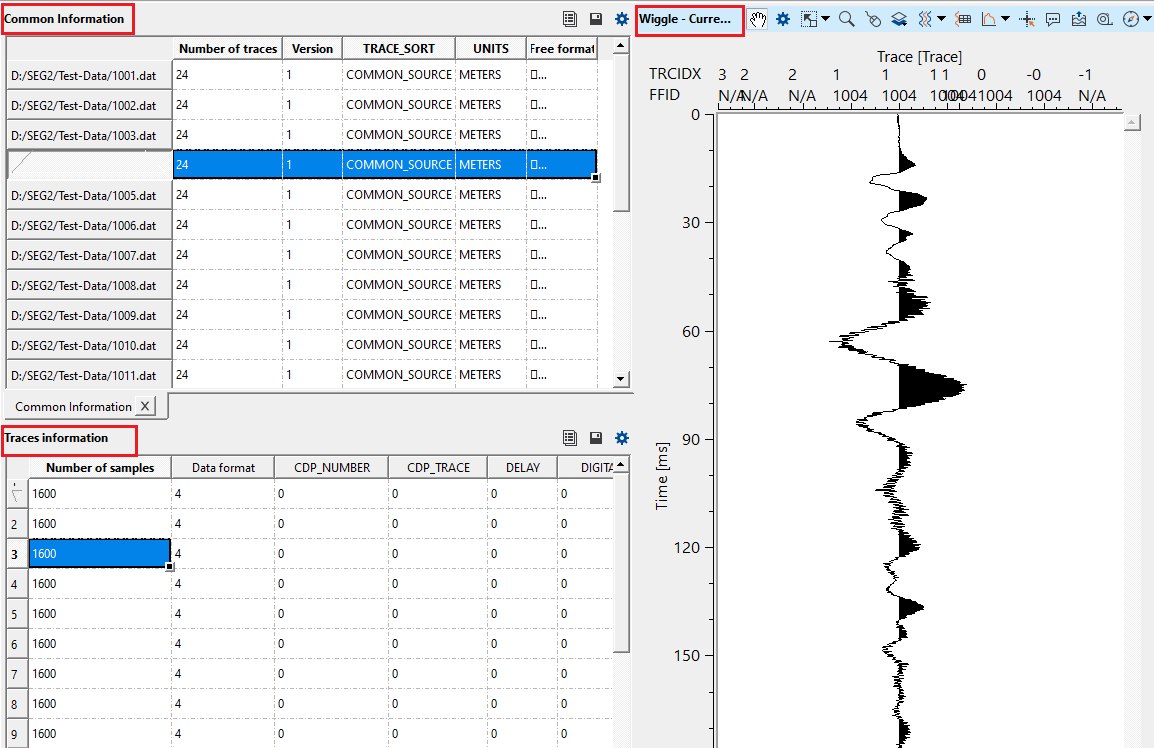
A seismic gather viewer displaying all traces from the SEG-2 file currently selected in the Common Information table. When Load full data is enabled and you click on a file row, this window updates to show the amplitude data for the entire selected file. Use this vista item to quickly assess data quality, check for noisy or dead traces, and verify that the SEG-2 file contents are as expected before converting.
Current SEG2 trace - one of the vista items and displays the selected/current SEG-2 trace
A single-trace wiggle viewer that displays the amplitude waveform of the trace you have selected in the Traces information table. Click on any trace row to load and display that specific trace. This allows you to inspect individual traces for data quality issues such as polarity reversals, clipping, or unusual noise patterns before committing to the conversion.
Common Information - displays the information of the file, FFID, no of samples, sample size etc
A tabular view listing one row per input SEG-2 file. Columns include the number of traces in the file, the SEG-2 format version, and all predefined header fields stored in the SEG-2 file descriptor block (such as acquisition date, instrument type, and free-format text notes). Click on any row to select that file and update the Traces information table and the Current SEG2 file viewer. This table is populated after you click Read headers.
Traces information - displays the trace information like the FFID and the corresponding trace.
A tabular view listing one row per trace in the currently selected SEG-2 file. Columns include the number of samples per trace, the data format code (e.g., 32-bit floating point), and all predefined trace header fields stored in the SEG-2 trace descriptor block (such as receiver station number, sample interval, and free-format text). Click on any trace row to load that individual trace into the Current SEG2 trace viewer. This table updates whenever you select a different file in the Common Information table.
Information
There is no information available for this module so the user can ignore it.
Examples
In this example, we are reading multiple SEG-2 files and reading the headers.
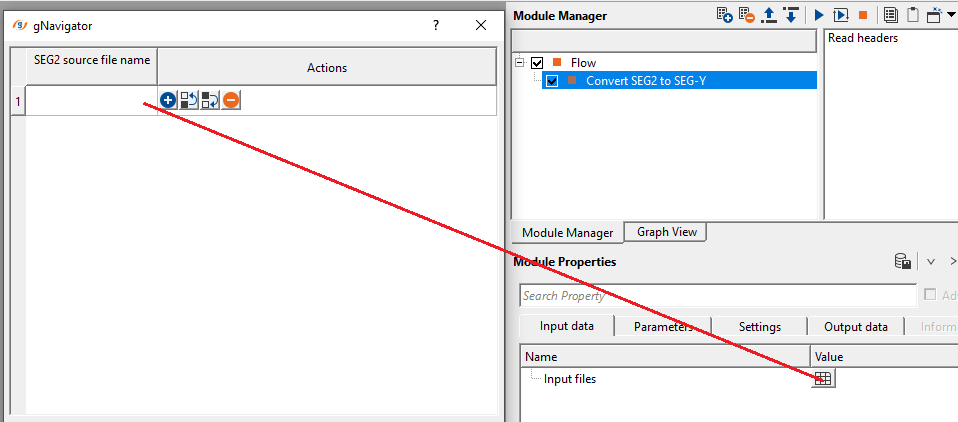
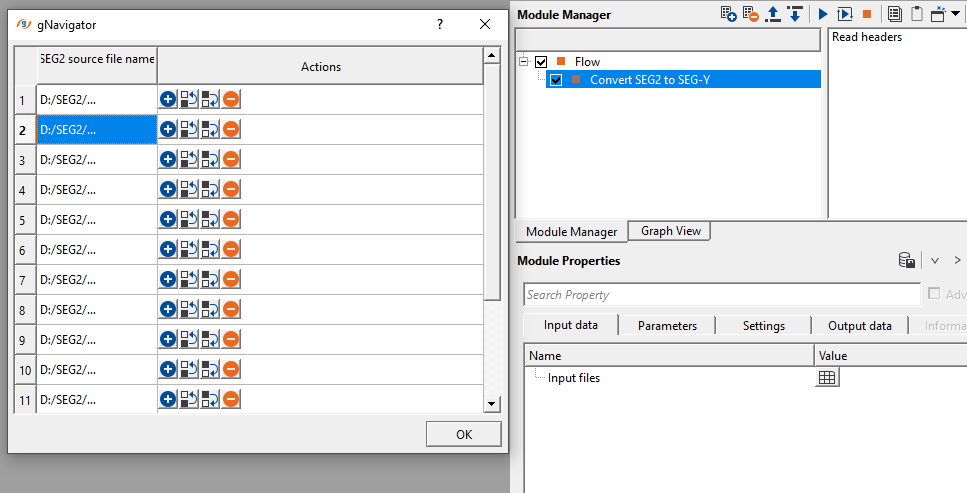
After reading all the input files, click on "Read headers" from the action items menu. Launch Vista groups -> All Groups-> In new window by right clicking on the module. It will provide Vista items like Common information, Traces information, Current SEG-2 file & Wiggle - Current SEG-2 displays.
To view the data, click on any input data file in the Common information window. It will display all the information in the Traces information window. Select any trace and the corresponding display will appear in the Wiggle - Current SEG-2 window.
Actions
Read headers - this action items allows the user to read the input trace headers. This will generate all the trace headers information that can be displayed as Vista items.
Click this button to scan all files listed in the Input files collection and read their SEG-2 descriptor blocks and trace header information. This action populates the Common Information and Traces information tables so you can inspect the SEG-2 file contents before running the full conversion. Reading headers is fast because it does not load amplitude data. You must read headers before executing the conversion to ensure the module has valid file information. This action is also run automatically when the module is opened.
Video lesson
YouTube video lesson, click here to open [VIDEO IN PROCESS...]
Related articles
Yilmaz. O., 1987, Seismic data processing: Society of Exploration Geophysicist
 * * * If you have any questions, please send an e-mail to: support@geomage.com * * *
