The Edit Calculated GSD File module allows you to selectively reprocess a subset of gathers from an already-computed GSD output file. Rather than rerunning an entire processing job from scratch, you can use a polygon to define a specific geographic region and re-execute the upstream processing chain for only those gathers that fall within (or outside) that polygon. The unchanged gathers from the original run are preserved and merged with the newly reprocessed results in a single output file.
This is particularly useful when a processing run has completed but a specific area requires different parameter settings — for example, a noisy zone needs a stronger filter, or a structurally complex area needs different migration aperture. The module reads the companion .gsd.tmp completion-tracking file to identify which gathers were already successfully computed, then applies the polygon mask to determine which of those should be re-calculated. The same sorting order used in the original processing run must be used here.
Modify/edit already calculated GSD files with different parameters


This module is helpful in editing already calculated GSD file. For example, the user executing some denoise procedure inside the seismic loop and the job is finished. The output files will have .gsd, .gsd.sgy & .gsd.tmp in the output folder. This .gsd.tmp file holds all the information whether all gathers are completed the task or not. This file is useful when the user wants to make any parameters adjustments for a particular region/area/gathers. In that case, the user should provide a polygon to specify the gathers that should be considered for the new procedure within the polygon or outside the polygon. Also, the sorting order is very important. Previously whatever the sorting order was used, the same sorting order should be considered for the rerun.
Similarly, when the user executes Migration procedure also it will generates a temporary file with an extension of .gsd.tmp.
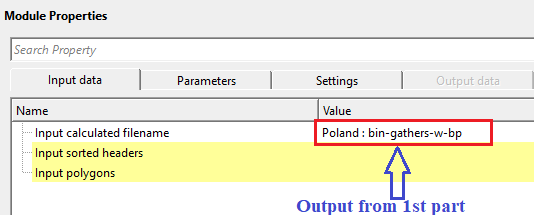
Input calculated filename - specify the already calculated filename. Make sure that the .tmp file should be existing in the output folder otherwise the program will throw an error message.
Specify the path to the existing .gsd file produced by the previous processing run. This is the file you wish to partially reprocess. The module automatically looks for a companion .gsd.tmp file in the same folder; this temporary status file records which gathers were already successfully computed. If the .tmp file is missing or has been deleted, the module will report an error and cannot continue. Accepts files with a .gsd extension.
Input sorted headers - connect/reference to the output sorted headers.
Connect this input to the sorted gather index vector (trace headers index) produced by the same sorting step that was used for the original processing run. This index defines how individual traces are grouped into gathers (chunks) and provides the spatial coordinates needed to map each gather onto the polygon. It is critical that the sorting order here matches the one used during the original computation — using a different sort order will result in incorrect gather selection and output.
Input polygons - connect/reference to Output polygons. This input polygon is used for selecting the data within or outside the polygon area.
Connect the polygon set that defines the geographic region of interest. The polygon is drawn in the map view over the survey area and is used together with the Set not calculated mode to determine which gathers should be marked for reprocessing. You can provide multiple polygons; the module checks whether each gather location falls within any of them. At least one polygon must be connected — if the polygon set is empty, the module will report an error. For instructions on how to draw and save a polygon, refer to the Polygon Picking section of the help.

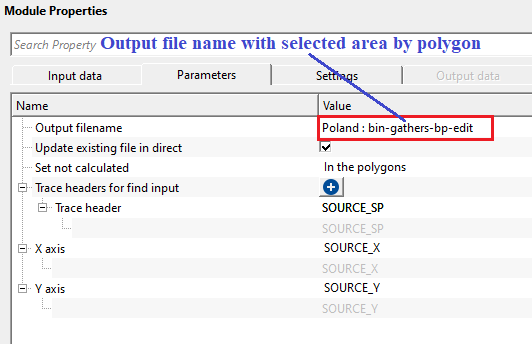
Output filename - specify the new output file name. This output will have the old gathers (with old parameters) along with new gathers (within/outside polygon) with new parameters.
Specify the path and filename for the merged output GSD file. This file will contain all gathers from the original run, with the polygon-selected gathers replaced by the newly reprocessed versions from the current workflow run. The output file is created fresh each time this module executes; it is not appended to an existing file unless Update existing file in direct mode is active. Accepts files with a .gsd extension.
Update existing file in direct - this will update the existing file in the directory. By default, FALSE.
When enabled (set to TRUE), and when the input GSD file was originally written in direct-write mode, this option modifies the input file's .tmp companion file in-place rather than creating a new output file. This marks the polygon-selected gathers as "not calculated" so that the upstream processing chain will recompute only those gathers on the next execution, writing results directly back into the original file. Use this mode when you want to update the original dataset in-place rather than producing a separate merged copy. Default is FALSE, which always creates a new output file.
Set not calculated { In the polygons, Outside the polygons } - choose the option from the drop down menu to NOT TO consider the area.
In the polygons - this will not calculate the gathers within the user provided polygon
Outside the polygon - this will not calculate the gathers outside the user provided polygon.
This dropdown controls which gathers are flagged for reprocessing based on their position relative to the polygon. Select In the polygons to reprocess only the gathers that fall inside the drawn polygon boundary — for example, to apply stronger noise attenuation within a specific noisy zone while leaving the rest of the dataset unchanged. Select Outside the polygons to reprocess everything outside the polygon, which is useful when you want to preserve a well-processed central area and re-run the periphery. Default is In the polygons.
Trace headers for find input - choose the trace header from the drop down menu to find the input data. Based on this trace header, the program checks with data and performs the new task.
This collection defines the set of trace header fields that uniquely identify each gather (chunk) in the data. The module builds a key from these headers for every trace in both the sorted index and the input GSD file, then matches traces between the two by comparing their keys. This must replicate the key headers used during the original sorting — typically the combination of headers that defines a CMP or shot gather (for example, CDP, inline, crossline, or shot identifier). If no headers are selected, the module reports an error and cannot proceed.
Trace header - displays the user selected trace header type.
X axis - considers BIN-X value as default.
Select the trace header field that provides the X coordinate (easting) for each gather's map position. This coordinate is used to determine whether a gather falls inside or outside the input polygon. The default is BIN_X, which is the bin X coordinate in the survey grid. Change this only if your data uses a non-standard header layout.
Y axis - considers BIN-Y value as default
Select the trace header field that provides the Y coordinate (northing) for each gather's map position. This coordinate, together with the X axis value, defines the 2D location of each gather on the map for polygon testing. The default is BIN_Y, which is the bin Y coordinate in the survey grid. Change this only if your data uses a non-standard header layout.

Skip - By default, FALSE(Unchecked). This option helps to bypass the module from the workflow.
When checked, this module is bypassed entirely during workflow execution — no file editing or output generation occurs, and data passes through to the next step unchanged. Use this to temporarily disable the GSD editing step without disconnecting or removing it from the workflow. Default is FALSE (module is active).

There is no output data vista items generated by this module. Final output file name should be mentioned in the Parameters tab.

All chunks count - displays the total chunks/traces/gathers count
Read-only display. Shows the total number of gathers (chunks) found in the connected sorted headers index. This is the complete gather count across the entire survey, regardless of which gathers were previously computed or which fall within the polygon. This count is updated after running the Update location map action. A value of -1 means the count has not yet been computed.
Input calculated chunks count - displays the input file calculated chunks count
Read-only display. Shows how many gathers in the input GSD file have been marked as successfully computed in the .tmp companion file. This reflects the completion state of the original processing run — compare this to All chunks count to see if the original job finished completely or was interrupted. A value of -1 means the input GSD has not yet been read.
Output calculated chunks count - displays the output file calculated chunks count
Read-only display. Shows the number of gathers that will be copied from the input GSD into the output file — that is, the already-computed gathers that pass the polygon filter and are eligible for the merge. This is the count of gathers that have matching entries in both the sorted headers index and the input GSD, and which satisfy the polygon selection rule. Use this number to verify that the polygon is selecting the expected number of gathers before running the full workflow. A value of -1 means the polygon check has not yet been applied.

The objective of this workflow is to change the processing parameters when required for a particular region/area selected by polygon. During the processing sequence we often apply the same parameters for the entire line or volume however in some cases we want to apply a different parameters (soft/harsh ) to a particular region/area. For this kind of approach, we consider this workflow.
In this example workflow, we are performing a simple task by applying band pass filter. However, we prepare the workflow in 3 parts. In the
1st part - Apply band pass filter for full line
2nd part - choose an area (by polygon) and get an output for further processing
3rd part - take the output from 2nd part and reapply the bandpass filter for the area chosen by polygon only. In this part, we are changing the band pass filters for the region selected by the polygon.

In the 2nd part, we pick a polygon by selecting the area. For more detailed information on how to pick polygon, look into Polygon picking help.

In the 3rd part, we take the output from the 2nd part and slightly modify the band pass filter parameters and re-execute it.



Update location map - this will display the updated location map. In case the user selected not to consider inside the polygon then there will be a gap in the updated location map.
Run this action to refresh the map view and update all three chunk-count statistics (All chunks count, Input calculated chunks count, Output calculated chunks count). The map view will display three overlapping point sets: all gathers in black, the gathers from the original computed run in blue, and the gathers selected for the output merge in green. If In the polygons mode is active, the green points will show a gap in the polygon area, indicating those gathers are excluded from the merged output. Run this action after connecting inputs and drawing the polygon to verify your selection before executing the full workflow.

YouTube video lesson, click here to open [VIDEO IN PROCESS...]

Yilmaz. O., 1987, Seismic data processing: Society of Exploration Geophysicist
 * * * If you have any questions, please send an e-mail to: support@geomage.com * * *
