Step 1
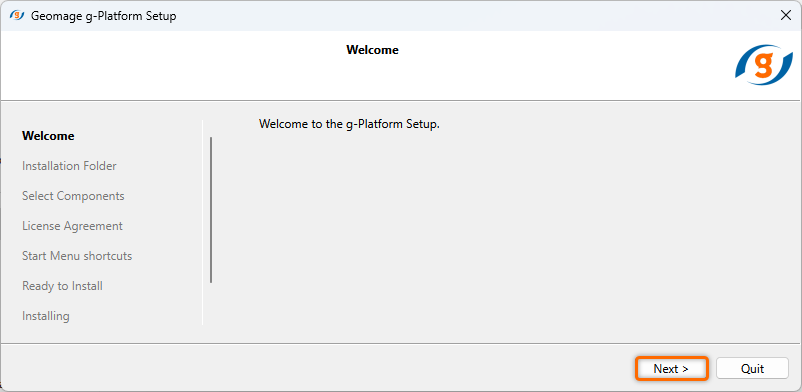
Make sure you’re logged in as an administrator of the workstation and run the downloaded EXE file [GNavigatorInstaller_Online_Win.exe] to start the installation. Click Next.
Step 2
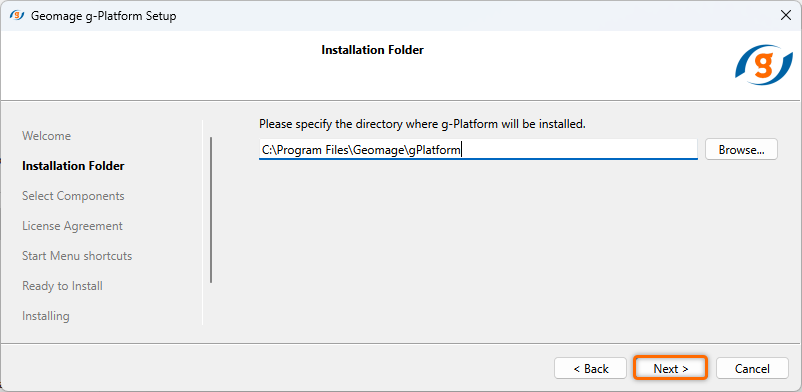
Specify the installation directory for g-Platform application and click Next.
Step 3
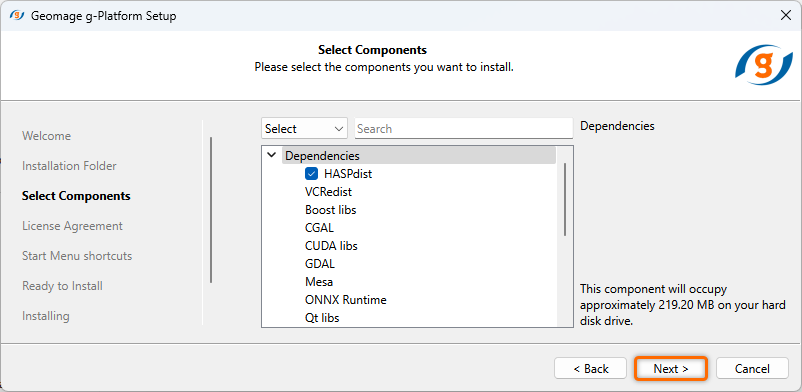
Select the requested components for installation (by default all options are checked) and click "Next".
Step 4
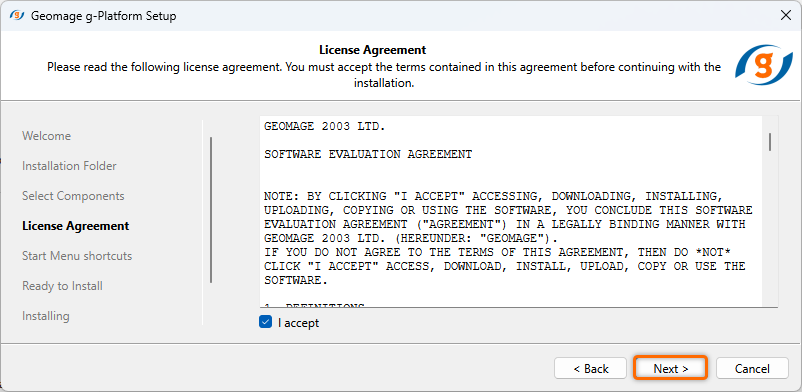
Review the "License Agreement", check the box to accept and click Next.
Step 5
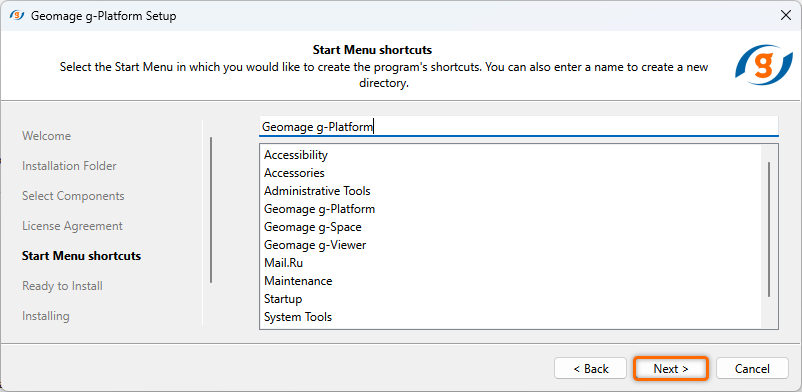
Select the "Start Menu" for program's shortcuts and click Next.
Step 6
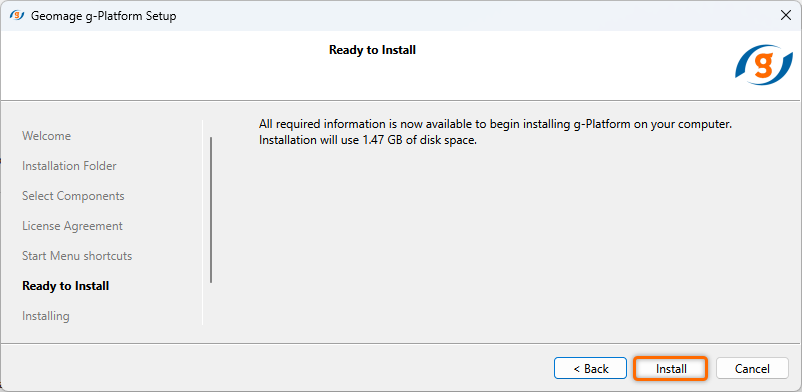
g-Platform is ready to be installed, click Install to begin the installation.
Step 7
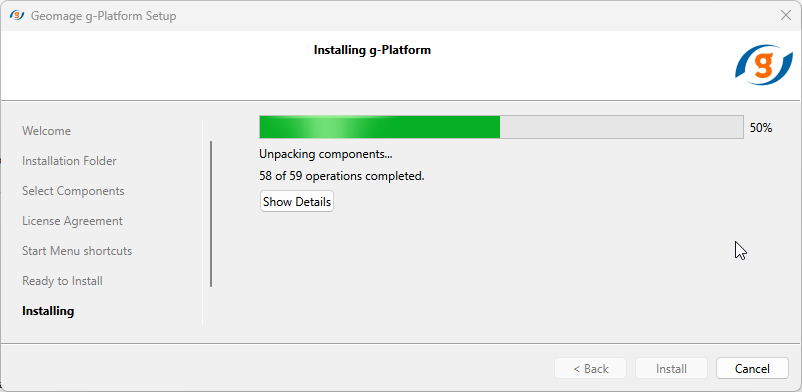
It may take few seconds to finish the installation.
Step 8
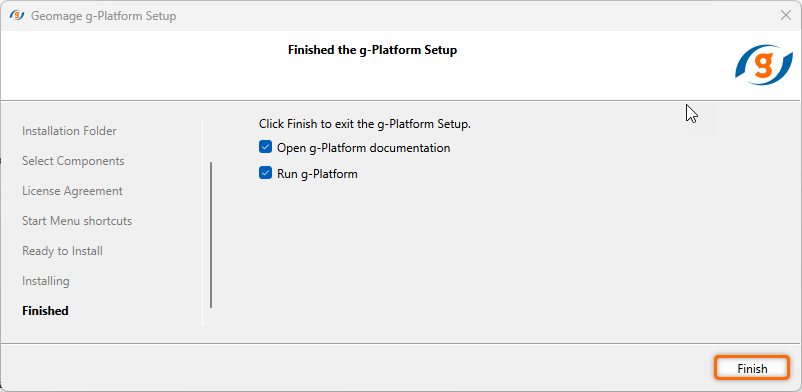
Click "Finish" to complete the installation of g-Platform. Uncheck Run g-Platform if you want to run it later.
Once you have finished the installation process the message below may appear due to missing license file.
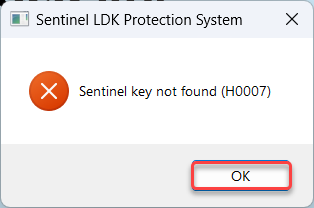
Press OK and follow the instructions in the licensing section.