To obtain a license for your product, please follow the steps below:
Step 1
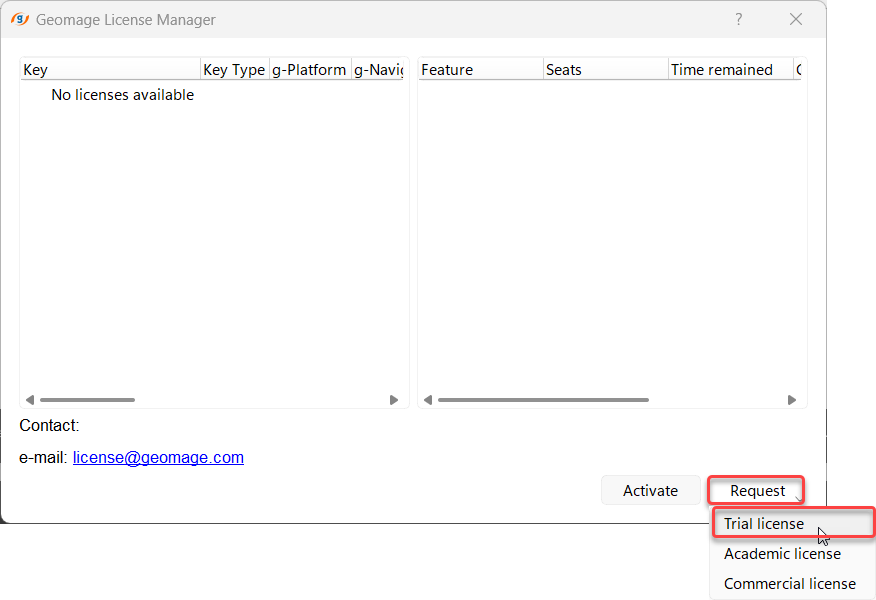
•Launch g-Platform using the start menu shortcut, or the shortcut installed on your desktop. This will launch Geomage Licence Manager.
•Click the "Request license" button in the Geomage License Manager.
Step 2
Once you have requested a license, the License manager will generate a License request code. You may choose two options:
Option 1: Click "Send email" (1) to send the "License request code" to Geomage via your default email client.
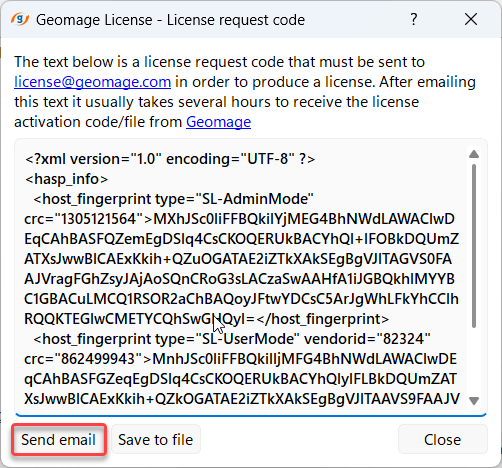
Option 2: Copy the "License request code" (2) and send the entire string to "license@geomage.com" via a server or other email service.
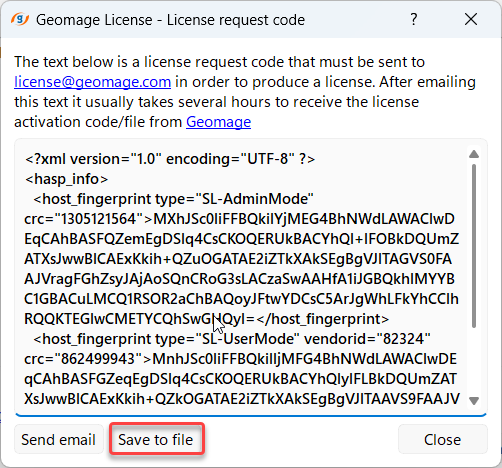
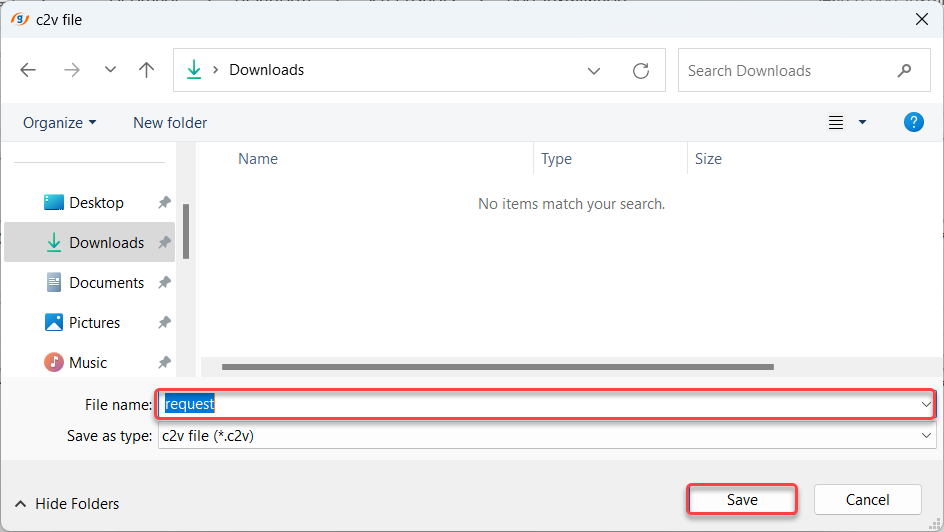
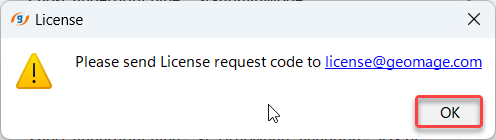
Geomage will then send you a license file via email.
Step 3
Once you have received your license, you must activate it.
1.Save the received file to a disk on your computer.
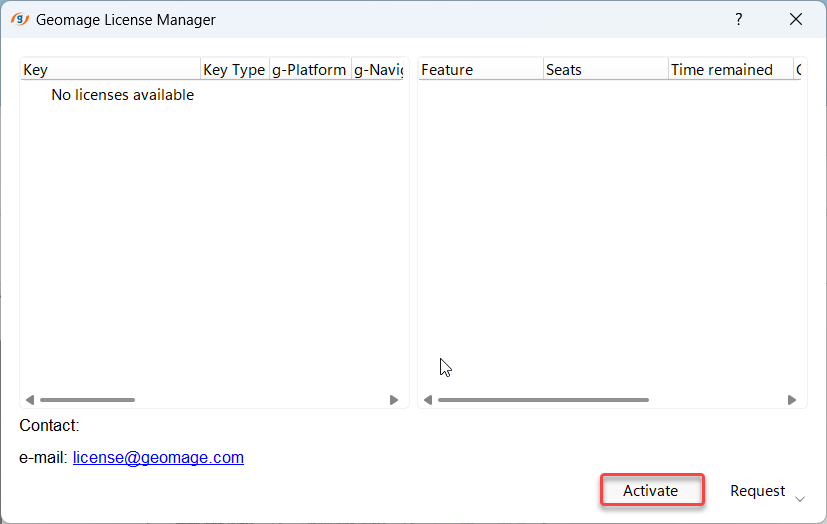
2.Go to the Geomage License manager and Click Activate.
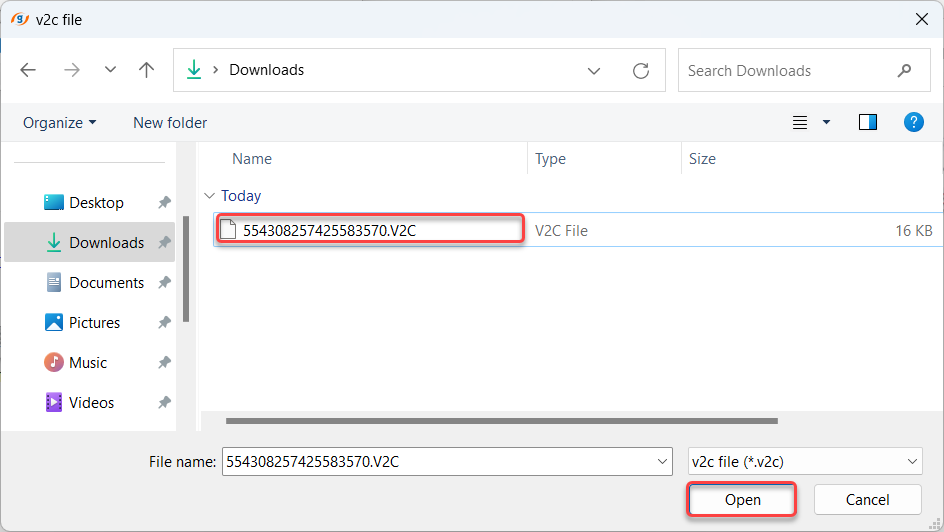
3.Choose the saved file (with suffix .V2C) and execute it by clicking “open”.
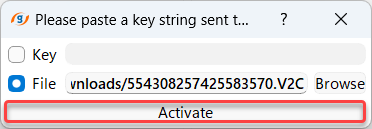
4.Once you've chosen License file click “Activate”.
 |
Step 4
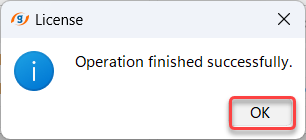
Click OK to complete the activation process.
Step 5
Enjoy seismic data interacting with g-Platform.