Concatenate seismic files
Merging multiple seismic files to make it one single file
Theory
Concatenation in seismic data processing means joining two or more seismic files end-to-end to form a single continuous file. It’s like merging multiple SEG-Y files into one large dataset containing all traces in sequence. Within g-Platform, we can concatenate both internal and external (SEG-Y) files.
Purpose
- To combine shot gathers or lines recorded in parts.
- To merge reels or tape volumes that belong to the same survey.
- To prepare continuous input for later processing steps (e.g., sorting, geometry setup, stacking).
- To simplify data handling — fewer files, consistent headers, and uniform parameters.
When We Do It
- When a survey is recorded in multiple reels/tapes.
- After split processing (e.g., processed in batches per line or swath).
- When importing field data divided into shot groups.
- Before global operations (QC, filtering, velocity analysis) that require all traces in one file.
Important Considerations
- Header consistency: All files must have the same format (sample rate, samples/trace, data format, byte order).
- Sequence numbers: After concatenation, trace numbering often needs to be recreated to maintain a continuous sequence.
- CDP and geometry fields: Should be checked — overlapping CDP or shot numbers may need correction.
- End-of-file headers: Remove duplicate file headers if the software doesn’t handle them automatically.
- QC check: Always verify total trace count, sample rate, and continuity after merging.
Input data
All input files should be provided in the Parameters section.
Parameters
SEG-Y format
Data type { Land, Marine, Transition }
specify the input data type from the drop down menu. There are 3 types available. Land, Marine, Transition.
Text header size
text header stores the survey and processing history information. This is in ASCII format. The default size is 3200 bytes. This is also known as EBCDIC header. The standard size of the text header is 40 rows and 80 columns.
Binary header size
this header stores the data in binary format. Default size is 400 bytes. In this header, we get sample interval, no of samples, measurement system, data format (IBM, floating point, ....) etc. information is stored.
Endian { Big, Little }
it refers to the byte order in which a computer stores the multi byte (integers, floating point etc) data in memory or files.
Big Endian - Most Significant Byte is stored at Lowest memory address. Most old computers used Big Endian.
Little Endian - Least Significant Byte is stored at Lowest memory address. Modern computes uses Little Endian.
EBCDIC
displays the EBCDIC/text header if this option is TRUE (Checked). By default, TRUE (Checked).
Data Sample format { Default, IBMFloat4, Int4, Int2, Float4, Int1 }
it represents the seismic trace amplitudes in binary format. It defined in 25-26 byte location of SEG-Y binary header. By default, IEEE (most modern systems uses this). Incorrect data sample format leads to wrong amplitudes, clipping of high/low amplitudes etc. It is also important that both data sample format and Endian type are accurate and correct.
Default - IEEE format
IBMFloat4 - IBM 32 bit Floating point with 4 Bytes as sample size. Most legacy SEGY data is in this format.
Int4 - 32 bit Integer point with 4 Bytes as sample size.
Int2 - 16 bit Integer point with 2 Bytes as sample size.
Float4 - IEEE 32 bit Floating point with 4 Bytes as sample size. Modern SEGY data is in this format.
Int1 - 8 bit Integer point with 1 Byte as sample size.
Gather domain { TIME, DEPTH, FREQUENCY }
allows the user to specify the input data domain type. By default, Time. There are additional domain options available from the drop down menu.
Time - Input data is in Time domain
Depth - Input data is in Depth domain
Frequency - Input data is in Frequency domain
Trace header format
it contains meta data of the seismic trace which means all the parameters like source point, FFID, channel number, source and receiver coordinates etc., are stored at certain byte locations. This is very crucial while reading the SEG-Y data. Make sure that the trace headers mapped correctly to their respective byte locations with correct format.
Geomage format - By default, Geomage format. This is a standard SEG-Y rev 1.0 format.
Seismic file mask
this allows the user to add multiple files at a time without selecting each file individually. The user must provide common name of all input files with the combination of special characters.
Input SEG-Y files - select the input SEG-Y files by clicking the  icon. This opens a new window where the user should provide the file name and path.
Input GSD files - a list of g-Platform native seismic files (.gsd) to be concatenated. Add files to the list by clicking the icon. GSD files are g-Platform's internal binary format and support fast random-access reading. All files in this list must share the same sample interval and number of samples per trace; the module validates this before writing begins and reports an error if a mismatch is found. You can mix GSD and GSDL files with SEG-Y files in the same concatenation job — the module processes all three lists in sequence (GSD, GSDL, then SGY).
Input GSDL files - a list of g-Platform linked seismic files (.gsdl) to be included in the concatenation. Add files to the list by clicking the icon. GSDL is a time-variant offset depth (TVOD) linked format used within g-Platform. As with GSD files, all GSDL files must have matching sample intervals and sample counts. Note that saving output in GSDL format is experimental — if the output format is GSDL, a warning is displayed.
Save to.. { SGY, GSD, GSDL }
choose the output format for the merged file. By default, GSD. Select SGY to produce a standard SEG-Y file readable by any seismic application. Select GSD to store the result in g-Platform's native format, which gives faster read performance in subsequent processing steps. Select GSDL for g-Platform's internal linked format (note: GSDL output is experimental and should be used with caution). The choice of output format also determines which Output file name field and Compress option become active.
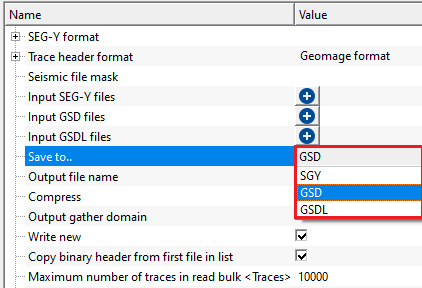
Save to.. - SGY
this option saves the final output file after concatenating all input files in SEG-Y format.
Output file name
provide the output file name with an extension of .SGY/SEGY
Compress { 32 bits, 16 bits, 8 bits }
this allows the user to compress the output file size to reduce the overall size of the output data. By default, 32 bit. The lower the compress rate the smaller the file size however 16 bits compression is recommended. This option won't impact the seismic data.
Save to.. - GSD
this option saves the final output in g-Platform internal file format.
Output file name
provide the output file name. It saves the final output file with an extension of ".gsd"
Compress { 32 bits, 16 bits, 8 bits }
this allows the user to compress the output file size to reduce the overall size of the output data. By default, 32 bit. The lower the compress rate the smaller the file size however 16 bits compression is recommended. This option won't impact the seismic data.
Save to.. - GSDL
this option saves the final output file as g-Platform internal file format.
Output file name
provide the output file name. Final output file will be saved with an extension of ".gsdl".
Output gather domain { TIME, DEPTH, FREQUENCY }
specifies the physical domain of the concatenated output data. By default, TIME. Set this to match the actual domain of the input files — TIME for raw field or pre-stack data recorded in milliseconds, DEPTH for depth-migrated data, or FREQUENCY for frequency-domain data. This tag is written into the output file header and controls how downstream g-Platform modules interpret the data axis. Mismatch between the selected domain and the actual data will not cause an error at this stage but may cause incorrect results in subsequent processing modules.
Write new
controls whether the output file is created fresh on each execution. By default, TRUE (Checked). When enabled, any existing file at the specified output path is overwritten completely before writing begins. When disabled, the module appends traces to the end of an existing file, which is useful for incremental concatenation workflows. Leave this option enabled (the default) for most use cases to ensure the output contains only the current set of input files.
Copy binary header from first file in list
controls whether the SEG-Y binary header (400 bytes) from the first file in the input list is copied verbatim into the output file header. By default, TRUE (Checked). This is the recommended setting when all input files share the same acquisition parameters (sample interval, number of samples, measurement system, data format). Disable this option only when writing to SGY format and you want to override the binary header parameters separately — in that case the module uses the sample count and sample interval from the first file but applies the Compress setting for the data format byte.
Maximum number of traces in read bulk
sets the number of traces read from each input file and written to the output file in a single I/O operation. By default, 10000 traces. A larger value reduces the number of disk read-write cycles and can speed up concatenation on fast storage, but requires more RAM. If you are working with very long traces (many samples per trace) or have limited available memory, reduce this value. For most surveys processed on modern workstations, the default of 10000 traces provides a good balance between speed and memory usage.
Re-assign FFIDs { None, By file name, By number in collection }
controls whether Field File Identification Numbers (FFIDs) are overwritten in the trace headers of the output file. By default, None. When multiple input files share overlapping FFID ranges, reassigning FFIDs ensures uniqueness across the merged dataset, which is important for geometry matching and QC. Choose one of the following modes:
None — no reassignment is performed; original FFIDs from each input file are preserved. Use this when input files already have unique, non-overlapping FFIDs.
By file name — all traces from a given input file are assigned the numeric digits extracted from that file's name. This is useful when file names encode shot numbers or reel numbers (e.g., "reel_1042.sgy" becomes FFID 1042).
By number in collection — all traces from the first input file receive FFID 1, from the second file FFID 2, and so on. Use this when you want a simple sequential file-level identifier in the output trace headers.
Re-assign surveyID
when enabled, g-Platform assigns a new, unique survey ID to every source point, receiver point, and bin point across all input files, ensuring there are no conflicting survey identifiers in the merged output. By default, FALSE (Unchecked). Enable this option when merging GSD or SEG-Y files from different surveys or acquisition campaigns that may have overlapping internal survey ID numbers. When this option is enabled alongside Reset survey names, the module additionally renames the surveys in the output file based on the selected naming rule.
Reset survey names { No, Reset by filename, Reset if name doesn't exist }
controls whether and how survey names stored in the output file header are updated. By default, No. This parameter is only relevant when Re-assign surveyID is enabled and the output is in GSD or GSDL format. Survey names are used by g-Platform to label and distinguish datasets internally.
No — survey names are not modified; original names from each input file are merged into the output file as-is.
Reset survey names - Reset by filename
if reset survey name option is checked (TRUE), it will reset the survey names based on the file names.
Reset survey names - Reset if name doesn't exist
this will rest survey names if there is no file name based on the mask provided by the user
Mask to extract survey name from filename
it will extract the survey names from the user provided input files. By default, FALSE (Unchecked).
Prefix
a text string prepended to the name extracted from the input file name when constructing the new survey name. By default, "Survey_". For example, if the mask extracts "line42" from the file name, the resulting survey name in the output will be "Survey_line42". Change this prefix to match your project naming convention.
Mask starts with
an optional text pattern that the file name stem must begin with in order for the survey name extraction to be applied. Leave blank to disable this filter. For example, entering "line" restricts name extraction to files whose stems start with "line". The matched starting text is stripped from the extracted name before the Prefix is applied.
Mask ends with
an optional text pattern that the file name stem must end with for the survey name extraction to be applied. Leave blank to disable this filter. The matched ending text is stripped from the extracted name before the Prefix is applied.
Auto-apply file mask on execution
when enabled, the module automatically runs the "Apply seismic files from mask" action at the start of each execution, refreshing the file lists from the Seismic file mask before concatenating. By default, FALSE (Unchecked). Enable this option in automated workflows where new GSD or GSDL files matching the mask pattern may be added to the project between runs. When disabled, the file lists are populated only when the user manually clicks the "Apply seismic files from mask" action.
Settings
Skip
By default, FALSE(Unchecked). This option helps to bypass the module from the workflow.
Output data
There are no output vista items from his module. Final output gather after concatenation should be defined within the Parameters tab section.
Information
This module does not expose additional execution settings. All processing options — including file selection, output format, trace bulk size, FFID reassignment, and survey name management — are configured exclusively within the Parameters section. There are no GPU or distributed execution options for this module.
Examples
In this example, we read independent SEGY files by using Input SEG-Y files. In other instance, we read g-Platform internal data files (.gsd) using seismic file mask.
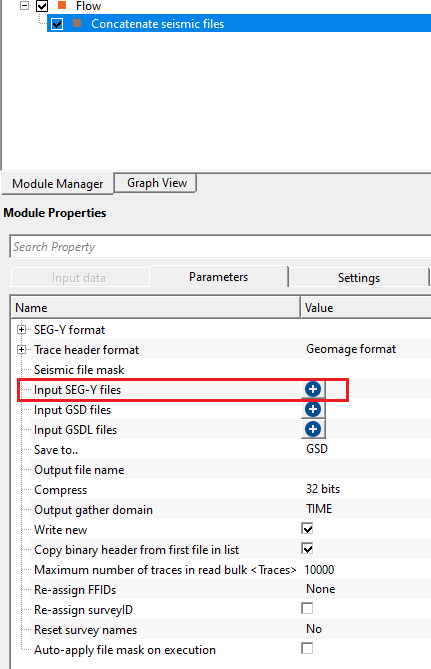
To read them manually, user should click on icon. It will open a new window.
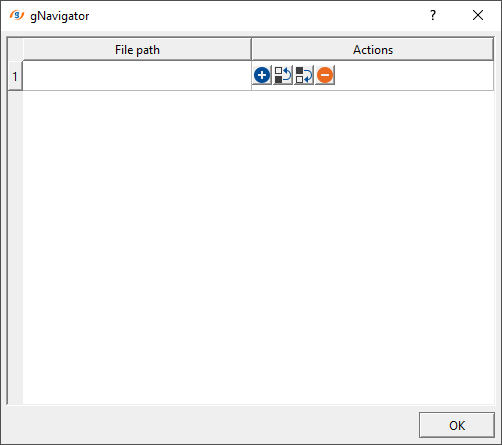
Click inside File path and choose the file path. Here, we can select multiple files by holding SHIFT button. Select all the files and click " Open"
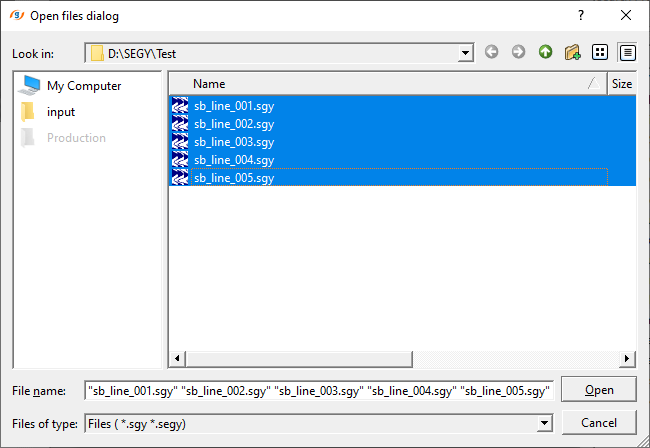
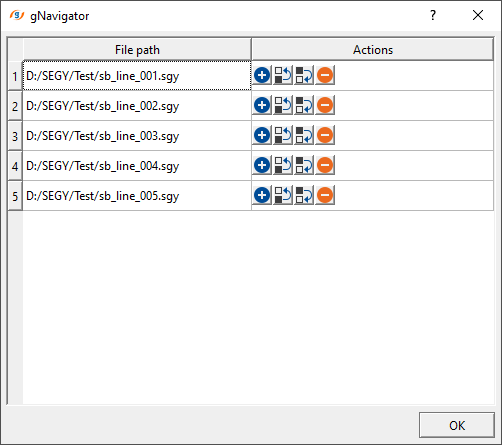
Click OK. With this step, we successfully provided all the input SEG-Y files.
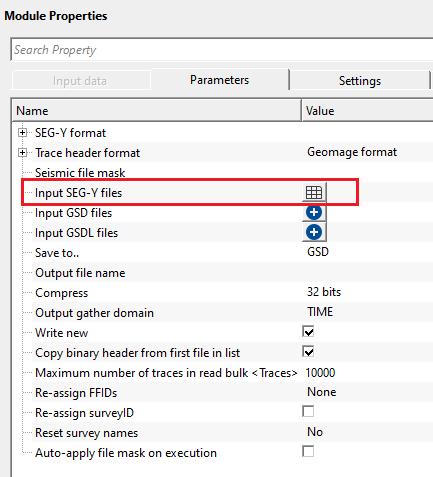
How to use seismic file mask?
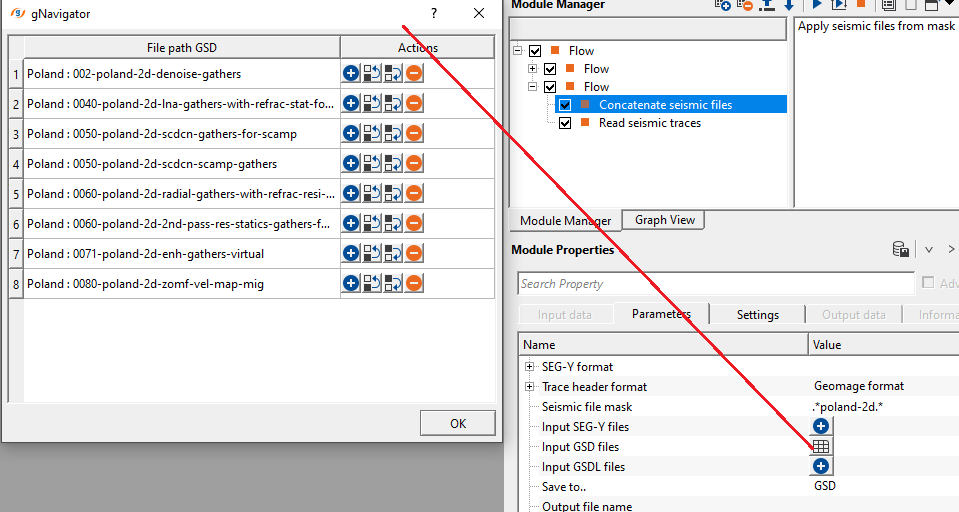
we are reading multiple GSD files with different file names as poland-2d-denoise-gathers, poland-2d-scdcn-gathers-for-scamp, poland-2d-scdcn-scamp-gathers etc.,. We read these files as independently and also by using mask.
Seismic file mask is nothing but providing a common file name among all the input files with a combination of special character.
In this case, our input file names are poland-2d-denoise-gathers, poland-2d-scdcn-gathers-for-scamp, poland-2d-scdcn-scamp-gathers
To create a seismic file mask, we simply provide the name as .*poland-2d.*
Place this expression or seismic file mask against the seismic file mask in the Parameters tab.
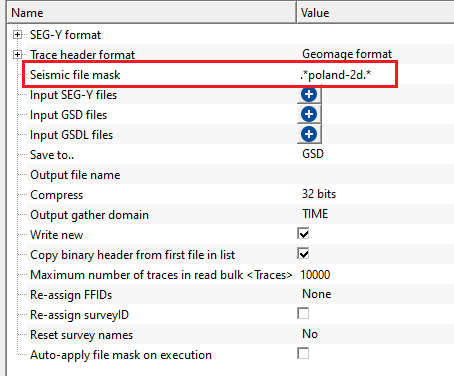
Now click on "Apply seismic files from mask" action item. It will add all the files(.gsd) associated with the seismic file mask. They'll display in the Input GSD files list.
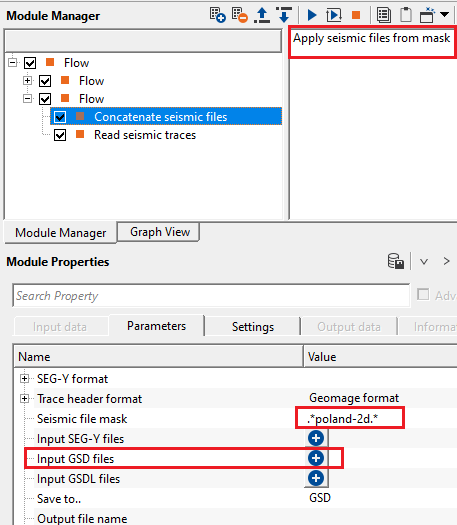
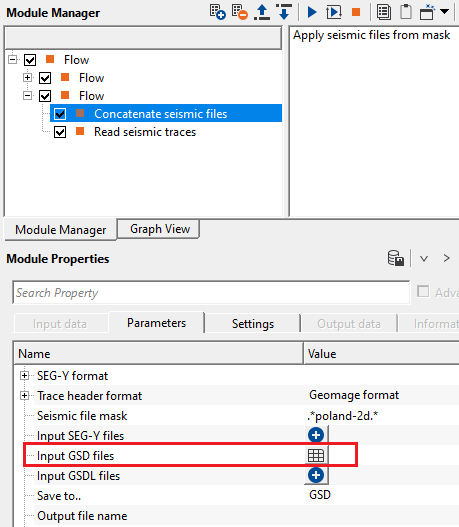
To check the input file names, click on the table icon. It will open a new window with all the input files.
Actions
Apply seismic files from mask
in case the user wants to use seismic file mask, click on this action item and it will apply the mask. This is useful for reading multiple seismic files at a time by using a mask file. It avoids manual selection of the input dataset(s).
Video lesson
YouTube video lesson, click here to open [VIDEO IN PROCESS...]
Related articles
Yilmaz. O., 1987, Seismic data processing: Society of Exploration Geophysicist
 * * * If you have any questions, please send an e-mail to: support@geomage.com * * *
