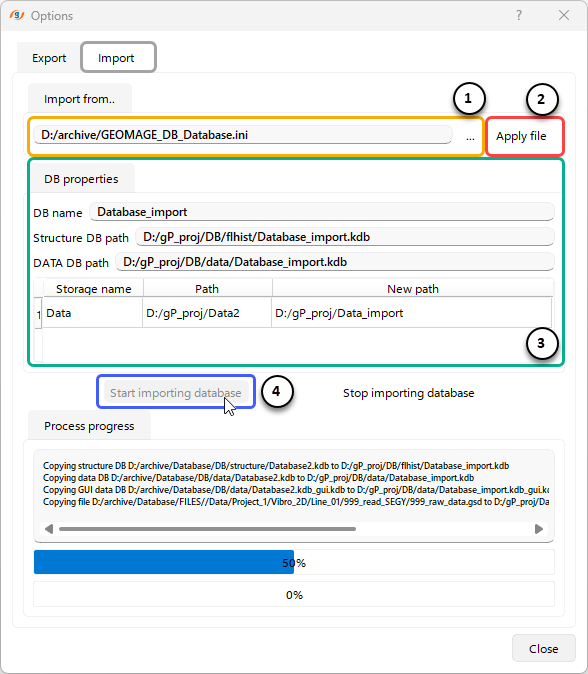
 To Import a previously exported database, open the Import tab in the Import/Export dialog window.
(1) Specify the path to database configuration file (*.ini) using the file selection field or the browse button.
(2) Click "Apply file" to read the selected configuration file.
(3) Review and adjust Database properties, including: Database name, Paths for the structure database and binary data, Storage paths for datasets.
(4) Click "Start importing database" to begin the import operation.
Once the import process completes successfully and the database is created, the user can view it along with all its properties in the Project Tree section of the main g-Platform management window.