The Project Tree of the main g-Platform Managing Workspace is used to create and manage databases, projects, areas, and lines, as well as to view the properties of existing items.
g-Platform doesn't require any 3rd party database software. It uses Windows/Linux file system and all the project data will reside in the local/server hard disks.
The Project Tree section consists of the following elements: shortcut buttons (1), search bar (2), and the project hierarchy tree (3):
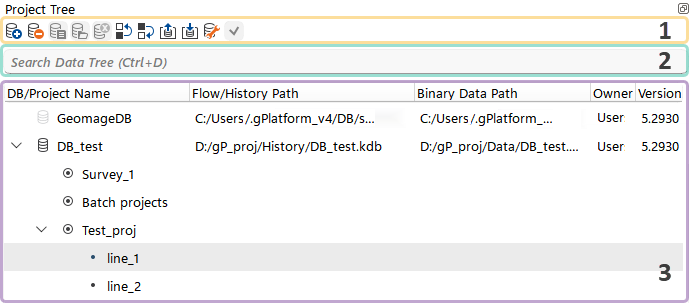
Shortcut buttons allow the user to quickly perform actions within the database or project hierarchy.

When the user hovers the mouse cursor over these icons, a tooltip describing each icon’s function is displayed.
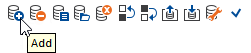
Depending on the currently selected element in the project hierarchy, the button icons may appear in color or gray, indicating whether the corresponding action is available or not for that element.
 |
Each button provides a predefined set of actions.
 Create new element - Database, Project, Area, Line (Insert Key).
 Delete any element - Database, Project, Area, Line (Delete Key).
 Database Properties view.
 Open Database (make it active).
 Close Database (make it inactive).
 Move any Project, Area, or Line Upward within the current structure.
 Move any Project, Area, or Line Downward within the current structure.
 Export Database (to external storage).
 Import Database (from external storage).
 Restore the Database from back-up.
 Check the Database for consistency.
The Search bar allows the user to find any element within the Project Tree section of the currently opened databases.

For quick access to the search bar, the user can press Ctrl + D.
The Project Hierarchy Tree consists of five columns and allows the user to view the structure of databases and projects, as well as their main properties.
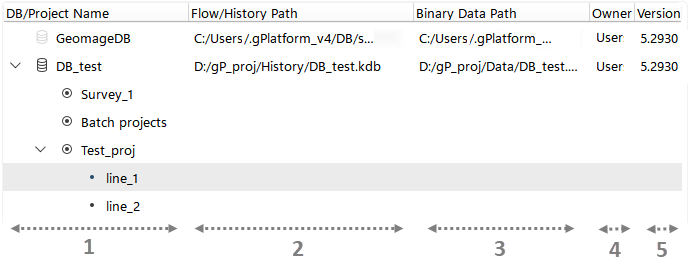
These columns present the following information to the user:
1.DB/Project Name – The name of the database or project (area, line), providing a visual representation of the hierarchical structure.
2.Flow/History Path – The full path to the database’s workflows and history information.
3.Binary Data Path – The full path to the database’s binary data.
4.Owner – The user who created the database.
5.Version – The software version in which the database was created.