Table view
This window provides a convenient interface for reviewing and editing various types of data in a table format.
It is particularly useful for managing markers data, log data, seismic attributes, well logs, contacts data, fault data, grid reports and other subsurface information. This feature allows for efficient data updating, comparison, and quality control, making it an essential tool for ensuring the accuracy and consistency of the geo dataset.
Data can be easily sorted by values in descending/ascending or alphabetical order in each column by clicking on the column name, and you can also manually change the values in an editable cell by double-clicking on it.
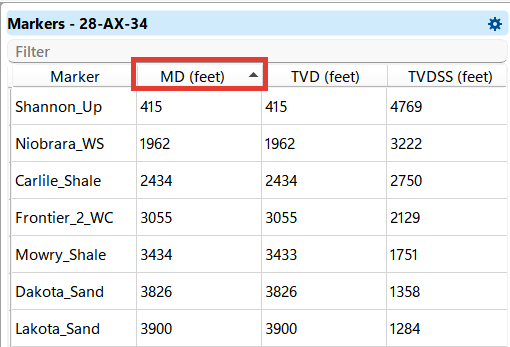
Editing data in a Properties table
Objects that store tabular data can be opened as an editable Properties table. Add a Table view to the workspace from the Views bar first: the object is loaded into the Properties table item of the active Table view, which is not created automatically. Then right-click the object in the Data manager and choose Show as table. The caption of the item names the object, for example Properties table: Inclinometry - <well name>.
The command is available for:
- a point set under Points;
- the Tops subsection of a marker set, or a single marker in it;
- the Zones subsection of a marker set, or a single zone in it;
- a checkshot of a well;
- the Inclinometry subsection of a well.
Only the columns that hold stored values can be changed. The columns that g-Space calculates are read-only and are shown on a grey background:
- Points - X, Y and the attribute columns can be edited; Point index is read-only.
- Marker tops - Marker, MD, Age, Type and the custom attribute columns can be edited; Well name, TVD, TVDSS, TWT (s), X and Y are read-only. A new value in Marker renames that marker in every well of the set, and Type accepts Marker, Fault or Intrusion.
- Zones - the whole table is read-only. Its values follow the marker tops the zone is built from, so edit those tops instead.
- Checkshots - Base TVD and Base OWT (s) can be edited; Result TVD and Result OWT (s) are read-only.
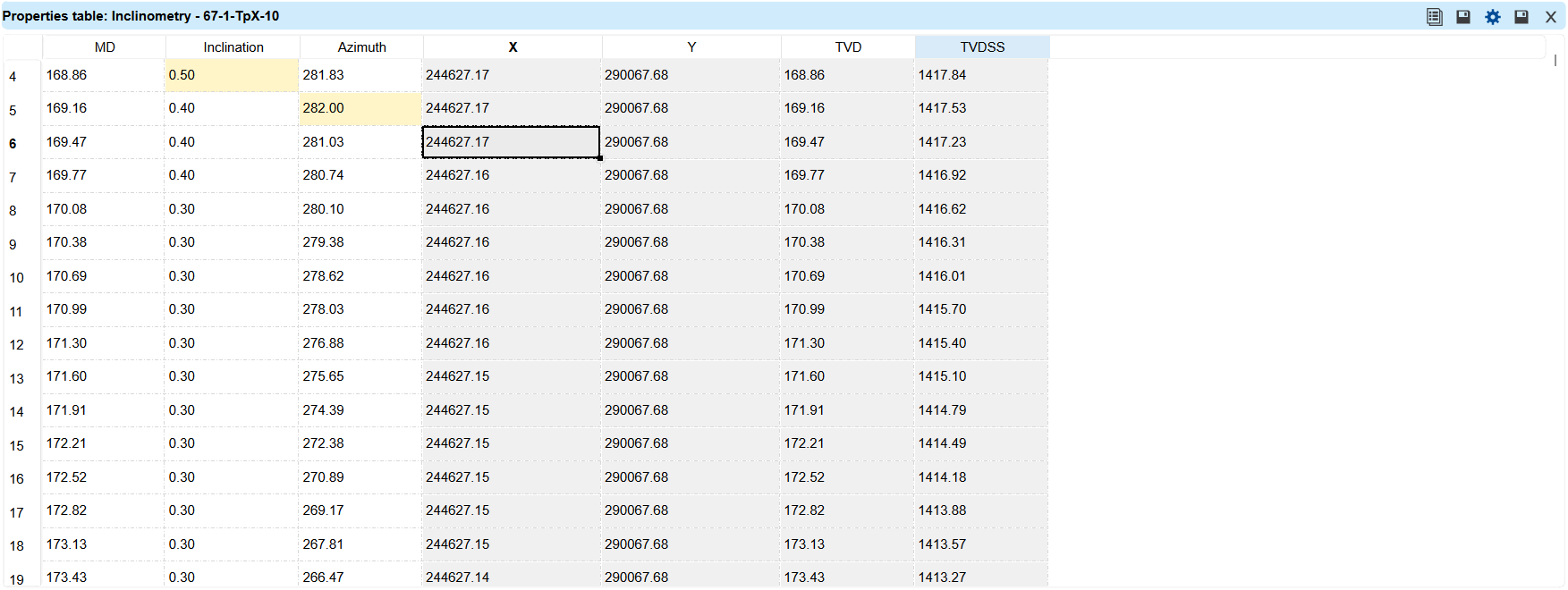
- Inclinometry - MD, Inclination and Azimuth can be edited; X, Y, TVD and TVDSS are read-only.
Double-click an editable cell and type the new value. The value is held in the table and marked on a yellow background; the object itself is not changed yet. For these tables the header of the Table view carries two more buttons, Save edits (disk icon) and Discard edits (cross icon), which become available as soon as the table holds an unsaved change.
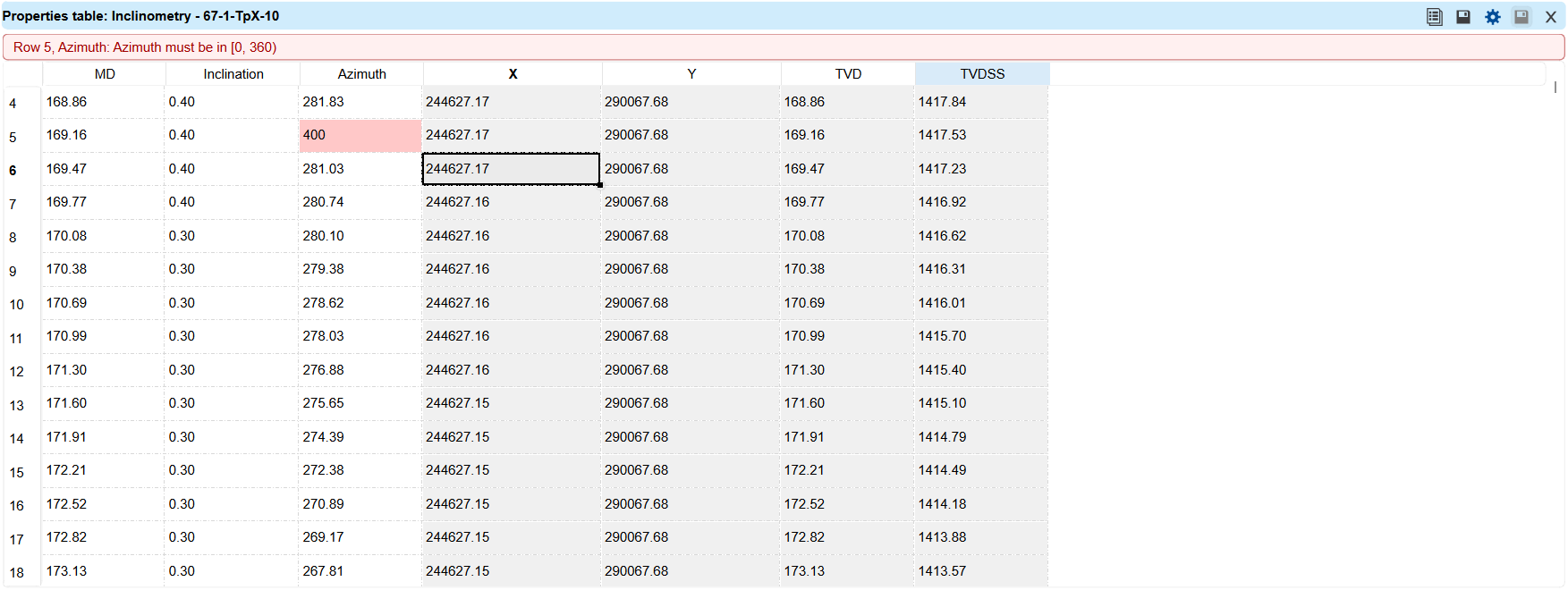
Every entered value is checked immediately. A value that is refused is marked on a red background, the reason is shown in a red line above the table, and Save edits stays unavailable until the value is corrected or the changes are discarded. Values must be numeric and inside the range of their column: an inclination between 0 and 180 degrees, an azimuth of 0 or more and less than 360, and depths that stay within the total depth of the well and increase from row to row.
Save edits writes all held values to the object and the values calculated from them are updated: changed survey stations rebuild the well trajectory, changed checkshot values update the time-depth relationship of the well, and changed point coordinates move the points. The table, the Data manager and the views that show the object are refreshed. Discard edits drops the held values and restores the stored ones.
Unsaved changes live only in the table. Loading another object into the Table view discards them without a warning, so save the changes before opening another object.