View tab allows user to adjust views visual setting in g-Space. The settings list may vary depending on the active view type.
In the upper part you can reset properties to default parameters  or propagate properties to other same type views
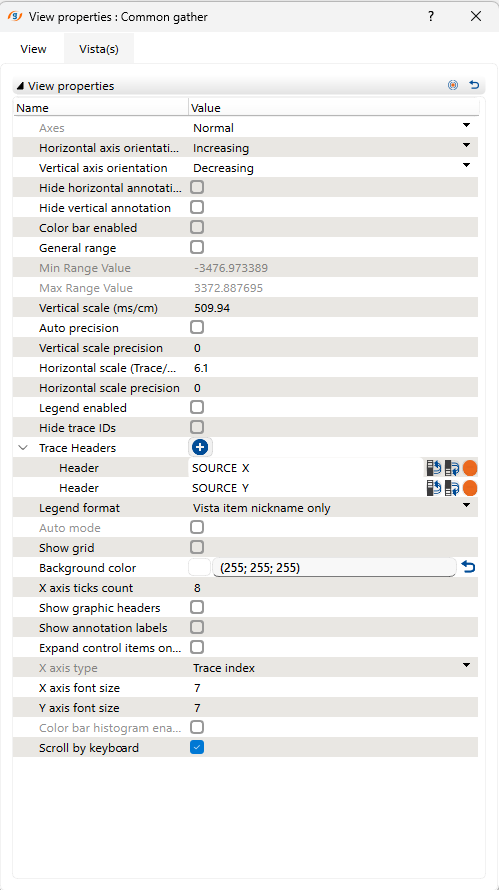
Here is the list of the settings you can make for the active view (it may not be complete and depends on the active view type):
•Axes - default: Normal, but currently that property is disabled. Designed to change Horizontal and Vertical axes by rotating it 90 degrees.
•Horizontal/vertical axis orientation - flips orientation of horizontal/vertical axis
•Hide horizontal/vertical annotation - hide annotation from horizontal/vertical axis
•Color bar enabled - when enabled adds color bar on right side of the view
•General range - when selected, the program will consider next 2 parameters for colorbar range of the pallete
•Min/Max Range Value - when enabled define minimum/maximum value of the palette for all Vistas on the view
•Vertical scale (feet/cm) - defines the actual vertical scale of the view
•Auto precision - when checked, application will define automatically the precision of vertical scale
•Vertical scale precision - when auto-precision not checked, this parameter defines precision for the vertical scale
•Horizontal scale (feet/cm) - defines the actual horizontal scale of the view
•Horizontal scale precision - when auto-precision not checked, this parameter defines precision for the horizontal scale
•Legend enabled - when enabled adds legend on the view
•Legend format - defines legend format
•Auto mode - default settings
•Show grid - shows grid on the view
•Background color - defines background color
•Isometric mode - when checked, vertical and horizontal scales will be the same
•X axis ticks count - number of ticks for horizontal axis
•Horizontal axis scale type - defines linear or log type for horizontal scale
•Vertical axis scale type - defines linear or log type for vertical scale
•Expand control items on toolbar - allows to show more icons in the upper part of the view
•Hide trace IDs - hides traces IDs on section views
•Trace Headers - allows to add additional information to section views from the segy headers