Module name Read Seismic Traces
Read Seismic Traces module is used to read any dataset (internal *.gsd) generated by g-Platform™. Similar to "Read SEG-Y traces" module, here also the user should input the dataset from the Parameters tab.
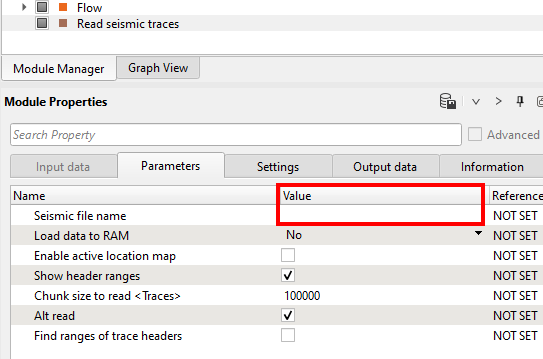
When the user clicks at Seismic file name it will be blank as shown below under Value column. Once we click, it will display all the available internally generated dataset(s).
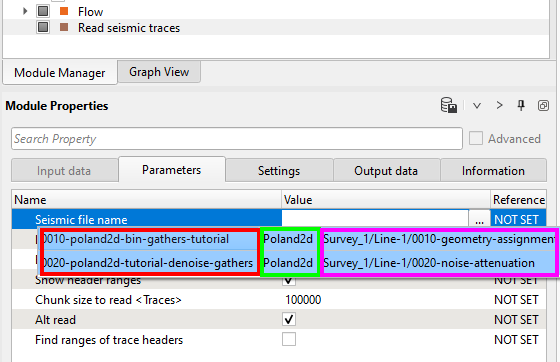
If we observe the right hand side image, we see two datasets with the dataset name, survey description, from which workflow we generated this dataset. The background color (blue) coding tells us that the datasets are generated in this project. If the background color is different that means either we imported those datasets into the current survey/project or they are not related to this survey/project.
Just select any one among them and hit Enter. We just input the dataset to the "Read seismic trace" module.
Parameters
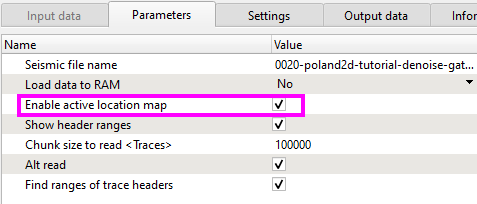
Enable active location map |
By default it is unchecked. If user checks this option, it allows the user to click on the location map to display the current source/receiver/bin gathers. |
Show header ranges |
This will display all the trace header ranges. |
Find ranges of trace headers |
By default it is unchecked. If the user checks this option, it will display all the trace headers range. It will work in conjunction with Show header ranges option. To see the trace header ranges, the user should go to Information tab and look for the Trace headers option which is at the bottom. |
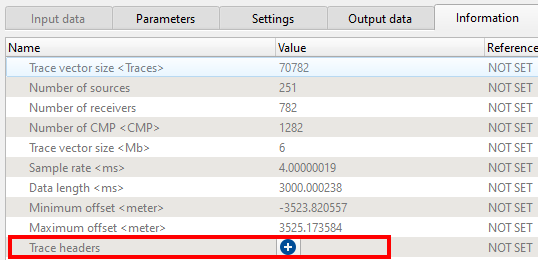
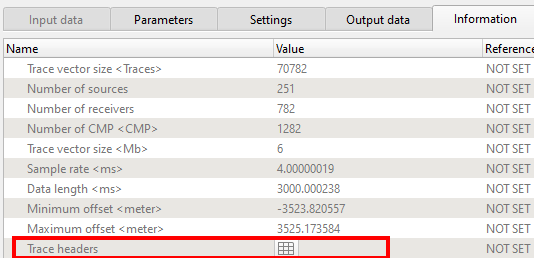
In the above images, the one on the left hand side is with the Find ranges of trace headers option in unchecked and on the right hand side is with the option checked. Now click on the  icon to display the trace headers and it's ranges as shown below.
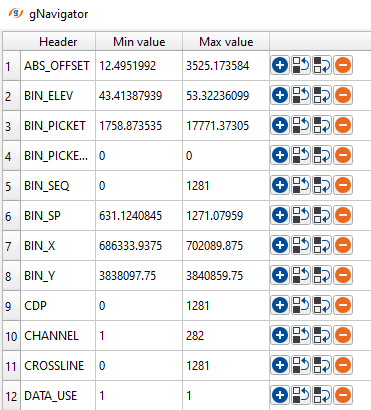
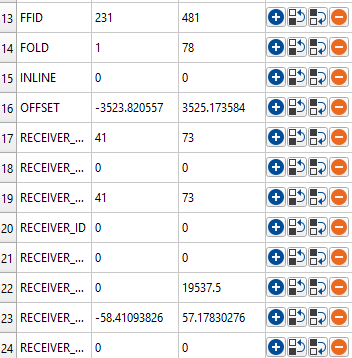
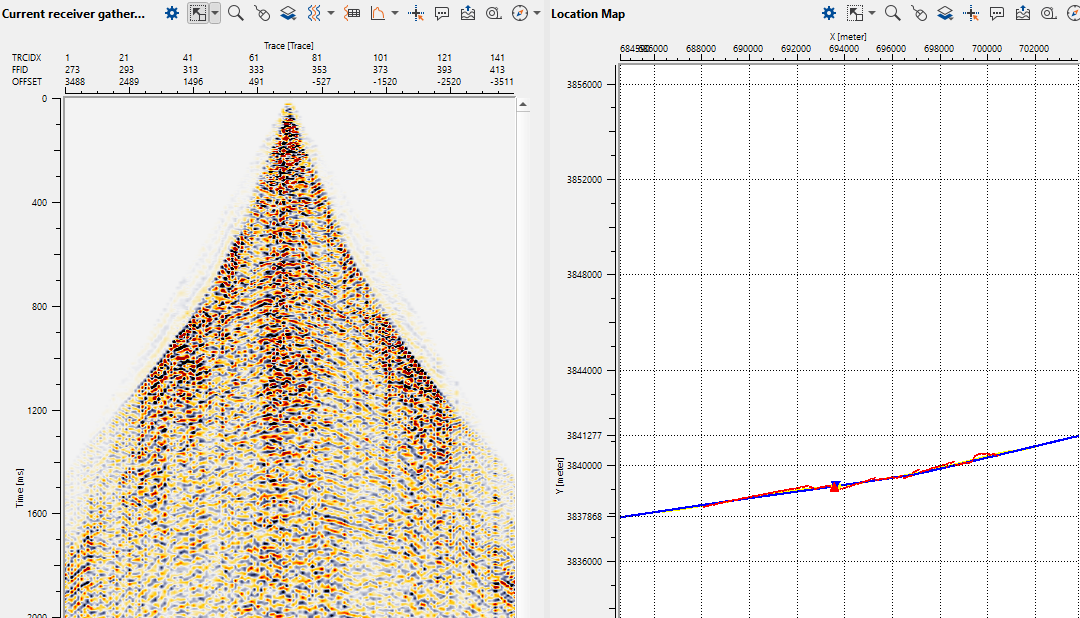
To see the current shot/receiver/bin gather, we should check the option of "Enable active location map" and launch the Vista items from "Read seismic traces"
On the Location map, the user should click on the  icon to select the desired gathers. It comes up with Selected source/receiver/bin as shown below.
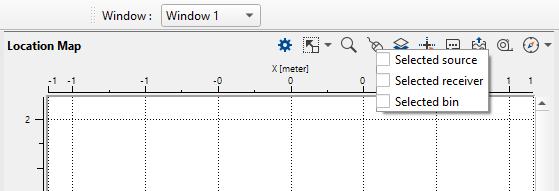
Now click on the Location map. In the below image, we've selected "Selected receiver".