The View Manager section of the View Manager Panel, allows the user to switch between currently opened workspaces in the Client Manager Area, configure and manage them, and create custom workspaces and views.
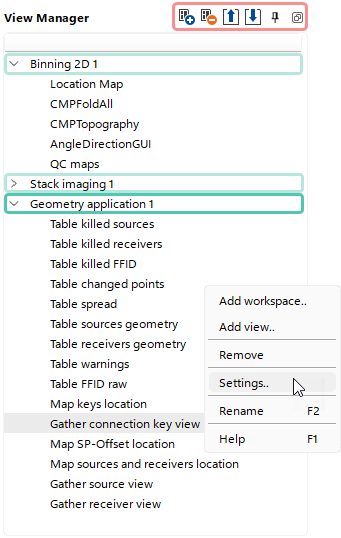 In the View Manager, the user can see the full list of workspaces currently opened in the Client Manager Area, including all Vista Views.
Selecting any workspace or specific Vista View from the list displays the corresponding workspace in the Client Manager Area. The selected element highlighted in Gray within the list.
To perform quick actions within the section, the user can use shortcut buttons  .
.
 Add a new empty Workspace.
 Remove selected Workspace or Vista View.

 Move the selected element Up/Down.

 Unpin the current View Manager section from the g-Navigator window.
The user can also perform actions within the section using the Right-Click context menu which allows:
•Add Workspace.. - Add a new empty Workspace.
•Add View.. - Adds a new Vista View using the Create dialog window.
•Remove - Remove selected Workspace or Vista View.
•Settings.. - Opens View Properties window for the selected Item.
•Rename - Allows to rename the Item (F2 key).
•Help - Fast access to the Help Documentation (F1 key).