General settings for the entire Vista View are configured in the View tab of the View Properties dialog.
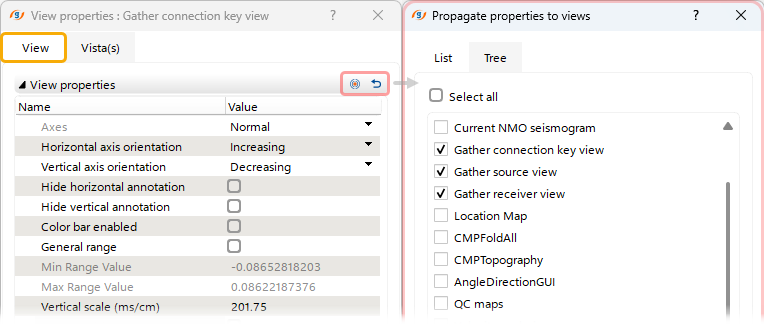 At the top, the user can reset properties to default values
  or propagate
  them to other Vistas of the same type via a pop-up dialog.
The following Settings can be adjusted for the active Vista View (options may vary depending on the Vista type):
•Axes - Default: Normal, but currently that property is disabled. Designed to change Horizontal and Vertical axes by rotating it 90 degrees
•Horizontal/Vertical axis orientation - Flips orientation of Horizontal/Vertical axis
•Hide horizontal/vertical annotation - Hide/Show annotation from horizontal/vertical axis
•Color bar enabled - Enable/Disable bar on right side of the View
•General range - Allows the user to set minimum and maximum values to define the color bar range of the palette
•Min/Max Range Value - Set minimum and maximum values to define the color bar range of the palette
•Vertical/Horizontal scale - Defines the actual vertical/horizontal scale of the view
•Vertical/Horizontal scale precision - Defines precision for the vertical/horizontal scale
•Auto precision - The application automatically determines the precision of the axes
•Legend enabled - Enable/Disable interactive legend on the view
•Legend format - Defines the legend format using a drop-down list
•Auto mode - Default settings
•Show grid - Shows grid on the view
•Background color - Sets the background color
•Isometric mode - Enable/Disable equal scaling of the vertical and horizontal axes
•X axis ticks count - Number of ticks for Horizontal axis
•Vertical/Horizontal axis scale type - Sets linear or log type for Vertical/Horizontal axis
•Expand control items on toolbar - Enable/Disable expands all available options of a Control Item into separate shortcut buttons
•X/Y axis font size - Sets the font size of the X/Y axis tick labels
•Color bar histogram enabled - Enable/Disable color bar histogram on right side of the View
•Scroll by keyboard - Enable/Disable scrolling using the keyboard
•Take a screenshot (batch mode) - Enable/Disable screenshot capture in batch mode
--------(seismic view)--------
•Hide trace ID - Hides the default trace ID and scale in the seismic view
•Trace headers - Adds  and defines trace header(s) used for annotations and plots along the X-axis (
 Move Up,
  Move Down,
 Remove the Trace Header)
•Show graphic header - Enable/Disable plotting of header values at the top of the view
•Show annotation labels - Enable/Disable annotation labels