In the Workflow History tab of the Workflow Manager section, the user can view and analyze all parameters of existing workflow revisions, as well as restore or submit any revision.
The Workflow History tab generally consists of two main sections: Revision (1) and Module/Item (2).
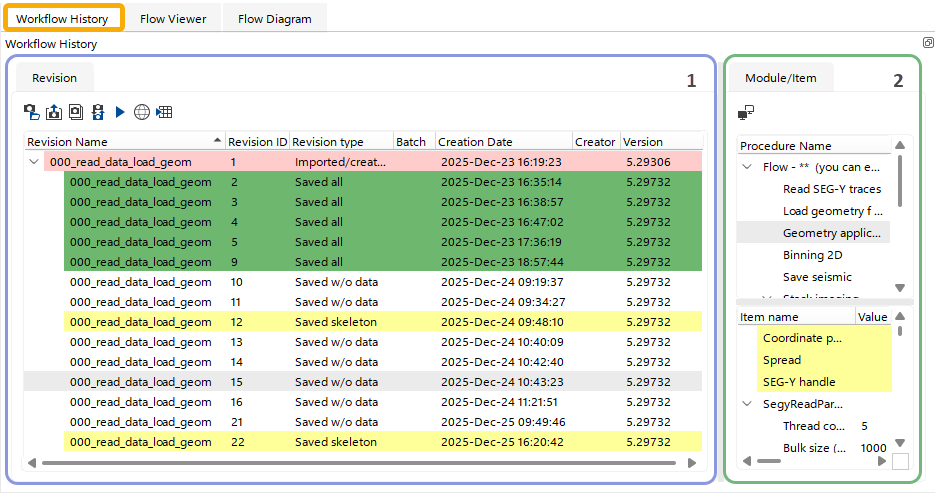
In the Revisions section (1), the user can view a list of all existing (saved) revisions of the selected workflow, along with their properties, such as the workflow name, revision ID, revision type, creation date, creator, and the software version in which the revision was created.
Revision types are highlighted with corresponding colors:
•Imported/created - The workflow revision was first created or imported into the current project.
•Saved w/o data - Only the module structure and parameters are saved.
•Saved skeleton - Saves the module structure and parameters along with the layout of all windows, panels, workspaces, and opened Vistas in g-Navigator.
•Saved all - Saves the module structure and parameters along with the layout of all windows, panels, workspaces, and opened Vistas in g-Navigator, and all binary data linked to the open Vistas.
•The currently selected revision is highlighted in gray.
The user can perform actions on the selected revision using shortcut buttons  or the right-click context menu.
 Open selected Revision in g-Navigator (Double left-click or Enter Key).
 Export selected Revision to external storage.
 Copy selected Revision (???).
 Compare selected Revisions (??????????????).
 Submit selected workflow Revision to the Local Workstation.
 Submit selected workflow Revision to the Remote Distribution.
 Test Items.
In the Module/Item section (2), the user can quickly view the complete list of modules used in the corresponding workflow revision, along with all set parameters.