Let's start by getting acquainted with the program by exploring the interface.
Subscribe to our channel and watch g-Platform overview and tutorials on YouTube
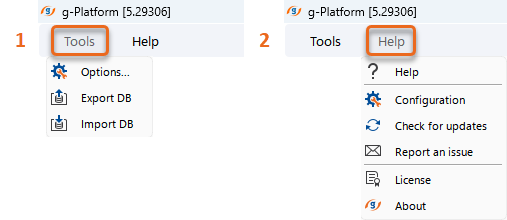
The main menu of g-Platform includes the following tabs:
1.Tools - Options to set main interface settings and import/export database(s):
•Options... - Configure main interface settings (style, fonts, etc.).
•Export DB - Export the project database.
•Import DB - Import an external project database.
2.Help - Access to help, support, and global configuration settings:
•Help - Open the help documentation.
•Configuration - View and edit global configuration parameters (paths, links, batch settings, backup options, etc.)
•Check for updates - Check for available software updates.
•Report an issue - Direct the user to the software system log folder.
•License manager - Manage software licenses.
•About - View information about the software version and credits.
The g-Platform Managing Workspace consists of several areas, each of which can be customized individually.
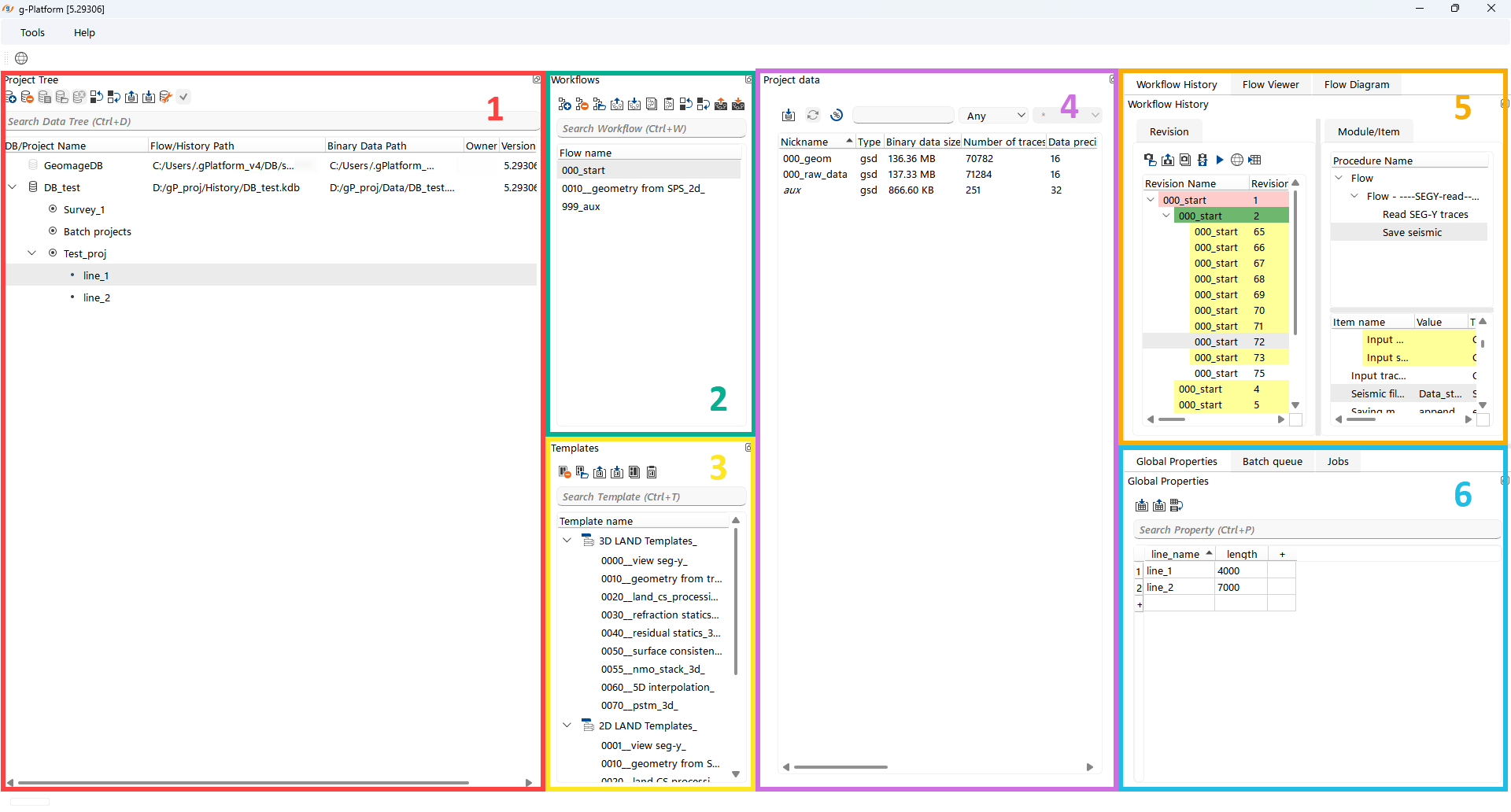
(1)Project Tree – Create and manage databases, projects, areas, and lines, as well as view the properties of existing items.
(2)Workflows – Create and manage workflows for the selected area or line.
(3)Templates – Use and manage predefined workflow templates, as well as create custom ones.
(4)Project data – Manage project datasets and view the properties of all existing data and corresponding items.
(5)Workflow manager - Instant access to any submitted workflow revision, with full analysis of all component parameters and representations, including a graphical view.
(6)Batch Manager – Configure (import/export) global variables for processing in batch mode (e.g., a set of 2D lines) and manage their submission process.