When the user Double-clicks a workflow with the Left Mouse button or opens it by another method, the workflow is opened in the g-Navigator application.
Let’s start by getting acquainted with the g-Navigator component of the g-Platform suite by exploring its interface.
Subscribe to our channel and watch g-Platform overview and tutorials on YouTube
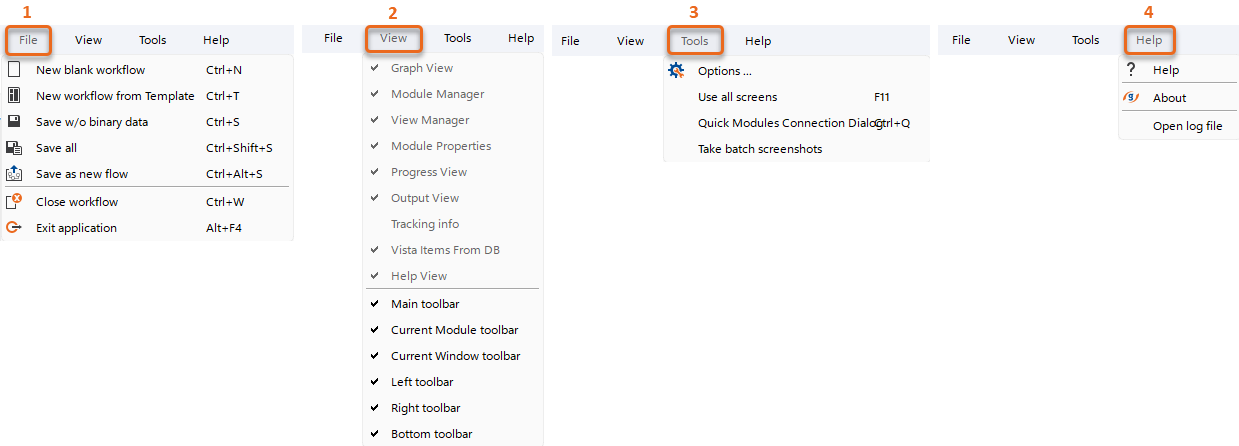
The main menu of g-Navigator includes the following tabs:
1.File - Access to basic workflow operations, such as creating, opening, saving, importing data:
•New blank workflow - Create new empty workflow (Ctrl + N).
•New workflow from Template - Create a new workflow based on predefined Templates (Ctrl + T).
•Save w/o binary data - Saves only the module structure and parameters of the current workflow (Ctrl + S).
•Save all - Saves the module structure and parameters along with the layout of all windows, panels, workspaces, opened Vistas, and all binary data linked to the open Vistas (Ctrl + Shift + S).
•Save as new flow - Create a new workflow with structure from the current one (Ctrl + Alt + S).
•Close workflow - Close the current workflow (Ctrl + W).
•Exit application - Close the g-Navigator application (Alt + F4).
2.View - Control the visualization settings of the g-Navigator window.
3.Tools - Configure main interface settings and access other useful quick actions.
•Options - Configure the main interface (style, fonts, etc.), measurement settings, and other advanced options.
•Use all Screens - Expand the g-Navigator window across all connected monitors.
•Quick Modules Connection Dialog -
•Take batch screenshots -
4.Help - Access help documentation and the log file location on disk.
•Help - Open the Help Documentation.
•About - Open the informational window for the current g-Platform version.
•Open log file - Opens the System Log file location on disk.
The g-Navigator workspace consists of several main areas with internal subsections, each of which can be customized individually. Logically, all sections can be divided into the following areas, in accordance with their default locations:
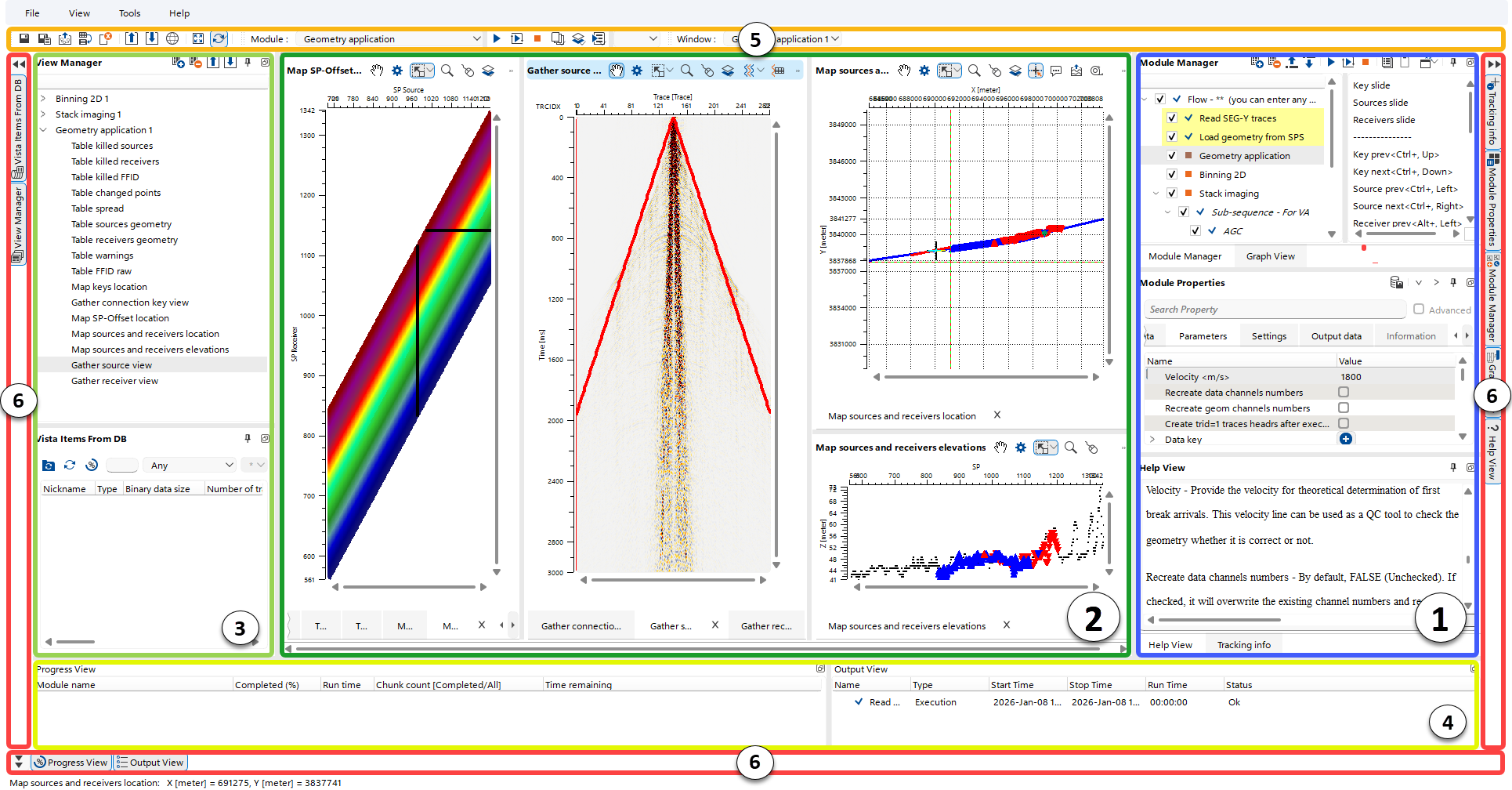
(1)Workflow Manager Panel – Create and manage workflows, configure module parameters, and execute or interrupt individual modules or entire workflows.
(2)Client Manager Area – Interact with and manage opened Vistas (visual data representations).
(3)View Manager Panel – Manage all Vistas opened in the Client Manager Area.
(4)Jobs Manager Panel – Monitor the status of running workflows and completed tasks.
(5)Shortcut Buttons Area - Provides quick access to frequently used commands and functions within the current workflow.
(6)Panels Manager Area – Quickly configure the visual layout and visibility of all g-Navigator panels.