To begin working with data, the user can use a Workflow Template to import a predefined workflow into the current project.
By default, g-Platform provides two groups of workflow templates for 2D and 3D data processing, which are available in the Templates panel of the main g-Platform managing window. However, users are not limited to these templates and can create and use their own custom workflows.
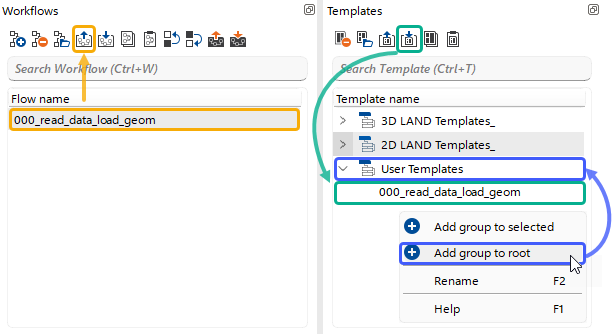 Users can store their workflow templates in the default template group or create custom groups, such as a User Templates group. Any existing workflow that has been exported from the Workflows panel in *.nfq format can be imported into the Templates panel and placed into the selected group.
To create a workflow from a template within a project, the user simply selects the template and double-clicks it or uses the corresponding shortcut button  .
.
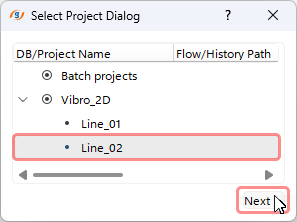 A dialog window then appears, prompting the user to select the target project for the import.
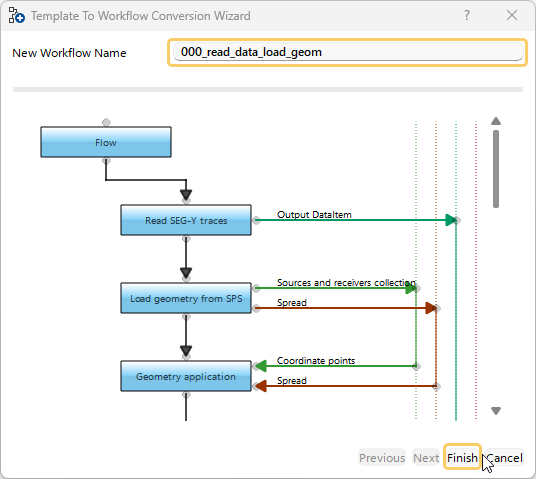
After that, the Template-to-Workflow dialog opens, allowing the user to rename the workflow and verify its consistency using the displayed block-diagram view. Once the user clicks Finish, the workflow is created in the selected project.