Import well headers
Import well headers steps:
Step 1: Locating the file
Go to Ribbon -> Wells bar and click Import wells headers from text file.
For IHS 297 fixed or Petrel files, right-click the Wells folder in Data Manager, open Import, and choose Well headers from IHS 297 fixed files or Well headers from Petrel.

In the appeared dialog box locate the file and click open:
Step 2: Setting up reading parameters
g-Space will open file preview dialog were you can set the loading parameters such as: Separator type, Headers row, Start row, Date format.
In the Original file tab you will see how the file looks like and adjust loading parameters accordingly:
Step 3: Checking reading parameters
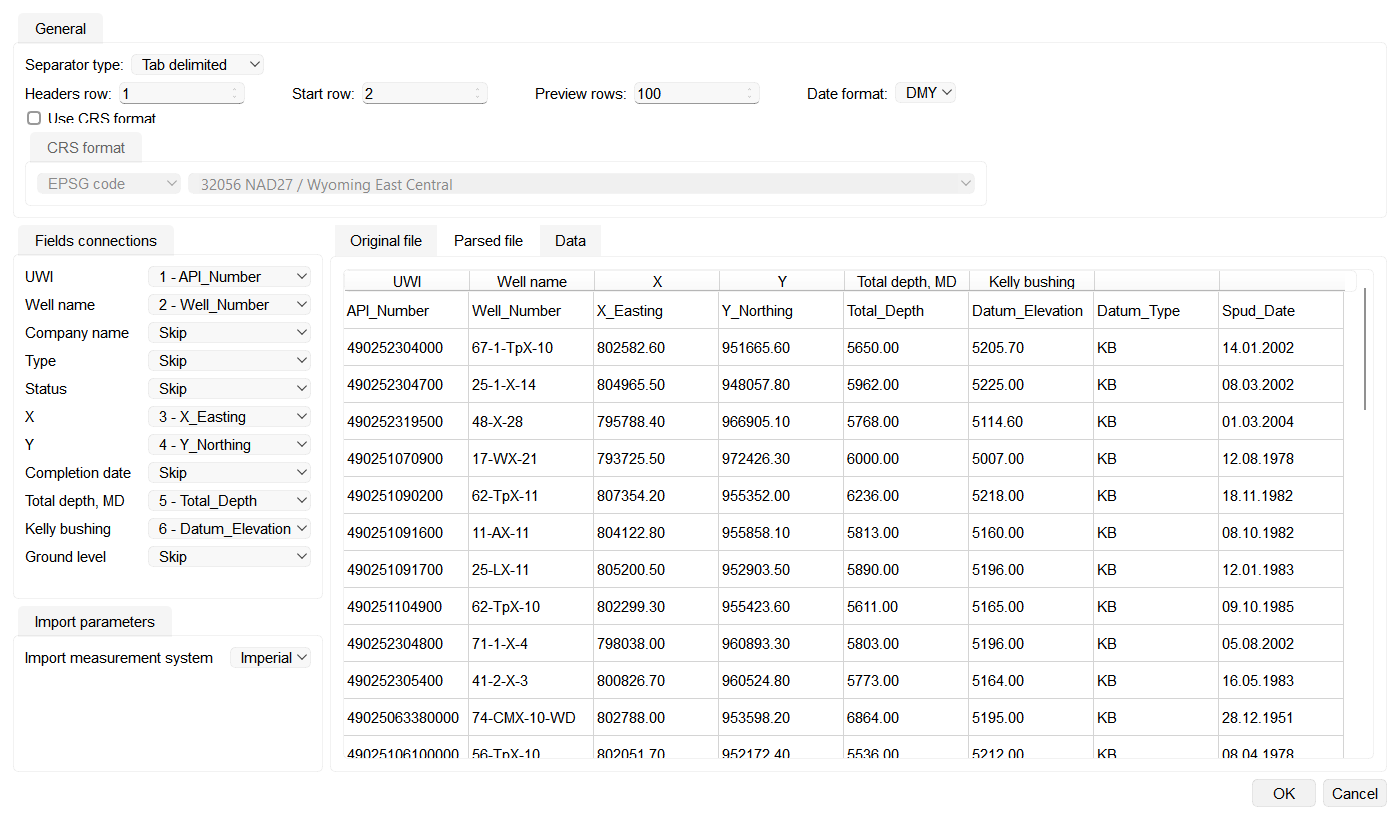
Click on Parsed file tab to check if you set reading parameters correctly and also you can decide which columns you want to add or skip:
Under Fields connections, use each drop-down to map a source column or choose Skip.
The well Type and Status are handled as two separate field connections. If your source file already contains columns named Type and Status, g-Space matches them to these fields automatically while loading the data.
The well Type and Status are handled as two separate field connections. If your source file already contains columns named Type and Status, g-Space matches them to these fields automatically while loading the data.
Note
If some of the fields are colored RED, it means that data doesn't have required type or reading parameters were set incorrectly:
Step 4: Adding columns (Optional)
If you want to add columns which is not in the field click on the column, then Right Click Mouse on the column and choose the (Additional) column check box. There is an option to Rename columns:
Note
To load well headers in g-Space the file must provide these fields: UWI, X (Easting) and Y (Northing).
Additional attributes that can be matched and loaded:
- Total depth, MD (measured depth)
- Well type
- Well status
- Ground level (GL)
- Company name
- Completion date
Step 5. Checking the loading settings
In Data tab you can see if all settings were done correctly and all necessary columns were included. After that click OK:
Step 6: Controlling loaded data
To review imported well headers, open the Wells data workspace and click a well on the Location map. The Well heads table displays the imported header data.
For more information about checkshot format please refer to Well Data Formats
Importing well headers from Petrel format
Besides plain text and CSV files, g-Space can read well headers directly from a Petrel well head export. In Data Manager, right-click the Wells folder, open Import, and choose Well headers from Petrel.
In the file dialog select one or more Petrel well head files (*.txt, *.dat) and set the coordinate reference system (CRS) and measurement system for the imported data.
A Petrel well head file declares its columns inside a BEGIN HEADER ... END HEADER block, with one column name per line; the well data starts on the line after END HEADER. g-Space recognizes the standard Petrel columns and maps them to well header fields:
- Name – well name
- UWI – unique well identifier
- Surface X, Surface Y – well head coordinates (required)
- Well datum name, Well datum value – Kelly bushing (KB)
- TD (MD) – total depth
- Spud date – completion date
- Operator – company name
Note
Surface X and Surface Y are mandatory. Any additional columns found in the header block are imported as extra well attributes.