Main bar
Main bar allows to perform the general actions with the project

The Main bar consists of four sections: Project, Workspace, Tasks and Python. Database operations have their own dedicated Database tab.
Project section:
In the ribbon these commands are captioned Open, Save and Close; the full command name is shown in the button tooltip and in the File menu.
 Open - opens an existing project. The selected project replaces the one currently open in the same g-Space session; if the current project has unsaved changes, g-Space asks whether to save them before the new project is loaded
 Save / Save project as... On selection g-Space will save all setup and configuration of the project, including all data and views. For seismic data, only paths of seismic data are saved inside the project
 Close - on selection, g-Space will unload open project and create an empty project
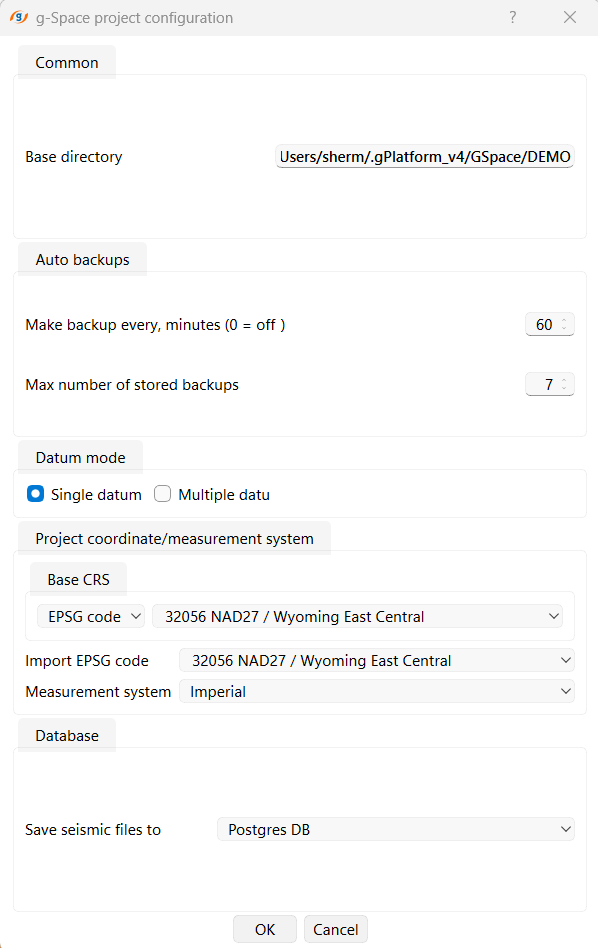
 Configuration - opens the project configuration dialog where the global settings of the project are defined
The configuration dialog is organized into the following groups:
- Base directory — the root folder of the project. All project files, databases and seismic references are stored relative to this path.
- Auto backups — the backup interval in minutes (0 = off) and the maximum number of stored backups. Protects against data loss during long sessions.
- Datum mode — choose Single datum or Multiple datum. Single datum applies one reference level to the entire project; Multiple datum allows per-line adjustments.
- Project coordinate / measurement system — define the Base CRS (EPSG code) and the Import EPSG code for incoming data, and set the measurement system (Metric or Imperial).
- Database — select where seismic files are stored: a Postgres database for large-scale projects or file-based storage for simpler setups.
 Help - opens the g-Space help system
Workspace section:
 Workspace - when an arrow button clicked, allows switch between existing workspaces (graphical setups) or in case of clicking on the main button of the combobox allows to create a new empty workspace
 Full screen - switch to Full screen mode that allows to put application in full-screen mode along all connected monitors. Shortcut key is F11
 Synchronize views - allows to synchronize different views according to their axes. If synchronization selected all corresponding axes from different views will be scrolled and zoomed accordingly. The cursor position will also move synchronically on corresponding views. Views and/or specific axes can be selected/unselected to be synced in the settings dialog that appears when an arrow button of SyncViews clicked
Tasks section:
 Workflows - Opens the Workflows panel to create, edit, and run automated job sequences.
 Stop process - interrupts Execution process and might put application state into unstable condition. It's advised to re-run Execution in such case
Python section:
The Python section provides access to the g-Space Python integration through the Python calculator button, which opens the Python calculator for running Python scripts against the project's data. See Python scripting for details.
Database operations: connecting to a g-Space or g-Platform database, importing and exporting data, and synchronizing settings are now performed from the dedicated Database tab of the ribbon bar.