In the Module Manager section of the Workflow Manager Panel, the user can build processing workflows and test processing parameters through interaction with the Client Manager Area, where results can be visually evaluated.
The Module Manager section consists of the following sections: Shortcut Buttons (1), Workflow Tree (2) and List of Interactive Module Actions (3).
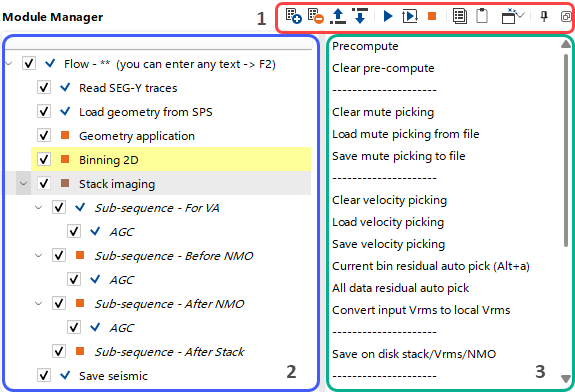
The user can perform actions within the Workflow Tree (2) using Shortcut Buttons (1)  .
.
 Add Module from the List of Modules (Insert Key).
 Remove selected Module (Delete Key).
 Move selected Module Upward within the current workflow.
 Move selected Module Downward within the current workflow.
 Execute the only selected Module (Shift + E).
 Execute the selected Workflow - sequence of modules limited by the Flow module (Alt + Shift + E).
 Interrupt the currently running processing task (Alt + E).
 Copy selected Module(s) to the buffer (Ctrl + C).
 Paste Module(s) from the buffer (Ctrl + V).
 Open Vistas for the selected Module.

 Unpin the current Module Manager section from the g-Navigator window.
The user can also perform actions within Workflow Tree (2) using the right-click context menu.
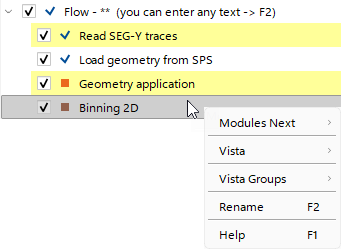 Context menu allows the user to perform the following actions:
•Modules Next - insert a selected Module from the drop-down list after the selected one.
•Vista - open a specific Vista for the selected module in the Client Manager Area.
•Vista Groups - open a specific Group of Vistas (All Vista groups) for the selected module in the Client Manager Area.
•Rename - add a comment to the selected module (F2 key).
•Help - fast access to the Help Documentation for the selected module (F1 key).
The currently selected module is highlighted in Grey, and all its input connections (see Input Data in the Module Properties) are highlighted in Yellow.
The user can include or exclude any module from the workflow execution list by checking or unchecking the corresponding checkbox  .
.
The user can also check whether a module has been submitted by viewing the corresponding icon ( or
or  ) to the left of the module.
Each module provides a set of predefined actions available in the List of Interactive Module Actions (3), located to the left of the Workflow Tree (2). These actions allow the user to perform quick operations with immediate feedback in the corresponding open Vista.