Once the workflow is constructed, it can be submitted either in full or partially from the Module Manager section of g-Navigator using the shortcut buttons 
 . Alternatively, the workflow can be submitted — either locally or to a distributed execution environment — from the main g-Platform management window via the shortcut buttons
 in the Workflow History section.
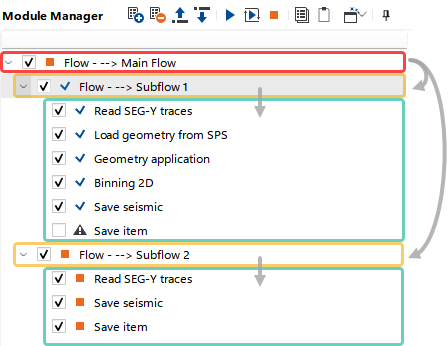 Based on this example, workflow submission behavior depends on the selected element:
•Main Flow module (commented as a Main Flow) – all subsequent flows with all the modules within are executed sequentially.
•Subflow Flow module (commented as a Subflow 1 or Subflow 2) – only the sequence of modules contained within that subflow is executed.
•Individual module – only that module is executed. However, the submission is successful only if all preceding modules in the workflow have already been executed. This behavior represents a core principle of g-Platform’s interactive processing approach.
It is important to note that if the checkbox  to the left of a module is unchecked, the module will not be executed during submission (In this example, the Save Item module is located in Subflow 1).
The user can also check whether a module has been submitted and successfully finished by viewing the corresponding icon ( or
or  ) to the left of the module. Changing any module parameter resets the module status icon to .