Once the Global Properties spreadsheet is populated with variables and the workflow is configured to use these variables, the workflow can be submitted in Batch Mode.
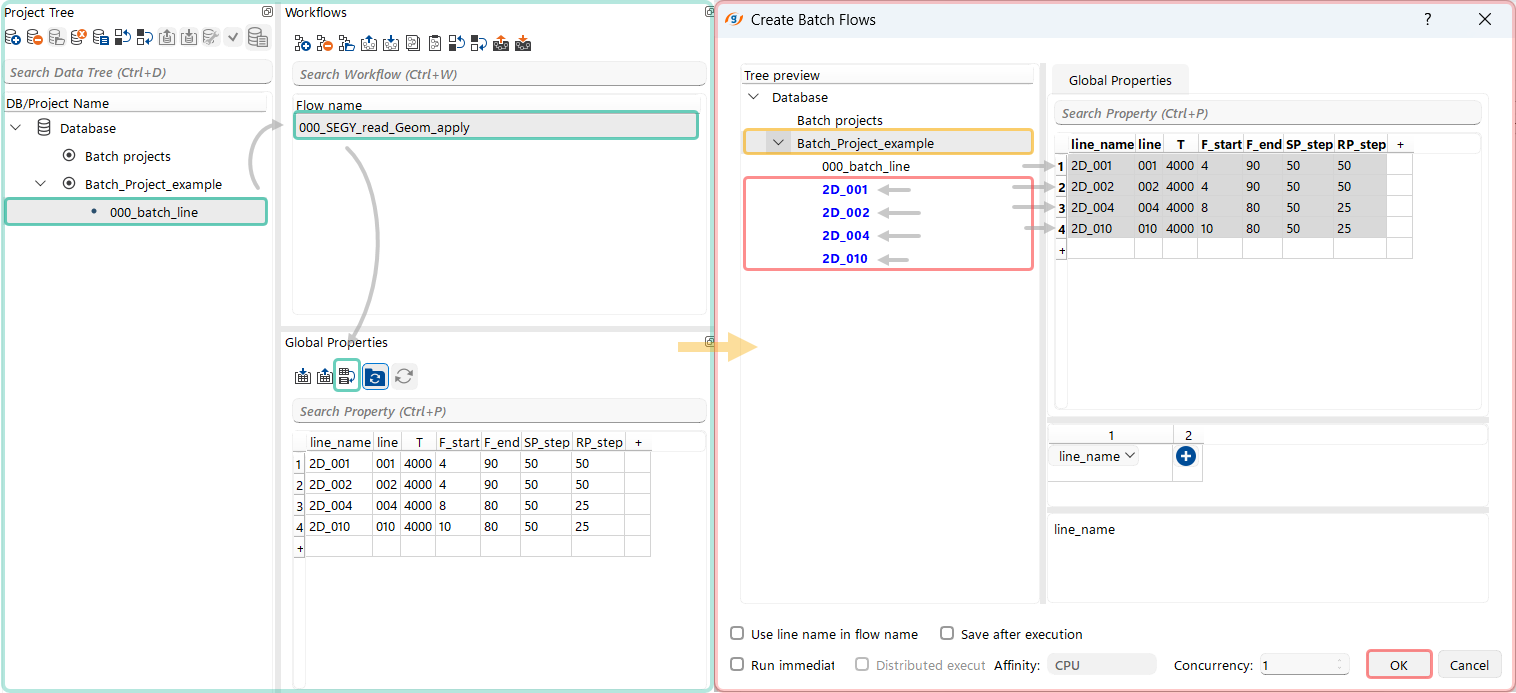 The first step in submitting workflows in batch mode is to replicate the main workflow across the required project structure (subprojects or lines). To do this, the user selects the appropriate project in the Project Tree section and the workflow in the Workflows section, and then clicks the corresponding shortcut button
  in the Global Properties section.
The Create Batch Flows dialog then opens. In this dialog, the user first selects the target project in which the workflows will be created and then selects the relevant rows in the Global Properties spreadsheet using the Left Mouse button.
In the Tree Preview section of the Create Batch Flows dialog, the user can preview where the generated workflows will be placed within the project structure.
Once the user clicks OK, the workflows — along with the required projects and subprojects, if they do not already exist — are created and become ready for batch submission.
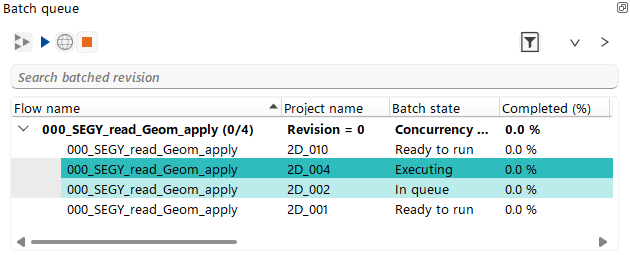 Finally, in the Batch Queue section, the created workflows become available for submission using the shortcut buttons

 . The user can submit all workflows at once by specifying the concurrency level — that is, how many workflows can be executed simultaneously — or submit workflows individually by selecting them.