Common Gather Sorting
In g-Viewer users have the ability to select and display specific Shot/Receiver/CMP gathers from the seismic data. The main window in g-Viewer contains four tabs in the middle section, each displaying different types of gathers:
1. Seismic data
2. Common shot - Common shot [View SEG-Y]
3. Common receiver - Common receiver [View SEG-Y]
4. Common bin - Common bin [View SEG-Y]
The Seismic Data tab displays the entire dataset in a single window, which can be zoomed in and out to view additional details. However, if you want to focus on a specific Shot, Receiver, or CMP gather, you can choose and display only the desired gather.
To display a Common Shot Gather, follow these steps:
- Click on the Control Item icon in the Common Shot - Common Shot [View SEG-Y] tab.
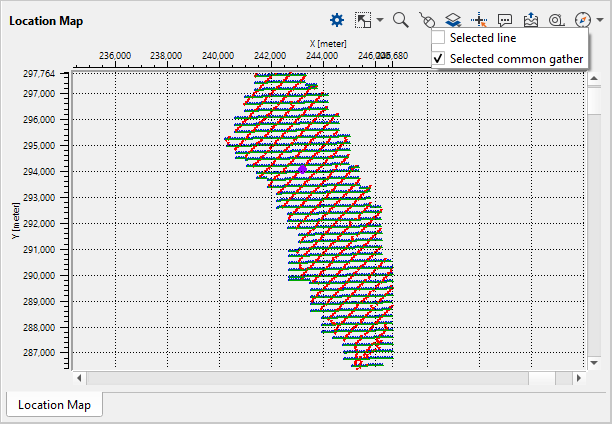
- Select the "Selected Common Gather" option.
- In the Common Gather Panel, locate the Group By option.

Click on  icon and select the desired headers from the available headers
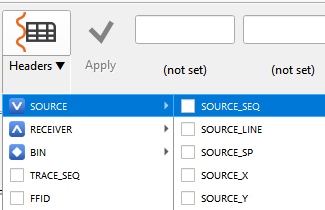
Now click anywhere on the location map to display the selected shot/receiver/cmp gather.
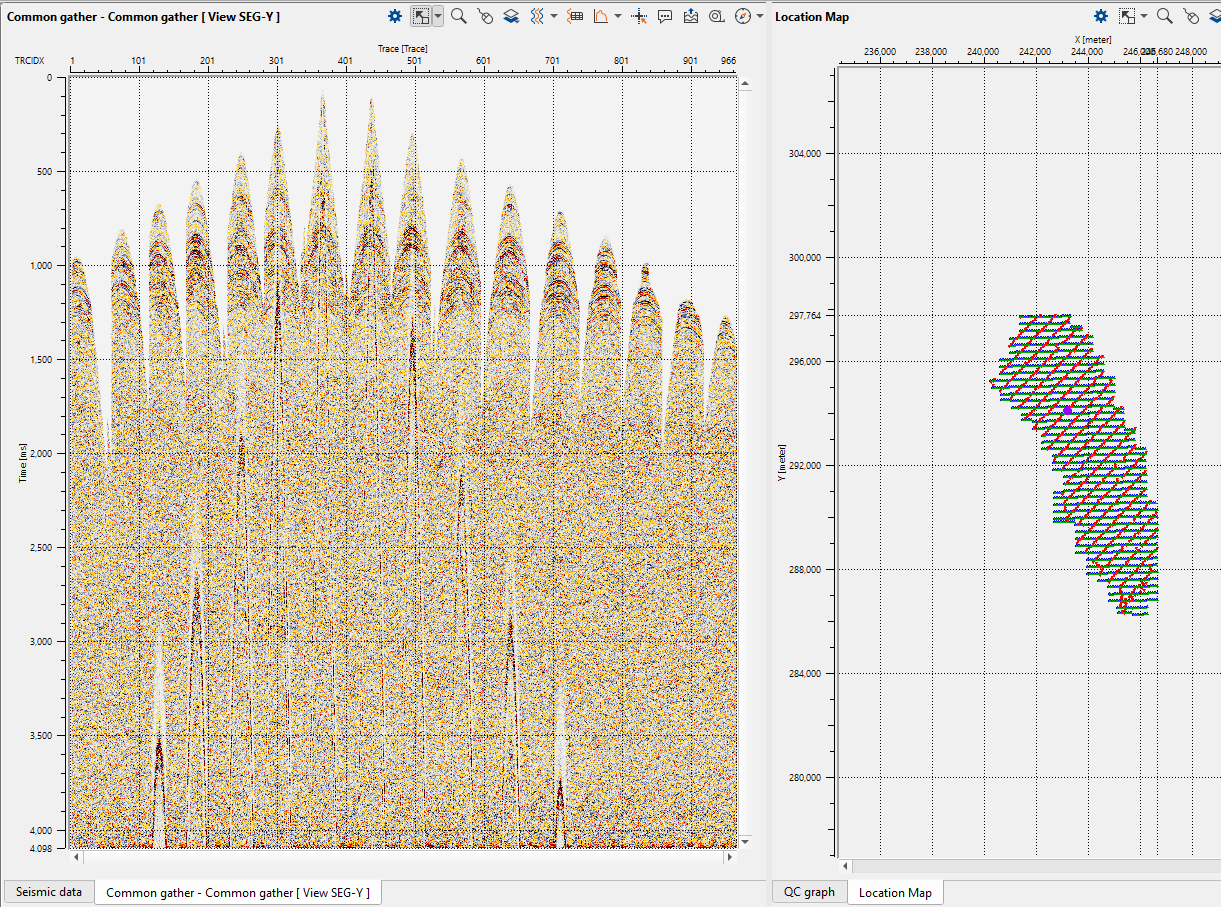
Check the tab of Selected common gather - Common gather [View SEG-Y] and the selected shot gathers will be displayed here.
To do the grouping, the user should goto the Common gather type in the ribbon and select the option Group by

Now choose one of the headers from the drop down menu of the Headers icon  and click Apply.
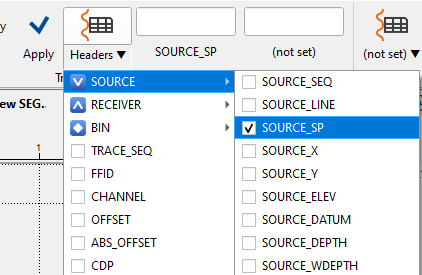
Similarly the user can select any trace header and select the desired gather whether a Source/Receiver/CMP gather.
When is This Tool Useful?
- Quality Control of Seismic Data
- Quickly identifying and sorting gathers to check for missing or inconsistent traces.
- Ensuring trace headers are correctly assigned to their respective gathers, especially when dealing with large datasets.
- Focusing on Specific Gathers
- Assessing Acquisition Geometry
- Troubleshooting Data Issues
- Improving Data Interpretation