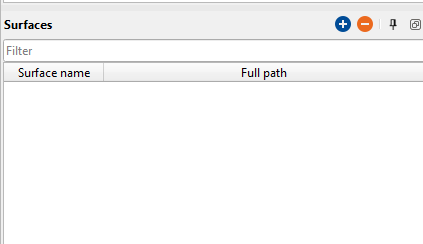
Surfaces
Surfaces:
Under this panel, the user can add the surfaces.
There are three types of surfaces (file format types) g-Viewer accepts. They are
1. Tab delimited XYZ (By default option)
2. Space delimited
3. CSV
To add any surfaces, the user should go to Surfaces panel and click on the  icon. A new window will pop-up as shown below.
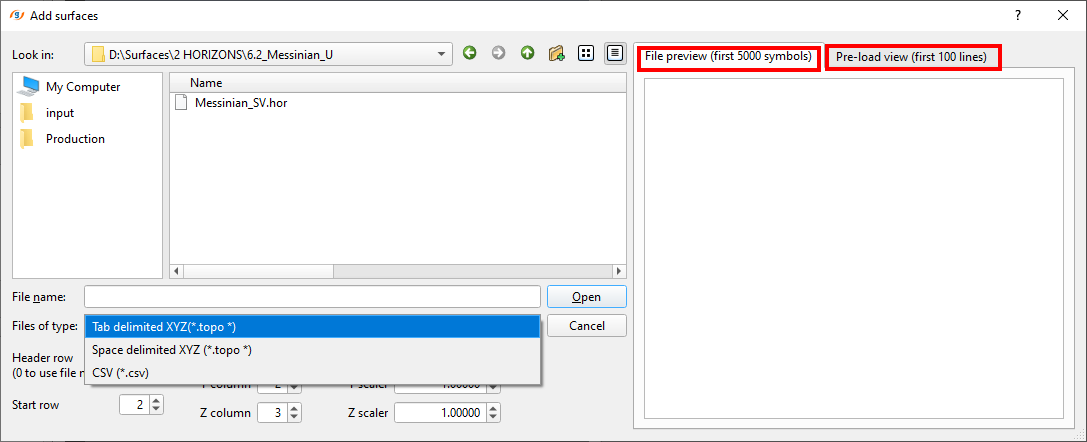
Prior to browse the file name, the user should select the Files of type from the drop down menu. If it is a wrong format, usually the user can't able to see the File Preview which is next to it. Also the user can able to see Pre-load view of the selected file.
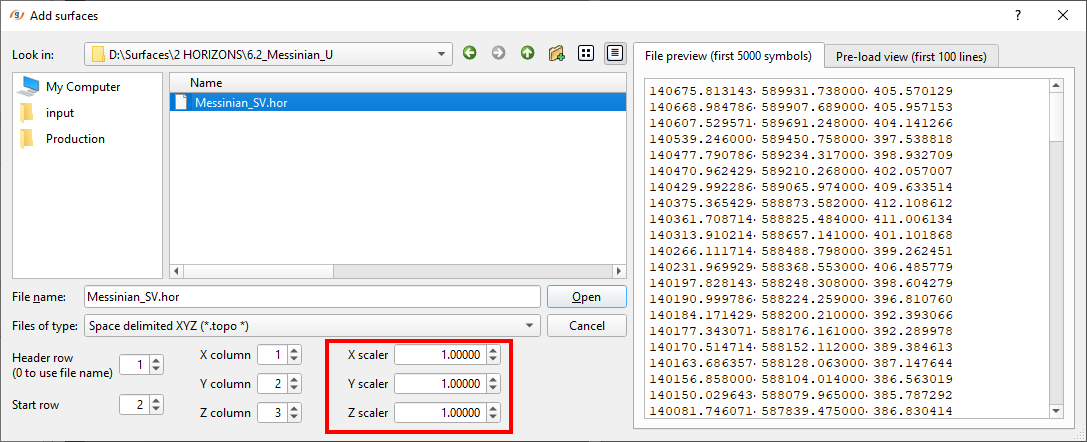
At the bottom of the Files of type, we can observe the X,Y & Z scaler. User should pay attention to this and adjust their scalars according the actual seismic.
Once the user click on Open, it will pop-up with a new window for interpolation parameters.
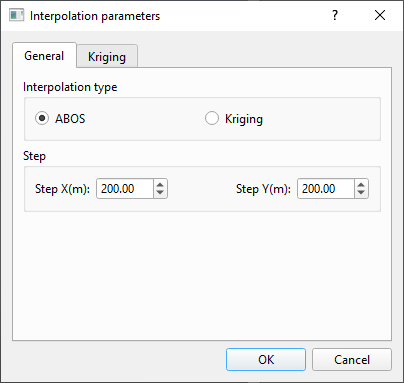
Click OK. Now if we look at the Surfaces panel, we can see the the surface name and it's full path as shown below.
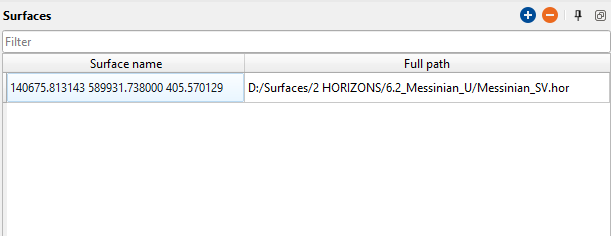
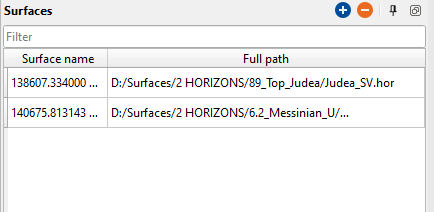
Similarly, the user can add as many surfaces as they can.
Now click on Load 3D icon and RESET VIEW in case the map is not fit. In case the surfaces are not displaying properly, better check with the scalar and put the right scalar value.
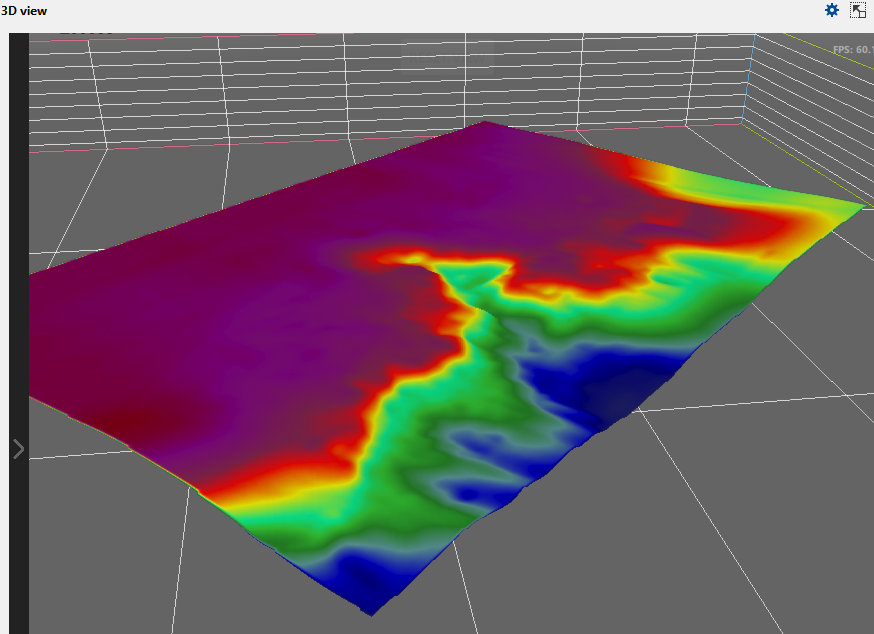
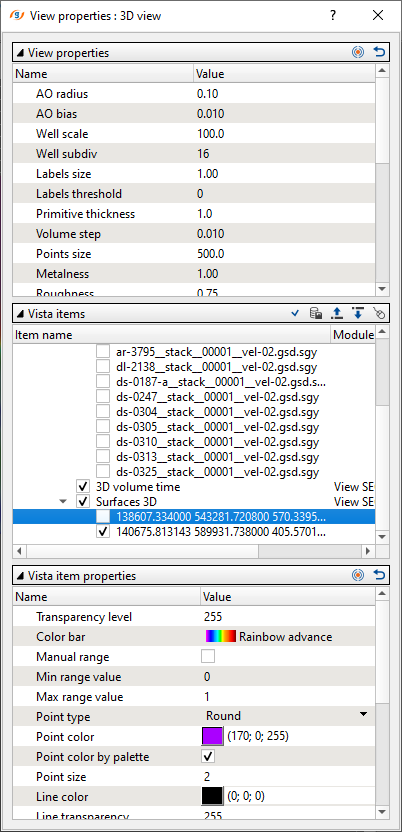
To change the display settings or to select a particular surface, the user can click on the  icon on the 3D view window. It will open a View properties window. Here the user have the options to enable/disable seismic display, surfaces etc.