Seg-D Data QC and Conversion
This topic shows how to check SEG-D field records in g-Viewer and convert them to SEG-Y, save them again as SEG-D or write a time-stamp file.
g-Viewer reads SEG-D revisions 0, 1, 2, 2.1 and 3.
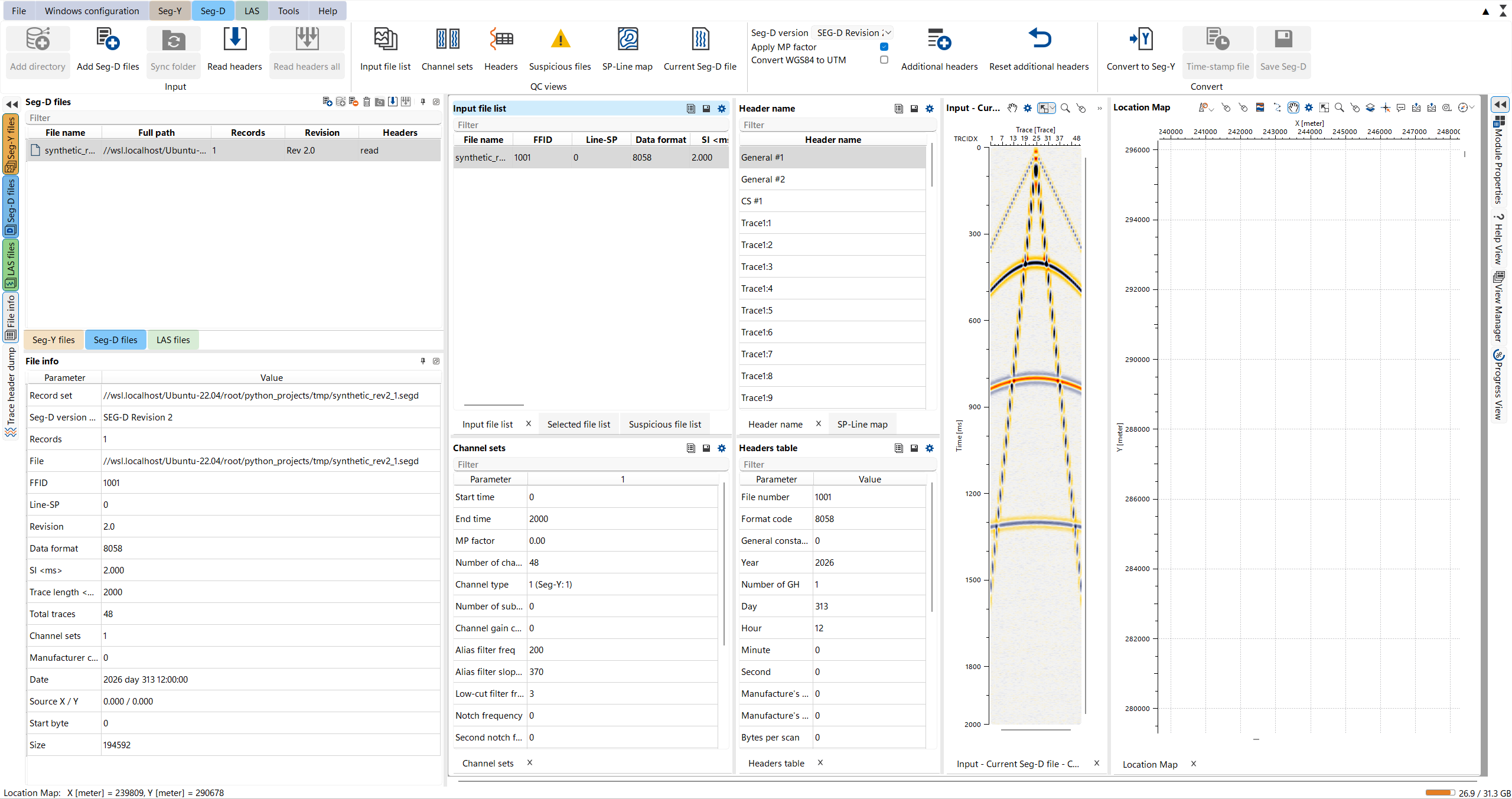
A SEG-D record set open in g-Viewer: the Seg-D tab, the Seg-D files and File info panels, the QC views, the current record and the Location Map:
Step-by-step
- Add the data: Add Seg-D files or Add directory on the Seg-D tab or in the Seg-D files panel, or drop *.segd files onto g-Viewer. For continuous shooting, add the directory and switch on Sync folder.
- Click the record set in the Seg-D files panel. g-Viewer switches to the Seg-D mode.
- Check the Settings: Seg-D version (set automatically from the file), Apply MP factor, Convert WGS84 to UTM and Additional headers.
- Read headers (current record set) or Read headers all.
- Check the records in the QC views. Exclude bad records in the Suspicious file list.
- Convert or save the record set (see below).
Convert to Seg-Y
Convert to Seg-Y writes the current record set into one SEG-Y file. Choose the file name in the Save Seg-Y dialog. Excluded records are skipped.
Save Seg-D
- Writes format 8058, one record per FFID. A revision 3 record set stays revision 3; all others are written as revision 2.
- Option Save only live traces in the save dialog.
- Excluded records are skipped.
- When records have different numbers of samples, the extra output files are named <name>_<samples>.segd.
- When done, g-Viewer reports Saved N Seg-D records to ....
Time-stamp file
Writes FFID, year, day, hour, minute and second of every record to a CSV file. Read the headers first.
Seg-Y to Seg-D
Save Seg-D in the Seg-D plug-in group of the Tools tab saves the selected SEG-Y file as SEG-D revision 2 (format 8058), one record per FFID.
File names
If you type a file name without an extension, g-Viewer adds it (.sgy, .segd or .csv). If that file already exists, g-Viewer asks whether to replace it.
See Also