File bar
Upon starting the g-Viewer, by default File menu is activated. Under the File menu, we have following options.

Open project: Browse and open the previously saved g-Viewer project.
Save project: The user can save the g-Viewer project by clicking on the Save project button.
Close project: By selecting this option, the user can close the project.
Add: In order to add any seismic files(SEG-Y), user should click on Add icon. The user can add as many files as they can.
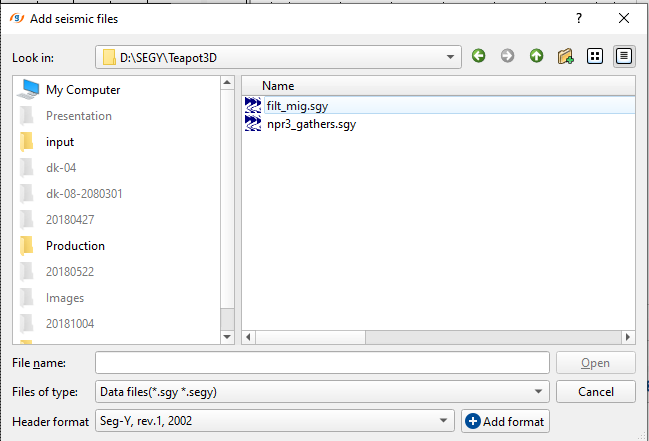
While adding any SEG-Y file, the user can able to select the trace header format from the drop down menu. By default it will be Seg-Y rev.1. 2002 format. However the user can able to select the pre-existing header format or create a new header format by clicking on the Add format button next to the Header format.
When the user clicks on the Add format, it will open a pop-up window. The user should provide a name to the new header format and proceed further.
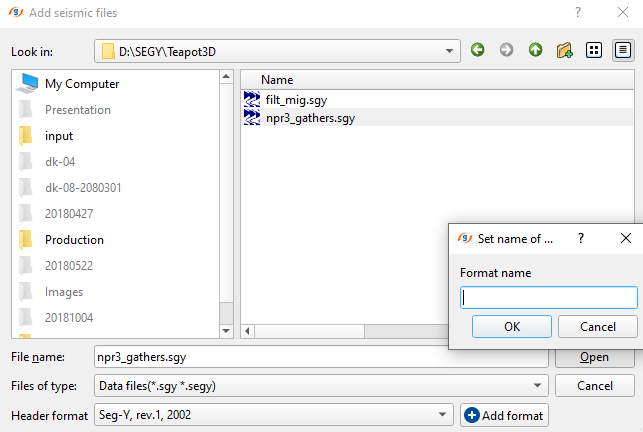
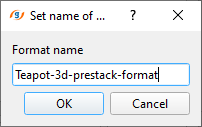
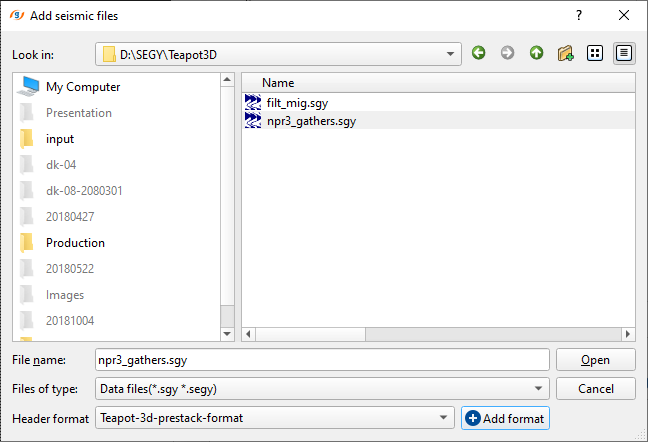
Click OK and the new header format will be changed from the default Seg-Y rev.1. 2002 format to the user defined format.
Delete:This option is to delete any particular loaded file(s) in the Seismic files window.
Sync folder:When there is a continuous supply of seismic files into the existing folder by means of continuous shooting in onshore/offshore, the files will be automatically in Sync within the folder and the user can able to access them without adding them separately.
UnSync folder:This is just opposite of the Sync folder where the user can select this option to Unsync the folder.
Read headers:After adding the files, g-Viewer partially loads all the trace headers. To load the trace headers completely, the user should click on this icon.
Read headers all:If the user added multiple seismic files, then they should select this option to read headers of all the files.
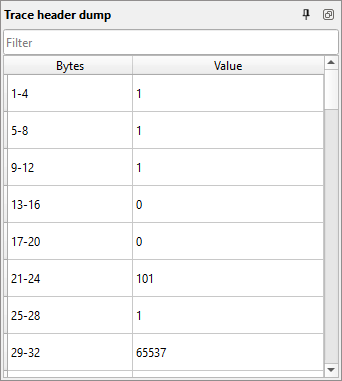
Trace header dump:It is very useful tool to identify the trace headers information in case we don't know the actual byte locations of the input. With this, we can scan the data and find out the value of the corresponding byte location.
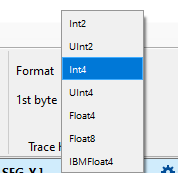
Select the appropriate Format type and choose the 1st byte. By default, it is Int4 Format and 1st byte as 1. It will display the trace headers information as shown below.
Seg-Y, Seg-D and LAS files
The Add, Delete, Sync folder, Unsync folder, Read headers and Read headers all buttons of the Seismic data group work on the Seg-Y files panel. Add SEG-D files from the Seg-D tab and LAS files from the LAS tab, or drop the files onto g-Viewer: *.segd files go to the Seg-D files panel, *.las files to the LAS files panel, and *.sgy, *.segy, *.gsd files to the Seg-Y files panel.
The Trace header dump group is hidden in the LAS mode.
A g-Viewer project (*.gvp) saved with Save project keeps the Seg-Y, Seg-D and LAS files and the session state. See Workspace modes.