Workspace modes
g-Viewer works with three types of data: SEG-Y seismic files, SEG-D field records and LAS well logs. Each data type has its own mode. A mode has its own workspace window, its own files panel and its own ribbon tab, so the three data types can be open in the same session without getting in each other's way.
Modes and colours
Each mode has a colour. The colour marks the ribbon tab, the files panel tab and the side-bar button of that mode, so you can always see which data type a control belongs to:
- Seg-Y - orange. Workspace window Seg-Y, panel Seg-Y files, ribbon tab Seg-Y.
- Seg-D - blue. Workspace window Seg-D, panel Seg-D files, ribbon tab Seg-D.
- LAS - green. Workspace window LAS, panel LAS files, ribbon tab LAS.
Switching the mode
The mode changes when you work with a file of another type:
- Click a file in the Seg-Y files, Seg-D files or LAS files panel (or a curve name, when the LAS files panel is in the Curves log mode).
- Bring another files panel tab to the front.
When the mode changes, g-Viewer shows the workspace window of that mode, shows the panels of that mode and fills the File info panel with the information of the current file of that mode.
Clicking a ribbon tab does not change the mode. All ribbon tabs are always available, so you can, for example, open the LAS tab while you are looking at Seg-Y data.
Panels of each mode
- All modes: Seg-Y files, Seg-D files, LAS files and File info.
- Seg-Y: Trace data, Text header, Binary header, Surfaces and Trace header dump.
- Seg-D: Trace header dump.
- LAS: LAS header and LAS curves. The Trace header dump group of the File tab is hidden in this mode.
Default workspaces
A workspace window is created for each mode the first time g-Viewer starts. Its default layout is:
- Seg-Y - the classic g-Viewer window with the seismic, common gather and location map views. A window from an older g-Viewer version is kept and renamed Seg-Y.
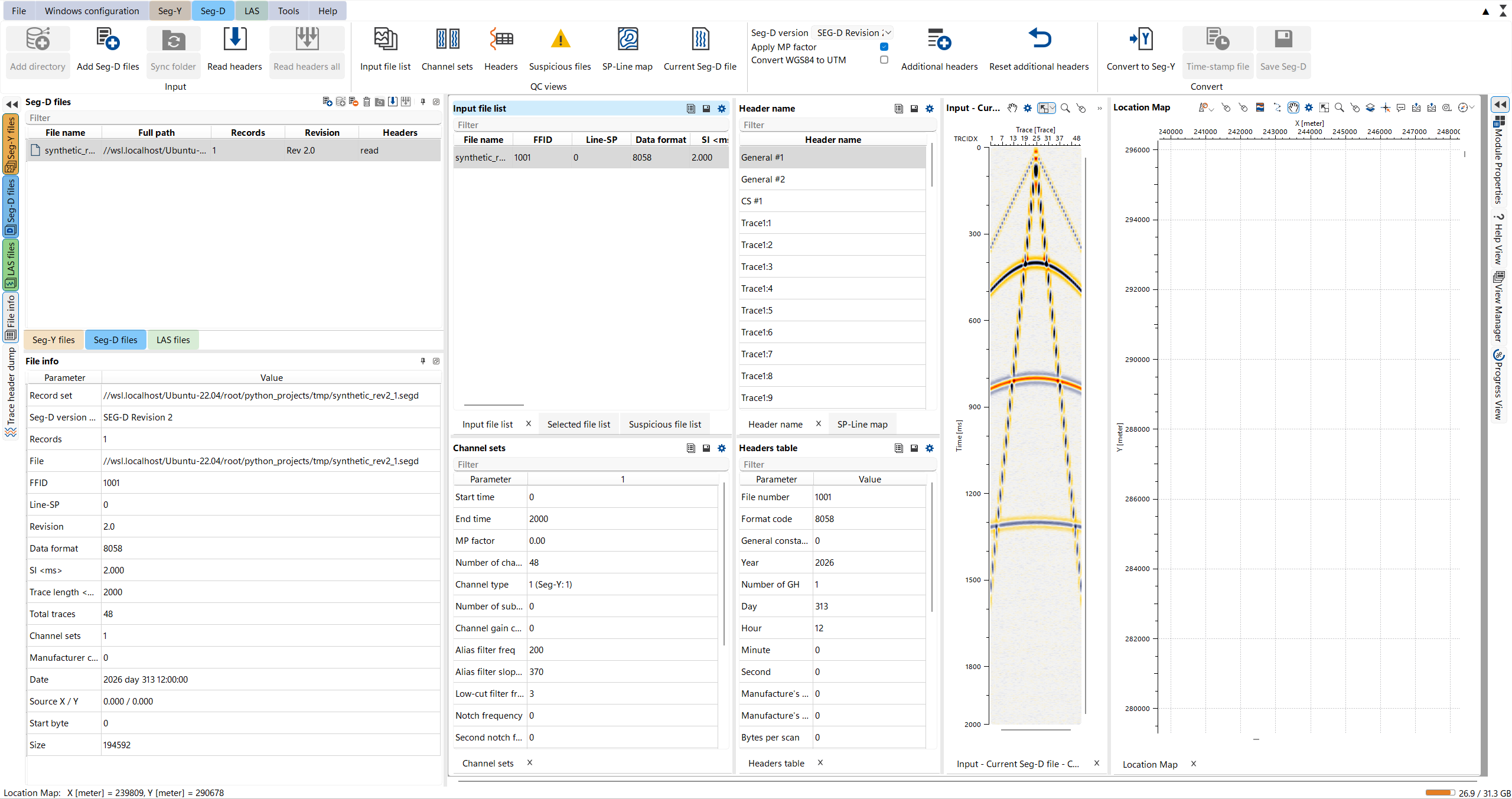
- Seg-D - four columns: the Input file list, Selected file list, Suspicious file list and SP-Line map tabs with Channel sets below them; Header name above the Headers table; the Input - Current Seg-D file seismic view; and the Location Map. See Seg-D QC views.
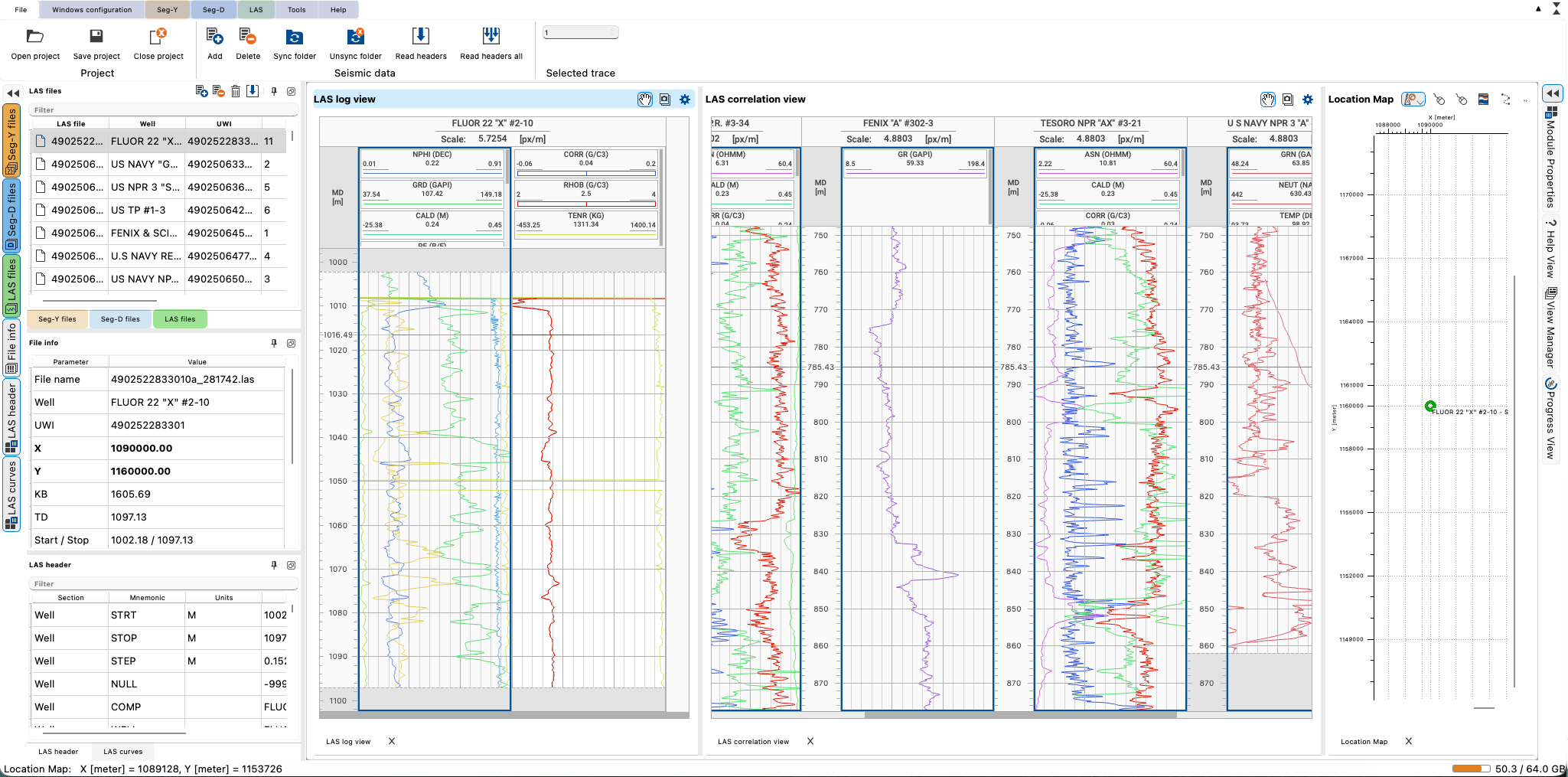
- LAS - three columns: the LAS correlation view, the LAS log view and the Location Map. See LAS log and correlation views. Seismic data and the 3D view are not part of the LAS layout; add them from the View Manager if you need them.
The Seg-D mode with a record set selected:
The LAS mode with a well selected and several wells in the correlation view:
You can rename, rearrange or add views as usual. Use Workspace on the Windows configuration tab to move between windows, and Reset GUI settings to return to the default layout. A GUI layout saved by an older g-Viewer version is replaced by the new default layout of the panels.
Saving the session
A g-Viewer project (*.gvp) stores the Seg-Y, Seg-D and LAS file lists together with their settings. It also stores which Seg-Y files have fully read headers, the common gather shown for each Seg-Y file, the selected bar of the header histogram, the Log loading wizard results and the layout of the LAS views. Opening the project restores the session as it was saved.
Licensing
Seg-Y, Seg-D and LAS are licensed separately, each with its own licence key.
- Free version (no Seg-Y, Seg-D or LAS licence): all three file types open, but only the first file of each files list can be viewed. Projects (*.gvp) cannot be opened or saved, and an advertisement is shown.
- With a licence for a file type: all files of that type can be viewed, and the full set of tools for that type is available.
An action that needs a licence you do not have is greyed out, for example Add directory, Read headers all, Time-stamp file and Save Seg-D without a Seg-D licence.
See Also