AVO graph
This tool graphically represents Amplitude Versus Offset (AVO) data, displaying the relationship between reflection amplitude and offset for selected data points, helping to identify potential hydrocarbon indicators, lithology variations, or fluid content. Users can interactively adjust parameters, filter data points, and apply color-coding or clustering to enhance the analysis.
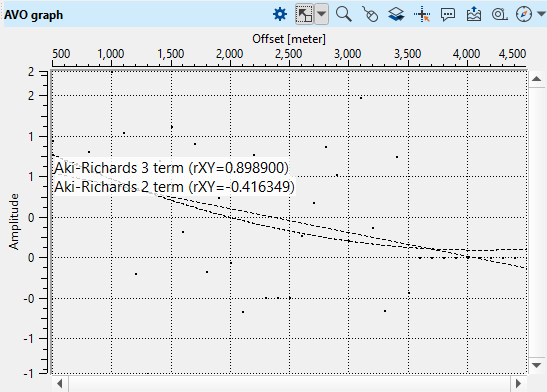
Aki-Richards Approximation Lines
Two approximation curves are overlaid on the data points to model the expected AVO response:
- Aki-Richards 2-Term Approximation: This line uses the first two terms of the Aki-Richards equation, focusing on the intercept and gradient. It provides a simpler approximation that emphasizes the general trend of amplitude variation with offset.
- Aki-Richards 3-Term Approximation: This line incorporates an additional curvature term, offering a more detailed fit by considering higher-order effects significant at larger offsets.
Notes
- Use the 2-term approximation to get a quick estimate of amplitude trends, especially when analyzing data with smaller offsets.
- Apply the 3-term approximation for datasets with a broader range of offsets or when high accuracy is required, as it captures more subtle effects related to rock properties and fluid content.
The newly created view will appear in the View manager in the active Workspase. User can place AVO graph view by dragging it to any workspace except pre-defined once (Seismic data and Well data).
To define the object visibility stile go to the Visual Settings by pressing  in the view functional panel or find it in the panel sets.
Functional panel allows user to perform the following actions:
open Visual Settings panel
 adjust view area to all visible objects
 set/unset zoomable
 set control item
 add Object
 enable mouse tracker
 enable tool tip
 export picture
 ruler tool
 show compass
 show minimap
 show scale bar