Import checkshots
Note
Currently g-Space supports import checkshot data from KB datum.
Import checkshots steps:
Step 1: Locating the file
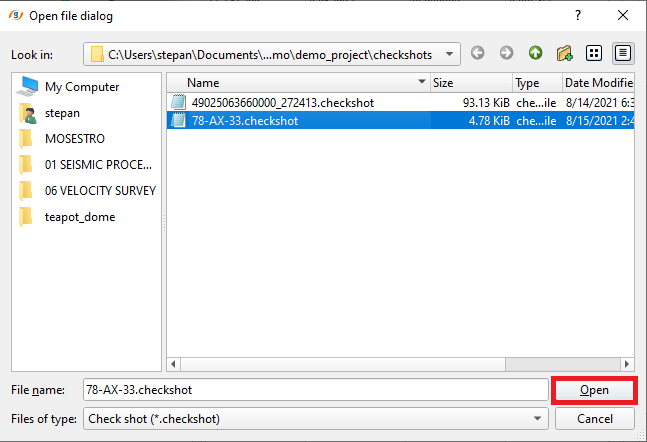
To load checkhots go to Ribbon -> Wells bar and click on Load check shots button

A standard checkshot file is a TAB-delimited *.checkshot file. It contains the following columns:
- UWI - well identifier (optional; if absent, the file name is used to match the well)
- TVD - true vertical depth (required)
- Time - travel time (required)
In the appeared dialog box locate the files and click open. In Files of type, keep Check shot (*.checkshot) for a standard checkshot table, or select Petrel checkshots (*.txt *.dat *.las *.checkshot) to list checkshots exported from Petrel:
Step 2: Setting up reading parameters
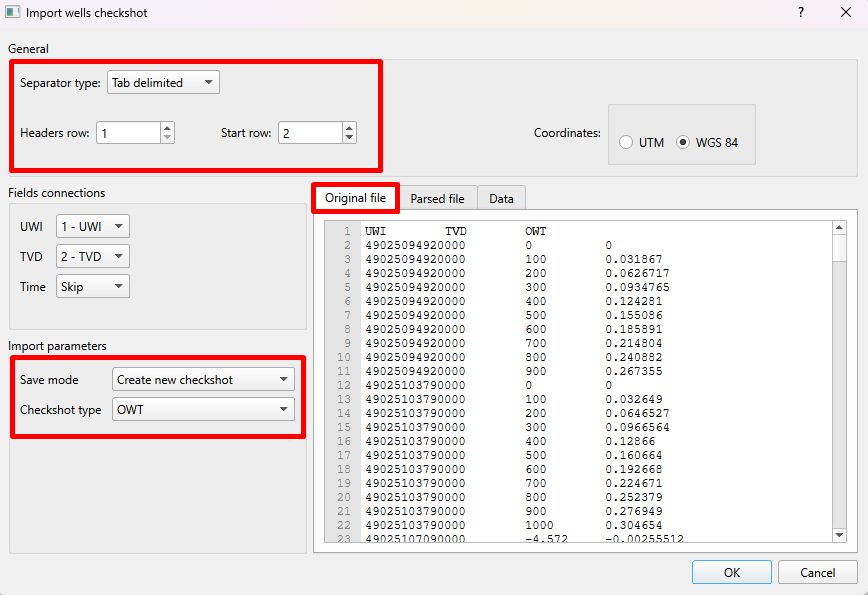
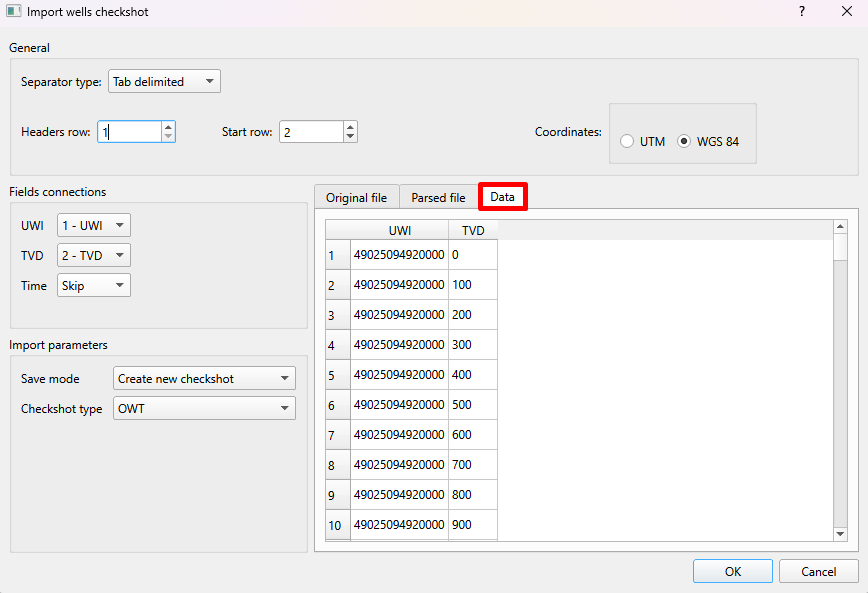
g-Space will open file preview dialog were you can set the loading parameters such as: Separator type, Headers row, Start row, End row. Files in Petrel format are read directly and do not open this dialog.
In the Original file tab you will see how files looks like and adjust loading parameters accordingly. Also set the import parameters:
- Checkshot type - OWT (one-way time) or TWT (two-way time)
- Time measure unit - s or ms
- Save mode - Create new checkshot or Append to current checkshot
Step 3: Checking reading parameters
Click on the Parsed file tab to check if you set reading parameters correctly and also you can decide which columns you want to add or skip
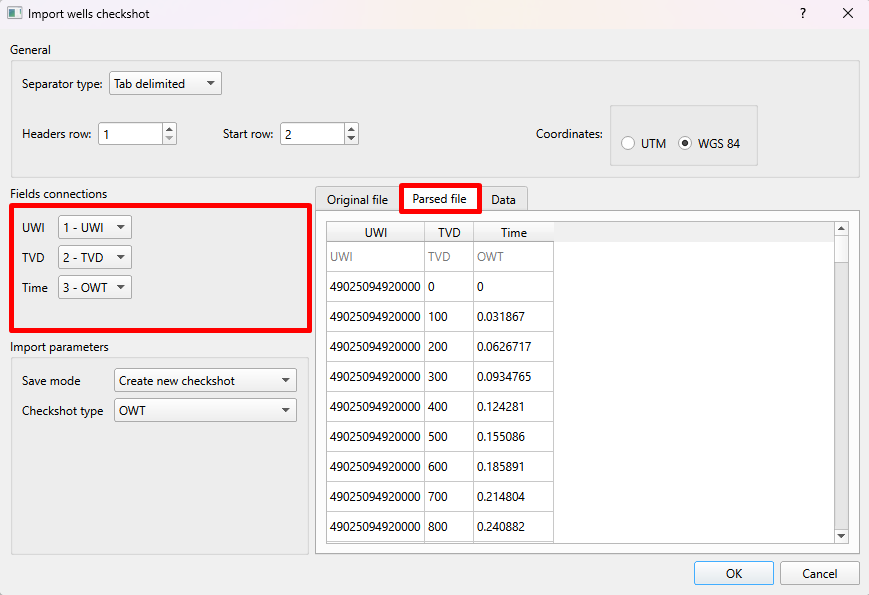
In the Field connections check the parameters. If you have files with additional information you can choose skip unnecessary columns from drop-down box.
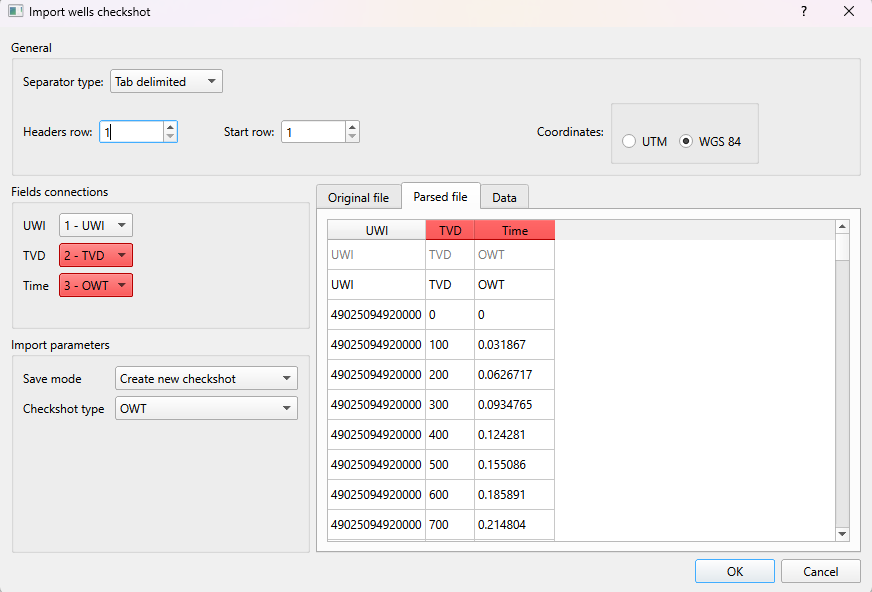
Note
If some of the fields are colored RED, it means that data doesn't have required type or reading parameters were set incorrectly
Step 4. Checking the loading settings
In Data tab you can see if all settings were done correctly and all necessary columns were included. After that click OK
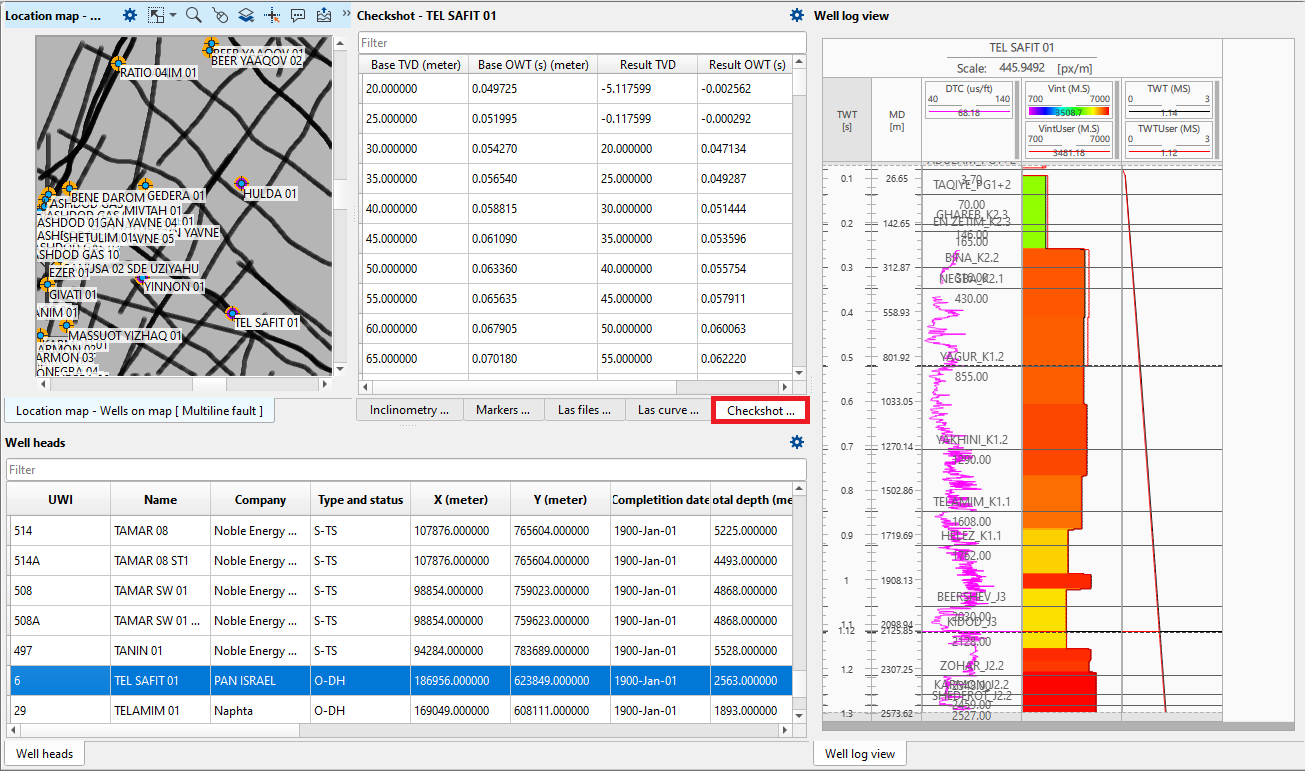
You can evaluate loaded data by clicking on map view or in table below map. All loaded information will appear in table Checkshot where you can check the values. Also you can see the data in log preview to the right
Importing checkshots from Petrel format
Checkshots exported from Petrel are loaded with the same Load check shots button. In the file dialog set Files of type to Petrel checkshots (*.txt *.dat *.las *.checkshot) and select one or more files.
g-Space recognizes a Petrel checkshot file by its content: the first non-empty line must be a comment line that starts with # Petrel checkshots format (letter case does not matter). Such a file is read directly, so the reading parameters dialog of the steps above does not appear and the Checkshot type, Time measure unit and Save mode settings are not needed.
The file declares its columns inside a BEGIN HEADER ... END HEADER block, with one column name per line; the data starts on the line after END HEADER. Three columns are required:
- Well - well name or UWI, matched to the wells of the project
- MD - measured depth
- TWT picked - two-way time in milliseconds
A column name may also carry the Petrel type prefix, for example FLOAT,MD. g-Space converts the measured depth to TVD along the well trajectory and stores the time as one-way time in seconds. Each imported file creates a new checkshot named after the file; if a checkshot with that name already exists, a number in brackets is added to the new name.
Petrel files and standard checkshot tables can be selected together: the Petrel files are read directly and the remaining files are loaded through the steps above.
Note
Rows of a well that is missing from the project are skipped, and g-Space reports the file and the unknown well name when the import finishes. A file whose header block is not closed, or which lacks one of the three required columns, is reported as containing errors.
Checkshots from Sonic log
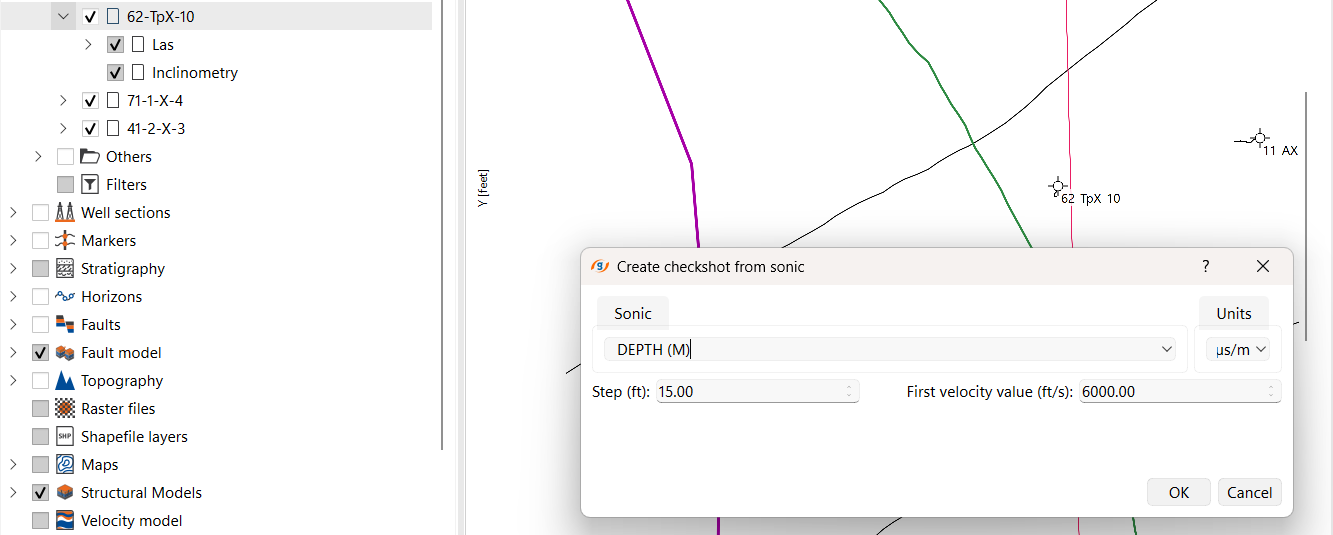
If a well has a sonic log, a checkshot can be created from it instead of importing a file. Select the well, double-click it on the map and open the Create checkshot from sonic dialog, then set:
- Sonic - the sonic curve to use
- Units - the sonic units, us/m or us/ft
- Step - the depth step (in m or ft, according to the project units)
- First velocity value - the starting velocity above the first sonic sample
Click OK to create the checkshot from the sonic curve.
Copying a checkshot to another well
A checkshot loaded on one well can be copied to another well directly in the Data Manager, without exporting and importing it again. Expand the source well, select one or more checkshots under its Checkshot branch and press Ctrl+C. Then select the well you want to copy them to and press Ctrl+V. Ctrl+C and Ctrl+V work on checkshots only; other objects of the Data Manager cannot be copied this way.
Each copy is added to the destination well with the time-depth values of the original, including any edits made to them, and is listed under your user name - Local when the project is not connected to a database. The copy keeps the name of the source checkshot; if the destination well already has a checkshot with that name, a number is added to the copy, for example Checkshot 2.
The last checkshot pasted becomes the one currently in use for the destination well - the entry shown in bold - so check that the intended checkshot is active before you use that well in a time-depth workflow. In a project connected to a database the copies are new data in your project until you send them with Commit checkshots.
For more information about checkshot format please refer to Well Data Formats