Working with Palettes
Palettes control how well data is coloured in the Well correlation view. Instead of drawing a curve in a single fixed colour, a palette maps colour to value, which makes continuous logs and interpreted classes (lithology, facies, zones, saturation) easier to read and compare between wells.
Enabling a Palette
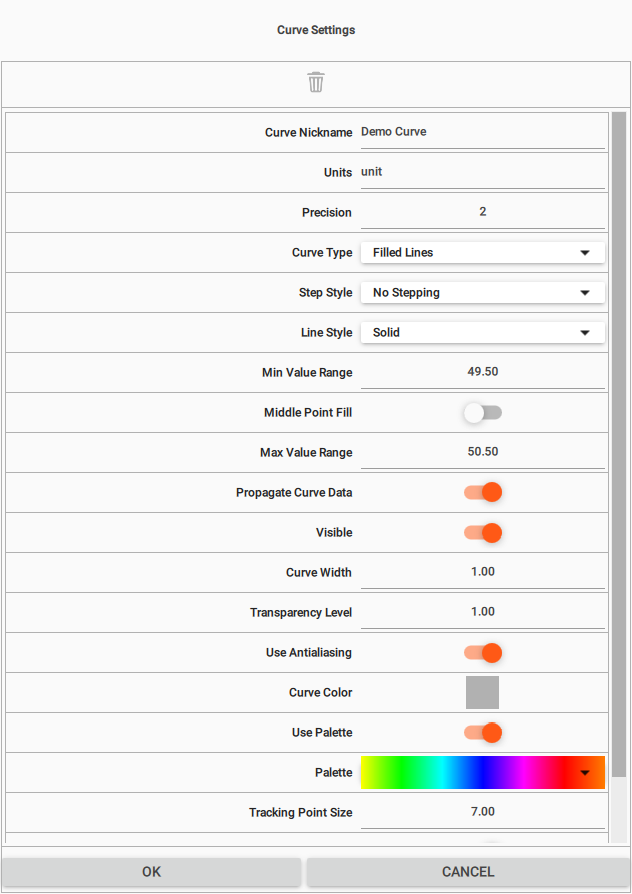
Right-click a curve header in the correlation view to open Curve Settings. Set Curve Type to Filled Lines, choose a Line Style (Solid, Dot, Dash, Dash dot, or Dash dot dot), then turn on Use Palette and choose a Palette to colour the curve by value.
Choosing and Editing a Palette
- Select a palette — choose a predefined colormap from the Palette selector in Curve Settings.
- Edit colour ranges — open the palette editor to adjust colour stops, value limits and the colour assigned to each interval.
- Local or global — keep the palette Local to the selected curve, or save it as Global to reuse it elsewhere in g-Space.
- Check the value range — confirm the colours match the expected curve range so key intervals stand out clearly.
Borehole image tracks
A new borehole image track starts with the FMI resistivity palette unless a well template supplies another palette. Grey scales is available for acoustic images. Set the image scale with Colour Limits in Curve Settings; the palette editor's value limits do not set that scale. See Well correlation view for the image track controls.
Lithology and Discrete Data
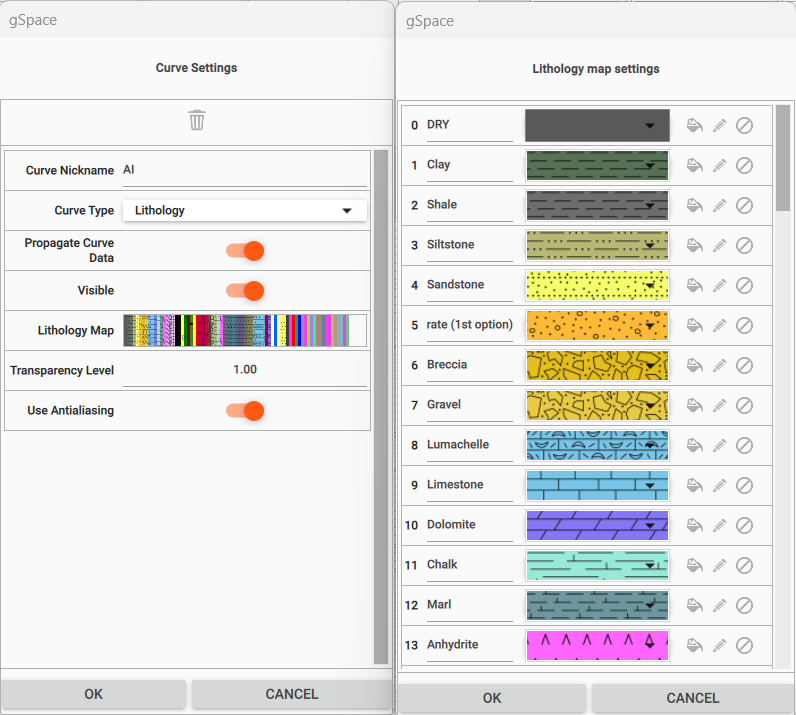
For discrete logs, set the Curve Type to Lithology in Curve Settings and open the Lithology Map to define how each class is drawn. Assign a colour and a fill pattern to every lithology class (for example clay, shale, sandstone, limestone or dolomite); use the colour picker to fine-tune class colours so the lithology column reads clearly across wells.
Colormap Manager
The Colormap Manager is a project-wide tool for creating, duplicating, editing and deleting palettes. Open it from the Tools menu (Colormap manager). The palettes managed here are the same colormaps used elsewhere in g-Space, including the Well correlation view.
The dialog lists all palettes on the left and shows the selected palette's colour stops on the right. Use the buttons under the list to manage palettes:
- New... — create a new palette and give it a name. It starts as a simple black-to-white gradient that you can then edit.
- Duplicate... — copy the selected palette under a new name, producing an editable version of any palette.
- Delete — remove the selected palette, after a confirmation prompt.
Selecting a palette shows its colour stops as a table of Value and Color. For an editable palette you can:
- Use Add point and Remove point to add or delete a colour stop.
- Edit a Value cell to change where a stop sits, and double-click a Color cell to pick its colour (transparency is supported).
- Click Apply to save the changes back to the palette. A palette must keep at least two colour points.
The standard palettes (Stack, Velocity, Gray, HSV and Jet) are read-only. To adapt one, select it and use Duplicate... to make an editable copy.
See Also