Well Data QC and Verification
After every well data import, verify the result before you continue. Quality control (QC) catches mismatched columns, wrong units, misplaced wells and unrealistic time-depth relationships while they are still easy to fix. The Wells data workspace gathers every view you need for this check in a single layout.
Open the QC Workspace
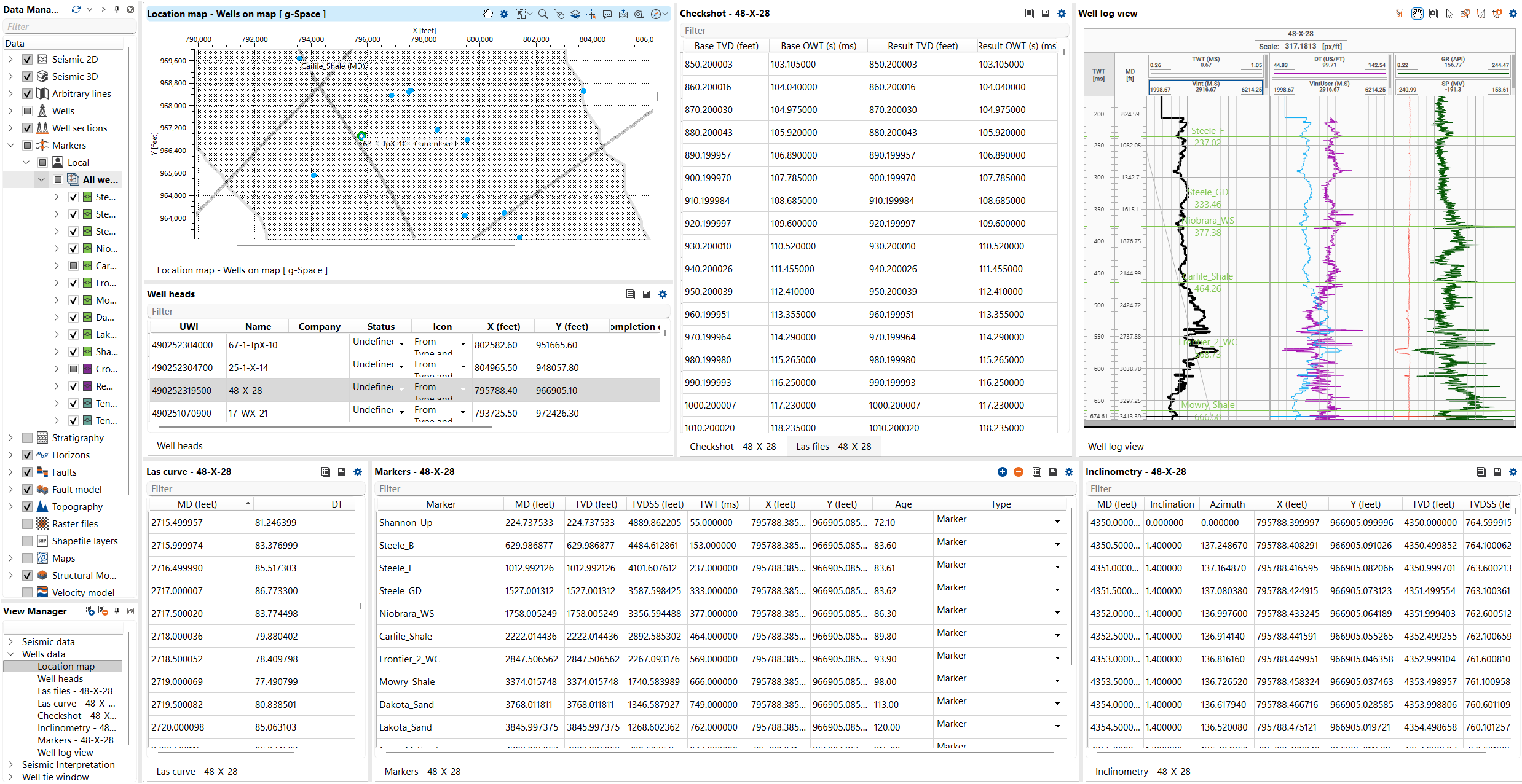
Select the Wells data workspace in the View Manager (or click Views on the Wells bar) to open the pre-configured layout: a Location map, the Well heads table, the Inclinometry view, the Well log view, the LAS files and LAS curve tables, and the Checkshot table. Each table refreshes for the well you select on the map, so you can click through wells and QC them one by one. See Wells data workspace for the full layout.
Verification Checklist
Work through the following checks after each import:
- Location map check — confirm wellhead positions, trajectories and marker locations fall where you expect on the map.
- Well heads table QC — review the coordinates, Kelly bushing (KB), total depth, status and other header attributes in the Well heads table.
- Trajectory validation — check the well path on the map and in the Well log view; verify the deviation and depth reference look reasonable.
- Log curve review — inspect the loaded curves in the LAS files table; review units, curve types, histograms and value ranges for outliers or null spikes.
- Marker consistency — check marker positions in the Well log view and confirm they display correctly on the MD, TVD or TWT axis.
- Checkshot verification — review the checkshot data in the table and the Well log view; confirm the time-depth relationship is monotonic and realistic.
Recommendations
- Click a well on the Location map to refresh every table at once, then scan the tables for that well before moving on.
- Copy table values with the Copy tool and paste them into a spreadsheet for side-by-side comparison with the source files.
- Edit obvious mistakes in place — editable fields such as checkshot values are changed by double-clicking the cell.
- Re-run the relevant import wizard if columns were mapped incorrectly rather than patching values one by one.
See Also