Structural modeling
Structural modeling is the process of building a three-dimensional geological framework from interpreted horizons and faults. In g-Space, the Structural Modeling wizard takes interpreted horizons – or the geological objects organized in the Conceptual Model – assigns conformity relationships and fault constraints, and produces a consistent set of TIN surfaces that honor all input data. The resulting structural model serves as the foundation for property modeling, volumetric calculations, and reservoir characterization.
Purpose
The Structural Modeling wizard is designed for:
- Building depth- or time-domain TIN surfaces from interpreted horizons or Conceptual Model objects
- Combining available Points, Maps, Multi-Z surfaces and Markers as Soft or Hard inputs
- Applying Depositional, Unconformity or Intrusion roles in the selected stratigraphic order
- Optionally honoring a fault model and limiting the model with a border polygon
- Generating horizon surfaces, layers and fault blocks for section and 3D views
Requirements
- At least one horizon or Conceptual Model object with an available Points, Maps, Multi-Z or Markers input
- Optionally, a Conceptual Model that organizes the input objects and their conformity roles
- Optionally, a fault model for fault-constrained modeling
- Optionally, a border polygon to limit the modeling area
Launching the Wizard
Launch methods:
- On the Modelling tab, in the Structural Modeling group, click Structural modeling
- In Data Manager, right-click the Structural models branch, its user folder, or a Depth/Time folder and choose Create new. Starting from a domain folder presets that domain
The wizard has a Name field and two tabs: Input data and Modeling. A new model receives a unique default name; the name must remain non-empty and unique. Use Back and Next to move between the tabs.
The wizard is not modal, so you can keep working in g-Space while it is open: you can work in section and 3D views, browse the Data Manager and use the rest of the project, then return to the wizard.
Only one Structural Modeling wizard is open at a time. Clicking Structural modeling again, or choosing Create new in the Data Manager, neither opens a second wizard nor resets the open one: it brings the open wizard to the front with its current configuration intact. Opening a different existing structural model while the wizard is open reports "The Structural model wizard is already open. Please close it before opening another structural model." and brings the open wizard to the front unchanged, so close it before opening another model.
Step-by-Step Guide
Input Data Tab
This tab is where you select horizons, define their stratigraphic order, assign conformity relationships, and specify fault constraints.
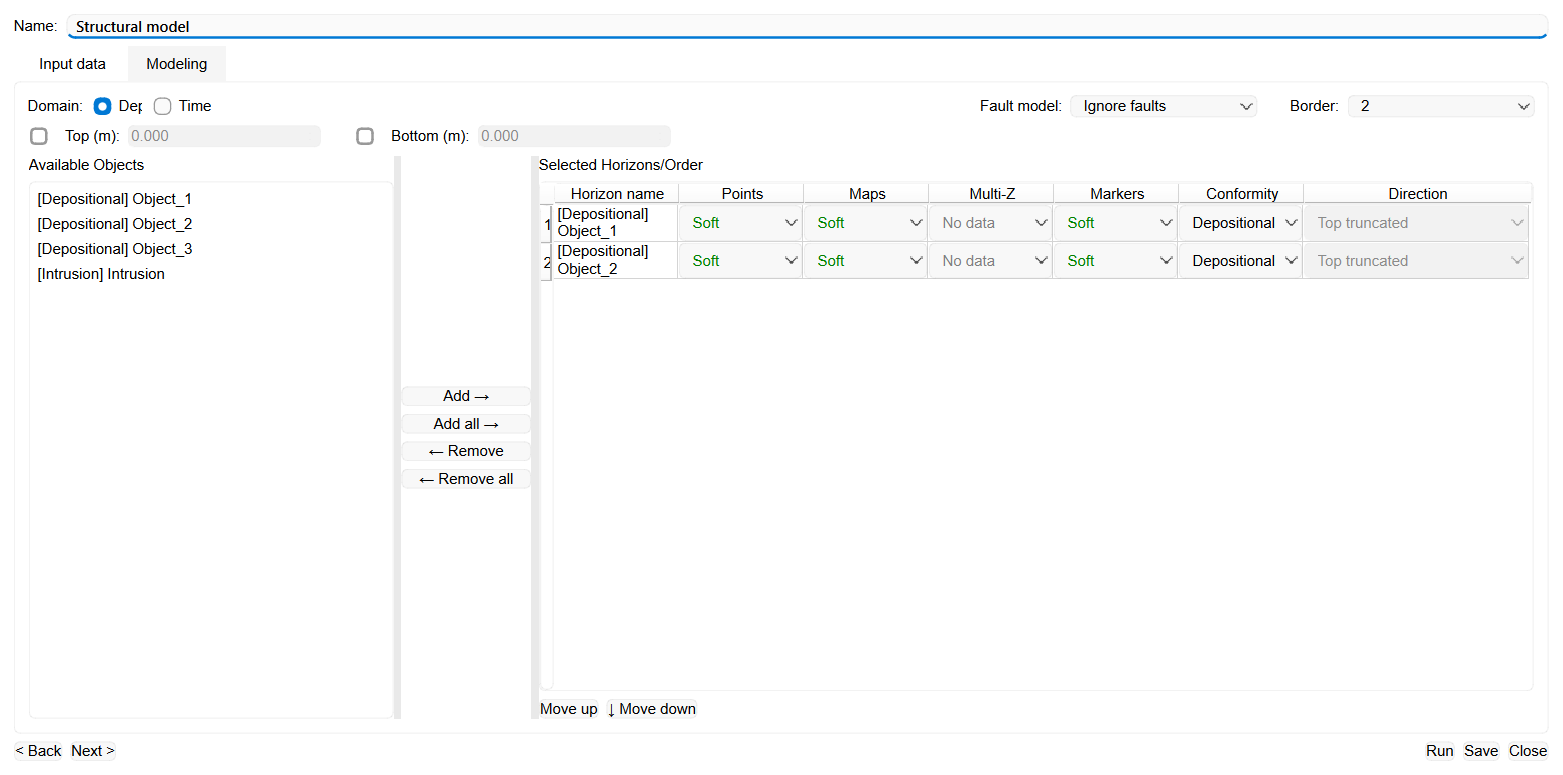
1. Select the domain
- Choose between Depth (default) and Time domain using the radio buttons at the top of the dialog
- The domain determines which horizon data (depth maps or time maps) will be used for modeling
2. Select fault model and border
- Fault model: The dropdown lists Ignore faults followed by the available fault models. For a new structural model, a fault model linked to the Conceptual Model is preselected here when it matches the chosen domain; you can still pick another one, or choose Ignore faults to model unfaulted surfaces
- Border: The dropdown lists No border followed by the available border polygons. When the project contains polygons, the first one is selected by default; choose No border to model the full extent of the input data. If the project has no polygon at all, a warning is shown when you run the model and a border is created automatically (see Running the Model below)

To edit a saved structural model, double-click it in the Data Manager or choose Open. The wizard starts in the model's saved Depth or Time domain, immediately lists fault models for that domain and restores its saved Fault model selection. No domain switch is needed. If the saved fault model is no longer available, a Structural Modeling warning appears and Fault model resets to Ignore faults; choose an available replacement before Run or Save to avoid storing Ignore faults instead.
When a horizon takes its shape directly from a Hard Multi-Z surface (see step 4), give every reverse fault in the selected fault model the Fault Type Reverse on the Fault Inputs tab of the Fault Modeling wizard (see Fault model): only that value keeps each piece of the split surface on the side of the fault it came from, so a folded surface that crosses the fault does not keep parts on the wrong side. Every other fault type splits such a surface by fault topology alone, and any piece whose side cannot be resolved is left out of the model without a message.
When a fault model is used, each modeled horizon is smoothed where it meets the fault surfaces, so that it approaches a fault evenly instead of reproducing the small vertical steps of the fault surface. The smoothed strip along the fault is as wide as the Fault clear radius value on the Modeling tab (see Modeling Tab below), and inside it the height of the horizon is continued from the surrounding part of the same piece of the surface, so close to a fault the surface follows that trend rather than its own input data. Only heights are adjusted, so the surface keeps the outline the fault split gives it; a Fault clear radius of 0 leaves the horizon exactly as the split produced it.
3. Select horizons or objects
The left panel provides the input list. When the Conceptual Model contains objects for the selected domain, the panel is titled Available Objects and lists those objects, each prefixed with its conformity ([Depositional], [Unconformity] or [Intrusion]); only objects whose data matches the selected domain are shown. When there are no conceptual objects for the domain, the panel falls back to Available Horizons and lists the project horizons directly.
Use the Add → and ← Remove buttons to move items between the available list and the selected table. Use Add all → to include everything at once, or ← Remove all to clear the selected table. Multiselection works the same way as in the Fault Modeling wizard. When the panel lists Available Objects, every object is tracked as its own row: Add → and Add all → add each selected object as a separate, independently configurable row, two objects that reference the same horizon remain two separate rows, and the same object cannot be added twice.
4. Configure the selected horizons table
The right panel shows the selected horizons with columns for:
- Horizon name — the entry you added: in Available Objects mode the row shows the object label with its conformity prefix ([Depositional], [Unconformity] or [Intrusion]); in Available Horizons mode it shows the horizon name
- Points — usage of horizon picks (No data / Soft / Hard)
- Maps — usage of horizon maps (No data / Soft / Hard)
- Multi-Z — choose No data, or select a named surface as a Soft or Hard input. Conceptual Model rows offer their assigned surface; in Available Horizons mode the list is not filtered by domain and offers every multi-Z surface in the project, so check yourself that the surface you pick belongs to the selected domain. When a row's only input is a Hard Multi-Z surface (Points, Maps and Markers are all No data), the picked surface mesh is used exactly as it is instead of being re-interpolated onto the modeling grid
- Markers — usage of well markers (No data / Soft / Hard)
- Conformity — stratigraphic role of the horizon/object: Depositional, Unconformity or Intrusion
- Direction — for unconformities, Top truncated or Bottom truncated. This cell is active only when Conformity is set to Unconformity
Use Move up and Move down buttons to set the correct stratigraphic order. Horizons should be ordered from shallowest (top) to deepest (bottom).
Data usage modes:
- No data — this data type is not used for the horizon
- Soft — data is used as a trend guide but the surface may deviate from it
- Hard — the surface is forced to pass exactly through these data points
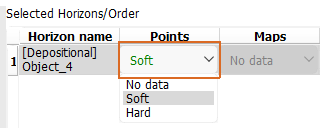
Each usage cell is colour-coded for quick review: No data is grey, Soft is green and Hard is blue. Data types that are not available for a horizon or object appear as a disabled No data cell. For Multi-Z in Available Horizons mode that state is decided per domain rather than per horizon: the cell is enabled on every row as soon as the project contains at least one multi-Z surface of the selected domain, so a disabled cell there means the project has no multi-Z surface in that domain, not that this horizon has none.
A row whose Conformity is Intrusion is built as an intrusion body only when its Multi-Z cell is the row’s only input and is set to Hard – the same direct Multi-Z combination described above, with Points, Maps and Markers all set to No data – and the selected surface is a closed shell that does not intersect itself. Any other Intrusion row is left out of the model completely: it produces neither an intrusion object nor a TIN Maps surface, and the skipped row is named by the warning reported after the run.
5. Set the vertical modeling limits
By default both limits are off and the model spans the full vertical extent of the selected data. Select the Top and Bottom check boxes to enable their value fields, whose labels use the current depth or time unit. Clearing a check box disables its field and applies no limit on that side, so the model keeps its full extent there.
When you enable a limit, its field is pre-filled from the selected horizons – Top from the shallowest and Bottom from the deepest data (the project datum is used for Top when nothing is selected) – and you can edit the value.
An enabled limit also extends the model: a flat surface is built at that value across the modeled area, and the model gains an extra interval between that plane and the first selected horizon for Top, or below the last selected horizon for Bottom, so the model is no longer built only between the selected horizons.
A limit set to the value of the outermost modeled surface on its side, to the precision the field shows, is treated as that surface instead: no separate flat surface is built there and no extra interval is added, while the other side is unaffected.
Setting Top and Bottom to the same value describes an empty modeling box, so both limits are ignored for that run and the model keeps its full vertical extent; the warning reported after the run reads "Model top (X) and model bottom (Y) are the same, so the modeling box is empty. Both limits were ignored for this run — set the bottom below the top, or clear the limit check boxes."
These flat surfaces are build artifacts rather than inputs: they are rebuilt from the current limit values on every Run, never accumulate, and are never listed as rows in the Selected Horizons/Order table when the model is reopened, so they cannot be configured or reordered.
Generated layer volumes are trimmed to the enabled plane as well as the modeled horizon and fault surfaces, while the flat Top and Bottom surfaces themselves lie on the plane and are neither clipped nor truncated by the Conformity and Direction rules; an intrusion body is left whole, so an enabled limit does not cut its shell.
The fault surfaces the model publishes under Faults are bounded to the model extent as well, so they terminate on its boundary instead of protruding past it:
- Laterally, at the modeling border – the selected Border polygon, or the border created automatically when none is chosen
- On an enabled Top or Bottom, exactly on that plane
- On a side where no limit is enabled, at the modeled horizon surfaces themselves
Only this published copy is trimmed, so the faults still split horizons, layers and fault blocks over their full extent.
Modeling Tab
This tab contains parameters that control the output grid resolution and surface smoothness.
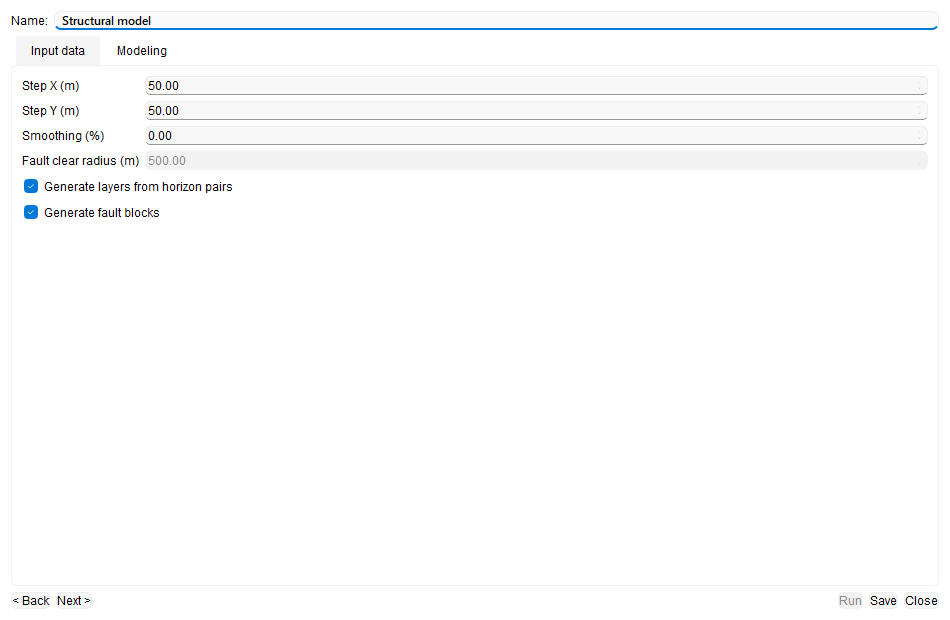
Parameters:
- Step X: Grid spacing in the X direction, shown in the project horizontal unit (default: 50). A smaller value creates a finer grid and increases processing time
- Step Y: Grid spacing in the Y direction, shown in the project horizontal unit (default: 50)
- Smoothing (%): Surface smoothing from 0 to 100 (default: 0)
- Fault clear radius: Distance around the fault traces, shown in the project horizontal unit. It is used to clear and re-interpolate the horizon grid cells next to the faults, and as the width of the strip in which each horizon is smoothed along them (see step 2). The value is stored with the model; a new model starts from the project-level Fault clear radius in the Map interpolation group of Module properties. The field is available only while a fault model is selected on the Input data tab and is unavailable for Ignore faults; a value of 0 leaves each horizon exactly as the fault split produced it
- Generate layers from horizon pairs: Enabled by default. Creates volume layers between consecutive modeled surfaces and stores them under Layers
- Generate fault blocks: Enabled by default. When a fault model is selected, creates separate blocks and stores them under Fault Blocks
A fault block is a piece of the modeling volume cut off by the modeled faults alone. The blocks together fill the modeled box over its full vertical extent – the Top and Bottom limits when both are set to different values, and otherwise the vertical extent of the model itself – out to the modeling border, and the horizons do not divide them further.
Only a fault that separates the modeled area adds a block, so a fault that dies out inside that area leaves the surrounding block whole, and faults that divide the area nowhere produce a single block covering the whole box.
Running the Model
After configuring the model, click Run to build a new model or update the open model. Run is available only when the Name is unique and non-empty and at least one selected horizon/object has a valid non-No data assignment. The wizard remains open after the run so that you can review or adjust its settings. Run and Save are unavailable while the submitted run or save is being processed and become available again when it finishes.
While the model is being built, the run is reported in the Progress View as a task named Build structural model followed by the model name, with nested steps for interpolating the horizons, building the TIN model and publishing the results. You can stop the build there while any of those steps is still running; the stop is all-or-nothing, so no result objects are produced. A model that was being created for the first time is removed again and never appears under the Structural models branch, while a model that was being rebuilt keeps its saved definition and must be run again to produce results.
If the project contains no polygon at all, a warning is shown before the model is built: "No polygon border is available in the project. The modeling border will be created automatically from the largest area extent of the selected objects." The border is then generated automatically from the largest area extent of the selected horizons/objects.
Click Save to store the current model definition without running it. The saved definition includes its domain, ordered inputs, usage modes, conformity settings, limits, fault and border choices, and modeling parameters. Saving a model that has already been built keeps its results: its TIN Maps, Faults, Intrusions, Layers and Fault Blocks entries stay in the Data Manager and stay listed under Structural model 3D in the Visual Settings panel, and both are refreshed together so that they show the same set. Run remains the only rebuild, so the objects on display are still the ones produced by the last run, and the newly saved settings take effect only when you run the model again. One change carried by the same Save affects those results: switching the Depth/Time domain discards the ones built in the previous domain, so the model keeps its saved definition but shows no result objects until it is run again in the new domain. The wizard remains open; use Close when you are finished.
A changed Name works as Save As. When you reopen a saved model and give it a different unique name, both Run and Save write a new structural model and leave the original one untouched: its definition and its TIN Maps, Faults, Intrusions, Layers and Fault Blocks stay as they were, and nothing is renamed. To rename a model instead, use Rename in the Data Manager (see Structural models). Save under a new name stores only the new model’s definition, so the new model appears under the Structural models branch with no results until it is run, while Run under a new name builds its results at once. After either one the wizard continues editing the newly created model, so a further Run or Save updates that new model and not the original.
Results:
- The named model is stored in the Structural models branch under its user and domain
- Built horizon surfaces appear under TIN Maps and can be displayed in section and 3D views. A horizon that the fault model splits into several fault-bounded pieces contributes one entry per piece, named after the model and the horizon and ending in [Block 1], [Block 2] and so on
- When a fault model is used, its modeled surfaces appear under Faults, bounded to the model extent
- Each accepted Intrusion row produces exactly one object under Intrusions, named after the model and the selected surface, and never a TIN Maps surface
- Layers and Fault Blocks are created when their corresponding Modeling options apply
- An enabled vertical limit adds its flat surface under TIN Maps as Top or Bottom, and, when Generate layers from horizon pairs is enabled, the extra interval appears under Layers named after its pair, as Top/<first horizon> or <last horizon>/Bottom. A limit that coincides with the outermost modeled surface on its side, and a Top and Bottom pair set to the same value, add neither (see step 5)
Only the pieces that carry visible geometry are published under TIN Maps. Empty fragments, and the slivers that the fault split and the clipping steps after it can leave along a fault trace, are left out: a piece is published only when its surface covers a small but non-trivial patch of its own horizon, measured against the modeling grid and the extent of that horizon, so genuine small fault compartments are kept while this debris is not. The entries under TIN Maps therefore follow the fault compartments of the model, and each of them draws visible geometry in the 3D view and on intersecting sections. The pieces retained after fault splitting and clipping also provide the input for generated Layers. An intrusion cut can remove additional small pieces before the final TIN Maps are published. Fault surfaces under Faults are bounded to the model extent separately.
An intrusion shell is used exactly as you picked it: it is not re-interpolated onto the modeling grid, not smoothed by Smoothing (%), not split by faults and not truncated by the Conformity and Direction rules. Every modeled horizon surface and every fault surface that meets the intrusion is cut back to its boundary where that cut succeeds, so those objects show a hole where the intrusion sits, and every generated layer volume the intrusion crosses has the intrusion volume subtracted, leaving a cavity inside the layer instead of geology continuing through the body. A patch that cannot be cut is not left out of the model: the intrusion is still built, that patch stays whole and passes through the intrusion body, and the warning reported after the run names the intrusion, how many patches refused the cut, and the first of them with its reason.
An Intrusion row is not a layer boundary. Layers are still generated between consecutive non-intrusion rows in the order, so an intrusion placed between two horizons does not split the enclosing layer in two: that layer keeps its own top and bottom pair and simply gains the cavity. Generate layers from horizon pairs therefore needs at least two non-intrusion rows to produce anything.
If a selected object cannot be built from its assigned inputs, the model is still created and a warning identifies the affected object after the run. The same warning reports a skipped intrusion row, a surface patch that refused an intrusion cut, and any layer that had to be left out because an intrusion volume subtraction could not be completed reliably. Everything reported by one run is collected into a single message that begins "The structural model was created with the following warnings:" and lists the individual warnings below it.
Recommendations
- Start with a coarse grid (larger Step X/Y) for quick preview, then refine
- Use Hard constraint for well markers to ensure the model honors well data exactly
- Use Soft constraint for maps to allow the model to adjust where map data may be less reliable
- Set Conformity and, for unconformities, Direction carefully because they control how adjacent surfaces are truncated. This truncation is skipped for a pair in which either horizon takes its shape directly from a Hard Multi-Z surface (see step 4); grid-based horizons are truncated as usual, and rows set to Intrusion follow the intrusion path described under Results
- Define a border polygon to reduce computation time and focus on the area of interest
- Place an enabled vertical limit outside the horizon stack – Top above the shallowest selected data and Bottom below the deepest. A limit that lands inside the stack still builds, but the extra layer it adds is inverted where the plane crosses a horizon, and the run reports it – for example "The top limit (X) is below the shallowest horizon (Y); the top layer is inverted where the limit crosses a horizon."
- Review results in 3D view to verify fault-horizon intersections
See Also