Export checkshots
There are two options for exporting checkshots:
- Export Checkshots for All Wells
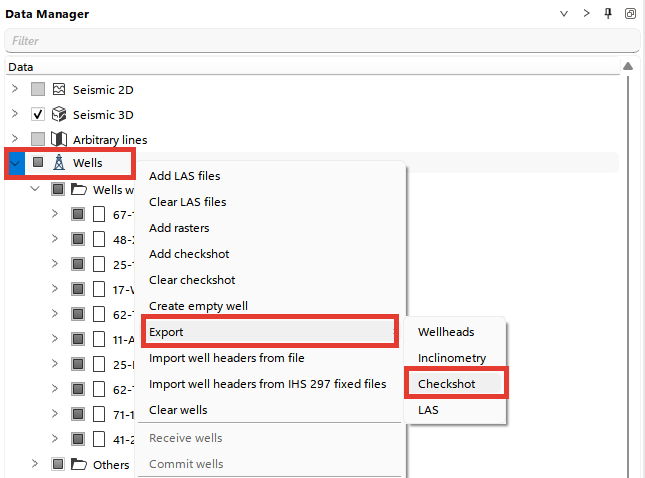
- Alternatively, go to the Actions panel and choose Export all checkshots.
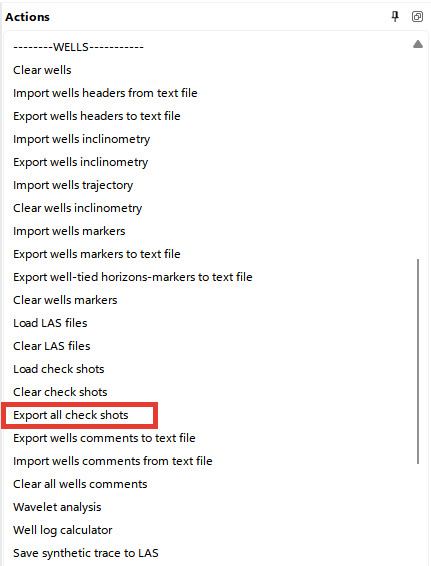
Or go to the Wells Bar and choose Export all checkshots.

- Export Checkshots for a Single Well
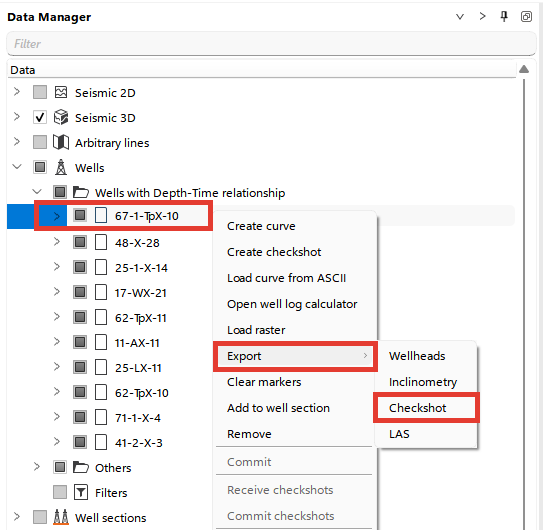
When exporting checkshots, a pop-up window will appear with options to save checkshots by different methods:
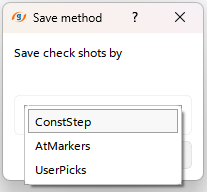
- ConstStep: Save at constant depth intervals.
- AtMarkers: Save checkshots at predefined markers.
- UserPicks: Save checkshots at user-defined depths or picks.
Choose the desired method, then locate the directory and file format for saving, and click Save.
The exported file will include the following information by default:
- UWI (Unique Well Identifier)
- True Vertical Depth (TVD)
- One Way Time (OWT)
Note: Currently g-Space supports export checkshot data from KB datum.
For more information about checkshot format please refer to chapter Well Data Formats