Import comment log
Comment logs are depth-referenced text annotations attached to a well - for example lithology descriptions, drilling notes, formation tops or fluid shows. They are matched to a well by its name/UWI and displayed alongside the well logs at their reference depth.
Import comments steps:
Step 1: Locating the file
To load comments go to Ribbon -> Wells bar and click on Import wells comments from text file button

The comment file is a TAB-delimited *.tsv file with the following required columns:
- UWI - well identifier
- MD - measured depth of the comment
- Comment - the comment text
In appeared open file dialog locate comments file and click open
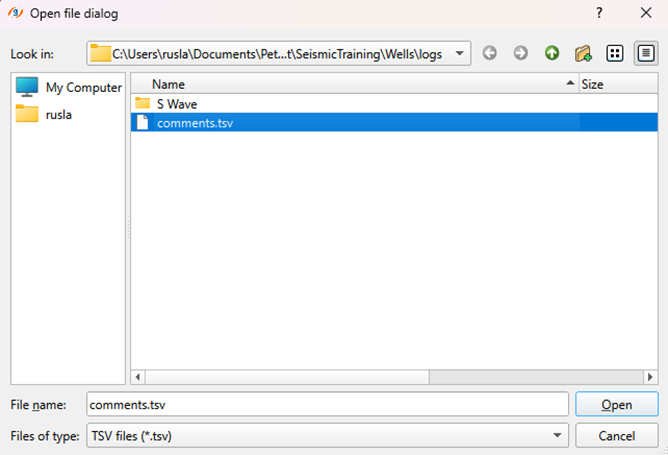
Step 2: Setting up reading parameters
g-Space will open file preview dialog were you can set the loading parameters such as: Headers row, Start row, End row. The separator is fixed to TAB for this importer.
In the Original file tab you will see how files looks like and adjust loading parameters accordingly
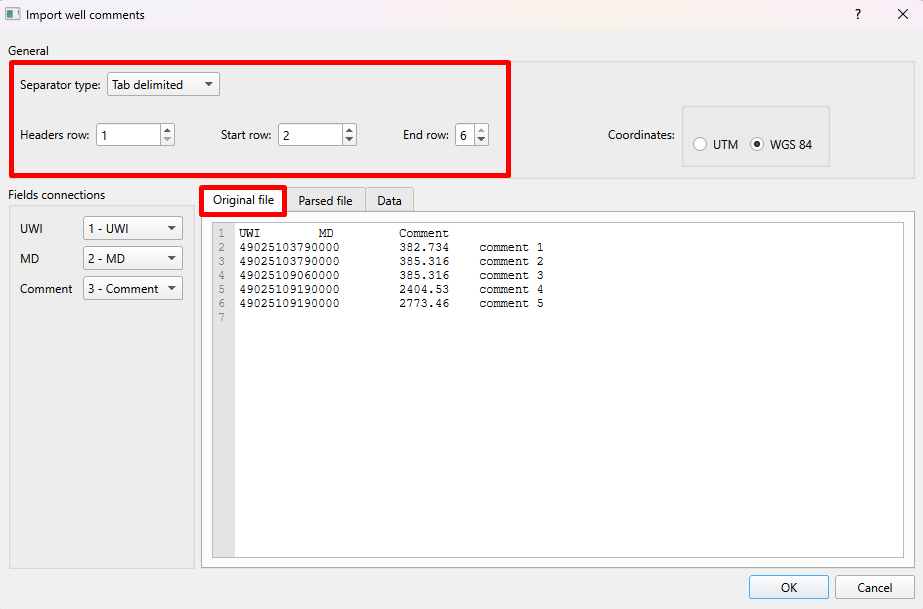
Step 3: Checking reading parameters
Click on Parsed file tab to check if you set reading parameters correctly and also you can decide which columns you want to add or skip
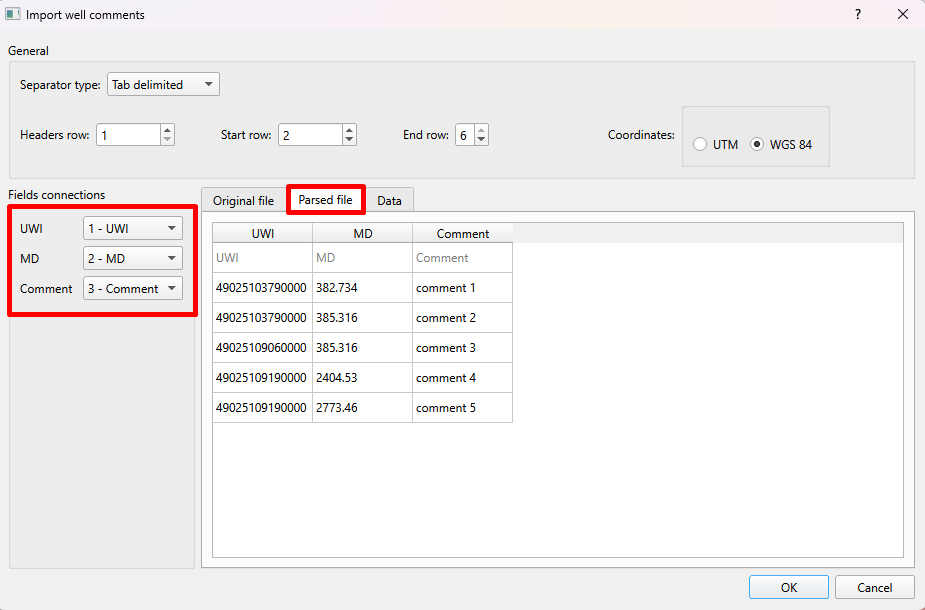
In the Field connections check the parameters. This importer expects exactly the UWI, MD and Comment columns; additional columns are not allowed.
Note
If some of the fields are colored RED, it means that data doesn't have required type or reading parameters were set incorrectly
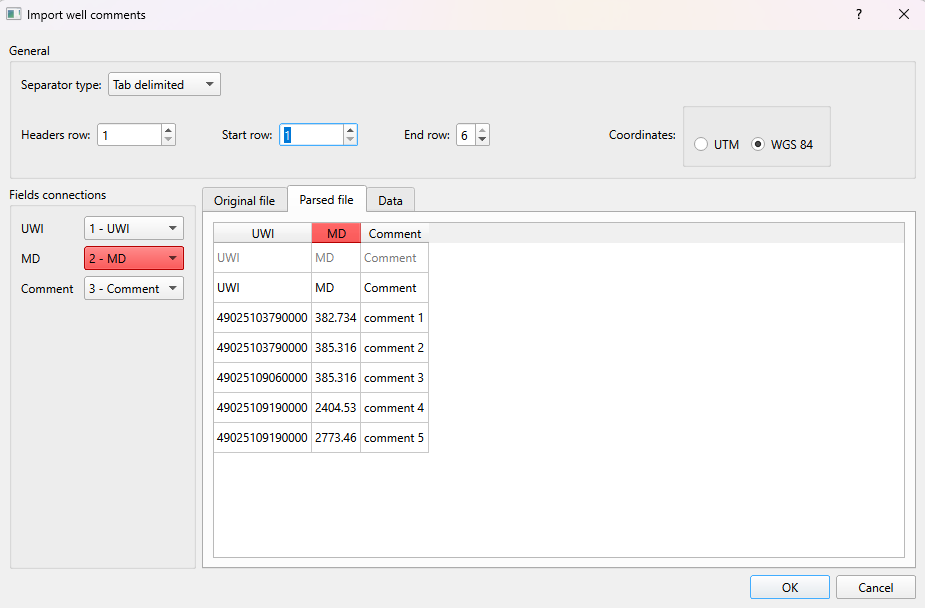
Step 4. Checking the loading settings
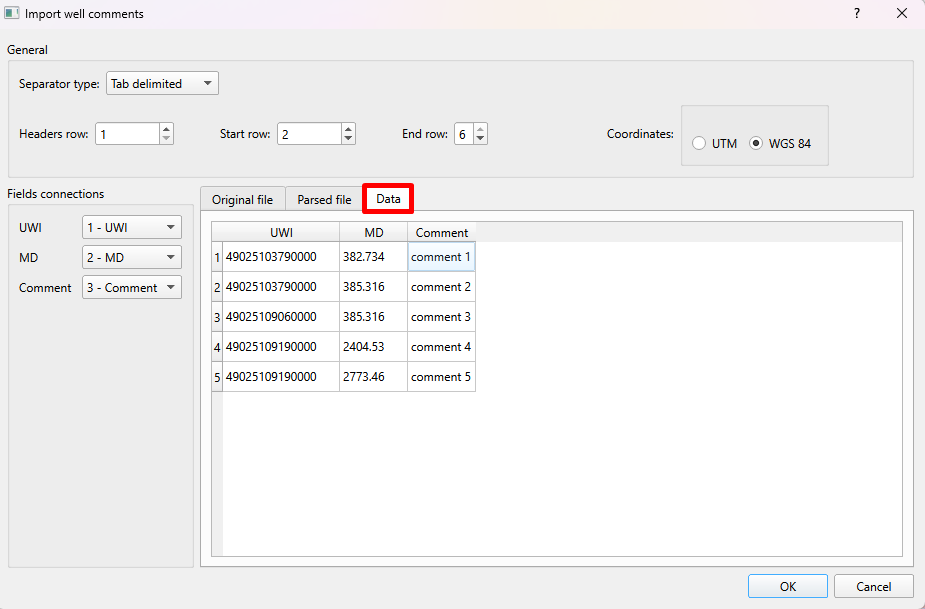
In Data tab you can see if all settings were done correctly and all necessary columns were included. After that click OK
After import the comments are attached to the matching well by its name/UWI and are shown alongside the well logs at their reference depth.
For more information about comment log format please refer to Well Data Formats