Import markers
Import markers steps:
Step 1: Locating the file
Go to Ribbon -> Wells bar and click on Import wells markers

Accepted file formats: *.marks2, *.txt and *.csv.
There are two options to load markers:
Option 1. Import well markers from MD format. Required columns:
- UWI or Well Name, Marker, MD
Option 2. Import well markers from XY format. Required columns:
- UWI or Well Name, Marker, X, Y, and either TVD or TVDSS
Age and Type can also be mapped when present in the file.
Petrel well-tops format
g-Space also reads well markers exported from Petrel in the well-tops text format. In such files the columns are declared inside a BEGIN HEADER … END HEADER block, one column name per line, and the marker data starts on the line after END HEADER.
When you select a Petrel well-tops file, g-Space detects this layout automatically: it sets the column separator to space and moves the Start row to the first data line, so no manual adjustment is normally required.
The Petrel column names are matched to the g-Space marker fields automatically:
- Surface -> Marker
- Well -> Well Name
- Geological age -> Age
- TVT -> TVD
- Z -> TVDSS
Quoted marker or well names that contain spaces are kept as single values.
In the file dialog, select the marker file and click Open.
Step 2: Setting up reading parameters
g-Space opens the Import markers dialog. Under Markers input format, choose MD or XY, then review Separator type, Headers row, Start row and Preview rows.
Use Original file to confirm the source layout. For ordinary text files, adjust the reading settings if necessary. Petrel well-tops files use the automatically detected settings described above.
Step 3: Checking reading parameters
Select Parsed file to confirm that the source rows are split into the expected columns.
In Fields connections, verify UWI or Well Name, Marker and MD for MD input, or UWI or Well Name, Marker, X, Y and either TVD or TVDSS for XY input. Select Skip for unused optional columns.
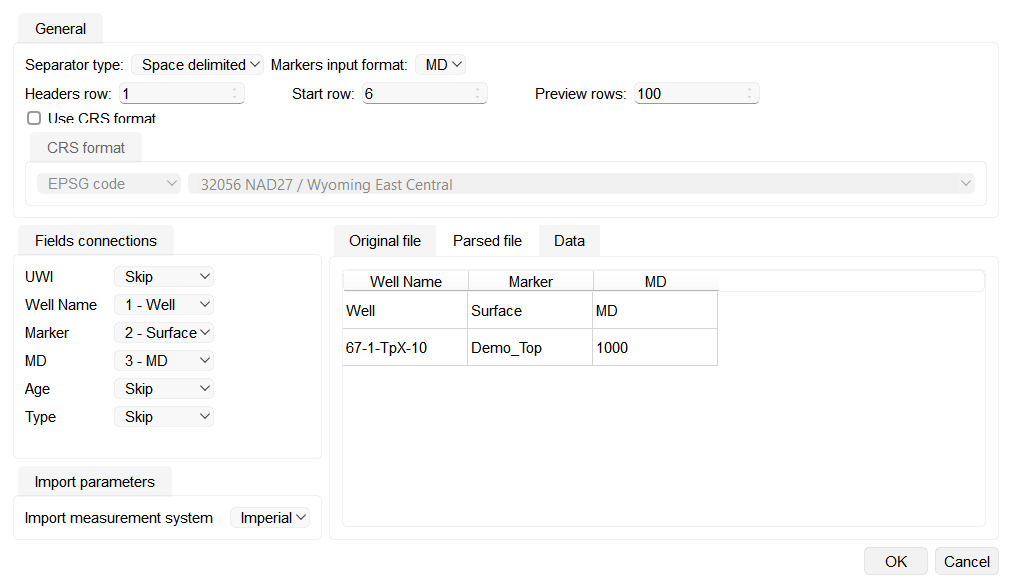
A Petrel well-tops file after automatic detection. Well is mapped to Well Name, so UWI can remain set to Skip.
Note
If a required field is red, select a valid source column before continuing.
For more information about marker formats supported by g-Space, refer to Well Data Formats
Step 4. Checking the loading settings
Select Data to review the mapped rows. When the values are correct, click OK.
Step 5: Controlling loaded data
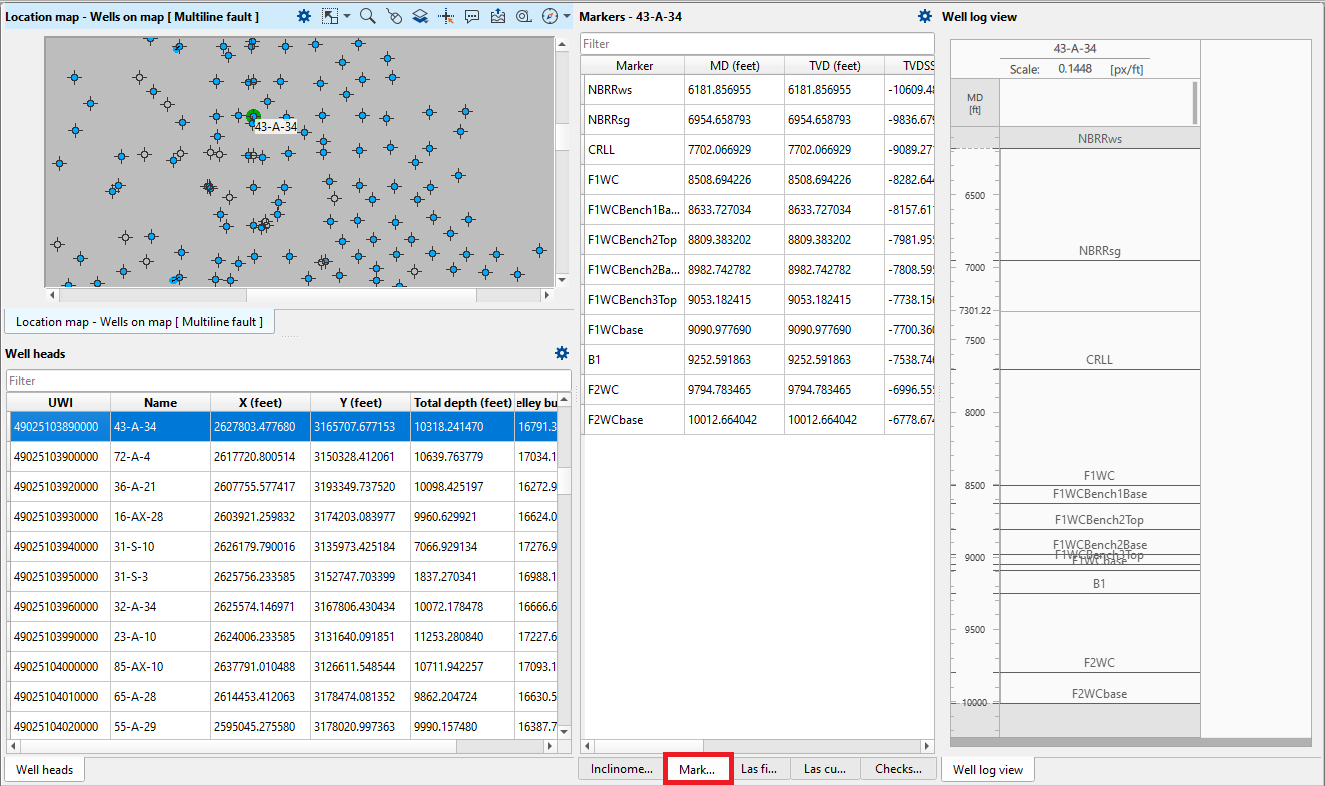
To check the data click on map view or in table below map - all loaded information will appear in the table Markers and you can check them on well log preview
For more information about markers format please refer to Well Data Formats