3D Grid Quality Control
3D Grid Quality Control is a diagnostic tool that scans a 3D grid for cell geometry problems before the grid is used for property modelling, volumetrics or export. It reports the number of problem cells for each selected check, grouped by severity, so structural issues can be found and corrected early.
Purpose
The tool is designed to:
- Detect cells with invalid geometry (negative thickness, zero volume or negative volume)
- Flag cells that are too thin or collapsed for reliable modelling
- Identify cells with an extreme aspect ratio that can degrade interpolation and simulation
- Provide a per-check issue count with a Critical / Warning severity so problems can be prioritised
Requirements
Before running Quality Control:
- The grid must exist in the 3D Grids section of the Data Manager.
- The grid must contain at least one zone with layers. A grid with no zones cannot be checked, and the tool reports Grid has no zones to check.
- Quality Control is available for standard 3D grids; it is not offered for tetrahedral grids.
Entry Point
Quality Control is launched from the Data Manager context menu:
- In the Data Manager, open the 3D Grids section and locate the grid to check.
- Right-click the grid and select QC from the context menu.
The QC window opens with a title that names the target grid, for example QC for Grid: Grid 5. The selected checks are evaluated across every zone and layer of the grid.
The QC Window
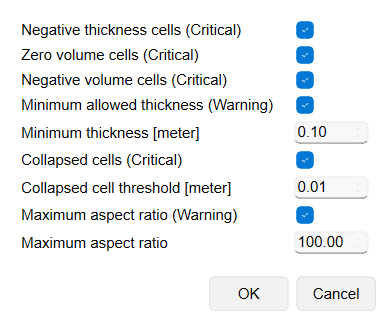
The QC window lists the available checks as checkboxes. Checks that need a limit value show an input field beside them, and values are entered in the project's units. All checks are enabled by default.
Basic geometry checks
These checks need no parameters, and each flagged cell is reported as Critical:
- Negative thickness cells — cells whose bottom lies above their top (thickness < 0).
- Zero volume cells — cells with zero thickness, where the top and bottom coincide.
- Negative volume cells — cells with inverted, negative volume.
Threshold-based checks
These checks compare each cell against a limit that you can edit:
- Minimum allowed thickness — cells whose per-layer thickness is below the Minimum thickness value are flagged. Unit: project distance (m or ft). Default: 0.10. Severity: Warning.
- Collapsed cell threshold — cells with an extremely small thickness, below the Collapsed cell threshold value, are treated as collapsed. Unit: project distance (m or ft). Default: 0.01. Severity: Critical.
- Maximum aspect ratio — cells whose aspect ratio exceeds the Maximum aspect ratio value are flagged. The aspect ratio is the larger horizontal cell size divided by the cell thickness, max(dx, dy) / dz. Unit: dimensionless. Default: 100. Severity: Warning.
Running the check
- Enable or disable individual checks using their checkboxes.
- For threshold-based checks, adjust the Minimum thickness, Collapsed cell threshold and Maximum aspect ratio values as needed.
- Confirm the window to run Quality Control. The grid is scanned and the results report is displayed.
Reviewing Results
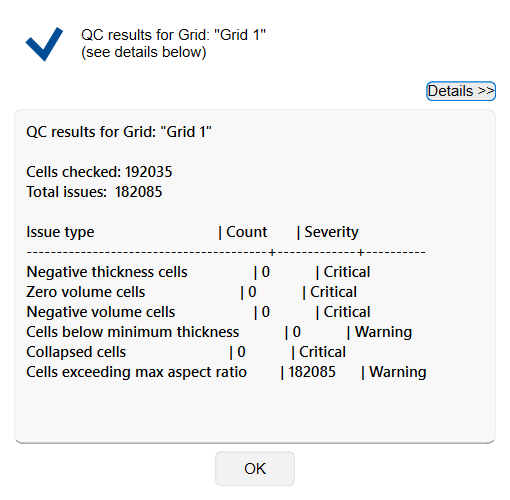
When the scan finishes, a results report is shown for the grid. It summarises:
- Cells checked — the total number of cells evaluated across all zones and layers.
- Total issues — the combined count of flagged cells from the enabled checks.
- A per-check table with the columns Issue type, Count and Severity. Only the checks you enabled appear in the table.
A high number of Critical issues (negative thickness, zero or negative volume, collapsed cells) indicates geometry that should be corrected before the grid is used for modelling. Warning issues (cells below minimum thickness, high aspect ratio) highlight cells that may reduce the quality of interpolation and simulation.
Recommendations
- Run Quality Control after building or editing a grid's zones and layers, and again before property modelling or export.
- Keep all checks enabled for the first run to get a complete picture, then re-run with only the relevant checks to focus on specific problems.
- Treat Critical issues first: they usually point to inverted or degenerate cells that break volumetrics and simulation.
- Adjust the Minimum thickness and Collapsed cell threshold to match the vertical resolution of your model — very thin reservoir layers may legitimately fall below the defaults.
- Cross-check the counts against the grid's structure using Show grid report, which lists per-zone dimensions and volumes.
See Also