Structural Uncertainty Analysis
Structural Uncertainty Analysis is a wizard that quantifies the positional uncertainty of a structural model by generating an ensemble of perturbed realizations. Each realization rigidly displaces the model's horizons and faults by a random amount drawn from a per-element probability distribution, so the spread of the resulting surfaces represents the range of geologically plausible structural positions. The wizard runs in the depth domain only and is launched from the context menu of a Structural Model object in the Data Manager.
Purpose
The tool is designed for:
- Estimating the positional uncertainty of interpreted horizons and faults
- Producing an ensemble of equiprobable structural realizations from a single base model
- Building an uncertainty envelope for risk-aware volumetric and reservoir analysis
- Testing how much each element is allowed to move independently of the others
Requirements
- A completed structural model built in the depth domain (the analysis is not available for time-domain models)
- The base model must contain at least one horizon; faults are optional
- Well markers are optional — they are used only when the Well markers option is set to Use for an element
Launching the Wizard
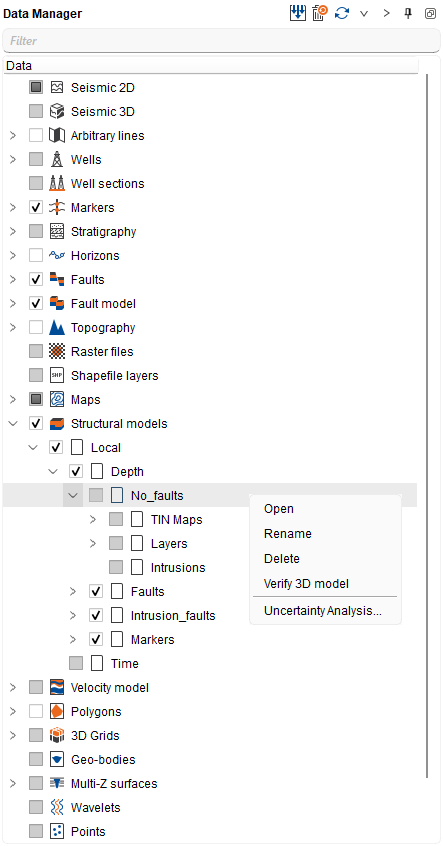
Right-click a Structural Model object in the Data Manager tree and choose Uncertainty Analysis... from the context menu.
- The command appears only for depth-domain models. It is not available for time-domain models or for individual realization leaves inside an existing ensemble.
The wizard opens as a dialog window titled Structural Uncertainty Analysis with four pages (Setup, Faults, Horizons, Run). Navigate between pages using the Back and Next buttons. The Faults page is skipped automatically when Fault position is unchecked on the Setup page.
Step-by-Step Guide
Setup Tab: Select Model and Elements
The first page selects the base model and chooses which classes of element receive uncertainty.
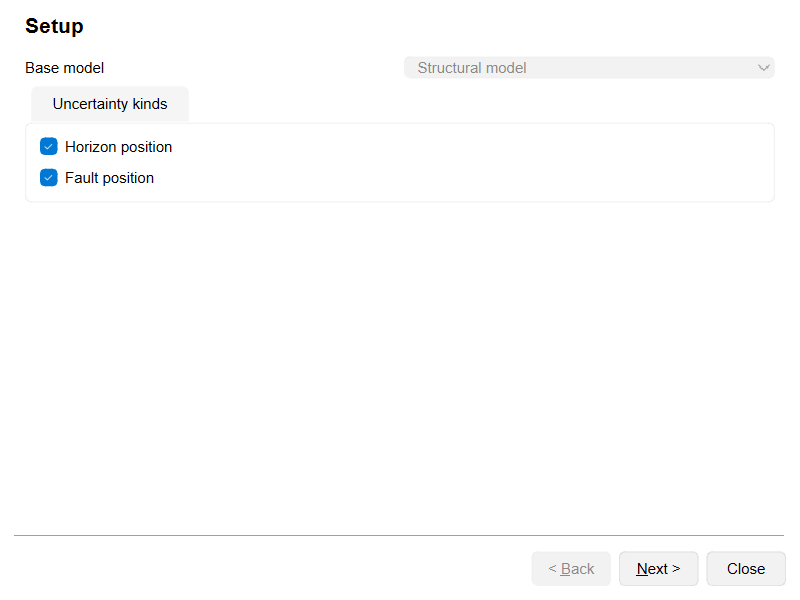
1. Confirm the base model
- The Base model dropdown is pre-filled with the model you right-clicked and is read-only — the analysis always runs on that model.
2. Choose the uncertainty kinds
In the Uncertainty kinds group, tick the element classes to perturb:
- Horizon position — perturbs horizon surfaces. Checked by default.
- Fault position — perturbs fault surfaces. Checked by default. When unchecked, the Faults page is skipped and no fault is perturbed.
Faults Tab: Fault Uncertainty
This page is shown only when Fault position is checked on the Setup page. It lists every fault in the model, one per row, and controls how each fault is allowed to move.
Global option
- Horizontal displacement only — when checked, fault movement is constrained to the horizontal (X–Y) plane; the fault-normal displacement is projected onto the map plane. Unchecked by default.
Fault table columns
- Fault — read-only name of the fault.
- Has uncert. — checkbox, checked by default. Uncheck to fix the fault at its base-case position so it is not perturbed in any realization. When unchecked, the Displacement and Distribution cells for that row are greyed out.
- Displacement (m) — the maximum symmetric displacement applied along the fault-normal direction, in metres. Default 50. The value defines a symmetric envelope of ±D about the base-case fault plane (Constant Symmetric method — the same maximum is applied on both sides of the fault).
- Distribution — the probability distribution used to draw the displacement within the envelope. One of Uniform, Triangular, or Gaussian (default).
- Well markers — Use or Not Use. When set to Use, the perturbed fault is constrained to stay on the correct side of the well markers defined for it. The column is greyed out and shows Not Use when no markers exist for the fault.
Distribution types
- Uniform — every position within the envelope is equally likely.
- Triangular — positions near the base case are more likely; probability decreases linearly toward the envelope boundary.
- Gaussian — positions near the base case are more likely; probability decreases smoothly and is lower at the envelope boundary than Triangular.
Horizons Tab: Horizon Uncertainty
This page lists every horizon in the model, one per row, using the same columns and behavior as the Faults page. Horizons are displaced vertically.
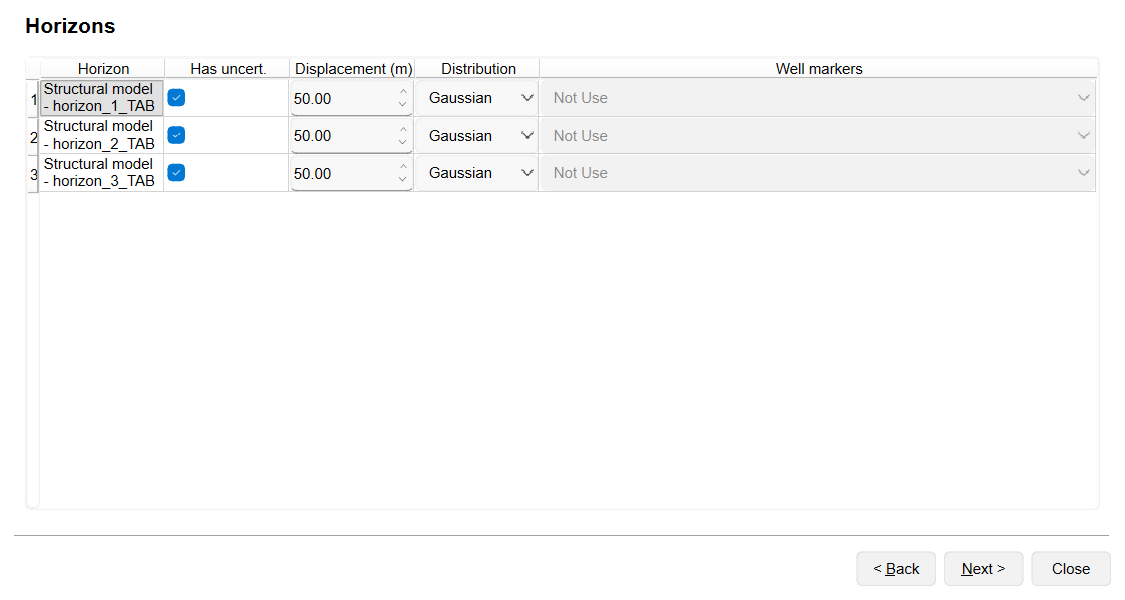
- Horizon — read-only name of the horizon.
- Has uncert. — checkbox, checked by default. Uncheck to fix the horizon at its base-case position; the Displacement and Distribution cells are then greyed out.
- Displacement (m) — the maximum symmetric vertical displacement, in metres. Default 50. Applied uniformly across the horizon extent, symmetrically above and below the base-case surface (Constant Symmetric method).
- Distribution — Uniform, Triangular, or Gaussian (default), as described for faults.
- Well markers — Use (default) or Not Use. When set to Use, the perturbed horizon is clamped so it stays on its base-case side of the well markers. Greyed out and set to Not Use when no markers exist for the horizon.
Run Tab: Run Simulation
The final page sets the ensemble size and name and starts the simulation.
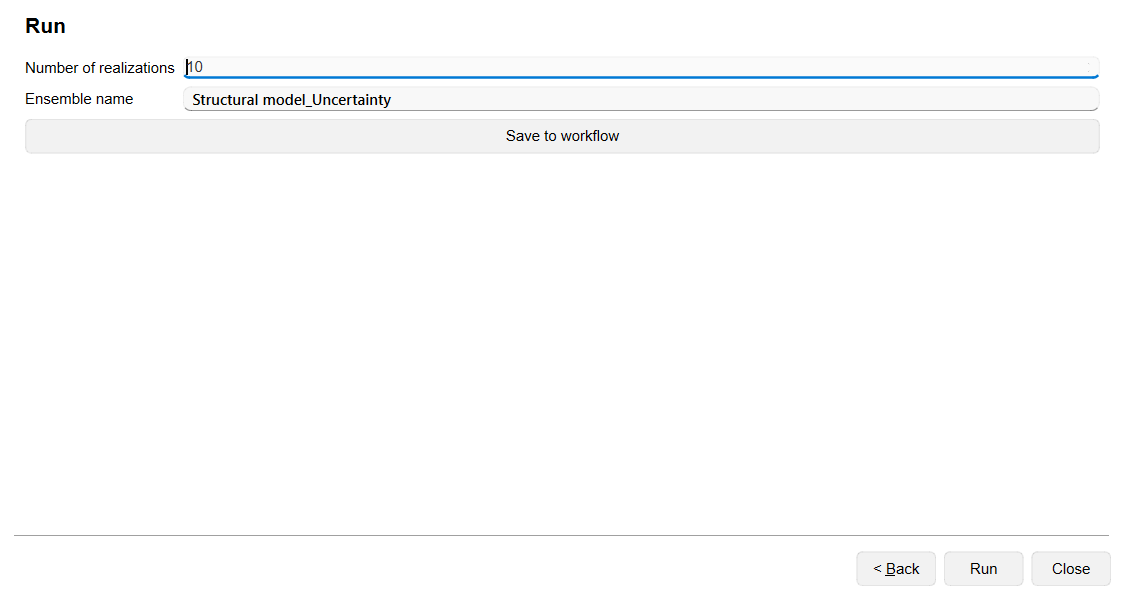
- Number of realizations — the number of perturbed models to generate. Default 10 (range 1–1000). Realizations are computed sequentially.
- Ensemble name — the name of the output ensemble group. Defaults to <ModelName>_Uncertainty.
- Save to workflow — instead of running immediately, saves the configured analysis as a step in the current workflow so it can be replayed later.
Click Run to start the simulation, or Close to cancel without generating an ensemble.
Running the Analysis and Results
When you press Run, the wizard generates the requested number of realizations one after another, drawing an independent displacement for each element that has Has uncert. checked. Elements with Has uncert. unchecked remain at their base-case position in every realization. A progress dialog reports the number of completed realizations.
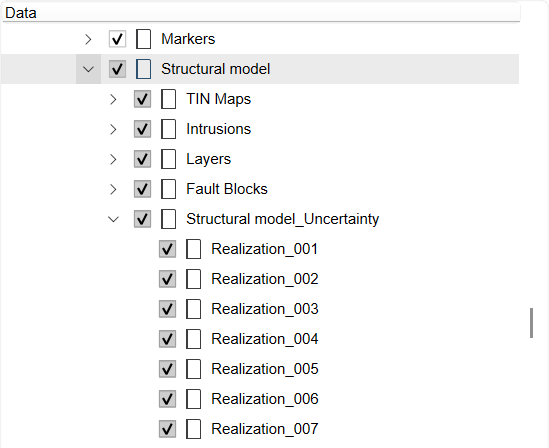
All realizations are stored together as a Structural Model Ensemble group under the base model in the Data Manager:
- The ensemble folder is named <ModelName>_Uncertainty. The object properties of the base model report the Uncertainty ensemble name and the number of Realizations; the properties of a single realization also report its Realization index and its Base model.
- Each realization (Realization_001, Realization_002, ...) is a single leaf item with no sub-items; toggling its visibility shows all of its perturbed faults and horizons together.
- Individual realizations can be extracted, renamed, or deleted from their context menu.
Visualizing the Ensemble
- 3D Viewer — toggling the ensemble container visible renders all realization surfaces simultaneously, color-coded by realization index, producing an uncertainty envelope view. Individual realizations can be toggled on or off, and the base-case model can be displayed alongside for reference.
- Cross-sections — all realization horizon and fault traces are drawn per section, color-coded by realization index, while the base-case traces keep their own surface colors.
Recommendations
- Start with a small number of realizations (for example the default 10) to validate the setup, then increase it for a fuller uncertainty envelope.
- Uncheck Has uncert. for well-constrained elements you want to hold fixed, so the analysis focuses on the poorly constrained surfaces.
- Set Well markers to Use for elements tied to wells so realizations stay geologically consistent with marker data.
- Use Gaussian or Triangular distributions when the base case is the most likely position; use Uniform when any position within the envelope is equally plausible.
- Enable Horizontal displacement only when fault throw is well known but lateral position is uncertain.
See Also