Well Tests
A well's Well Tests folder appears in the Data Manager after test data is imported. It holds pressure station datasets, interval well tests and time-series measurement tables together, without separate type folders. Each dataset shows a short summary beside its name.
Import well tests
Right-click an individual well, or its existing Well Tests folder, point to Import well tests and choose Pressure stations..., Interval well tests... or Time-series measurements....
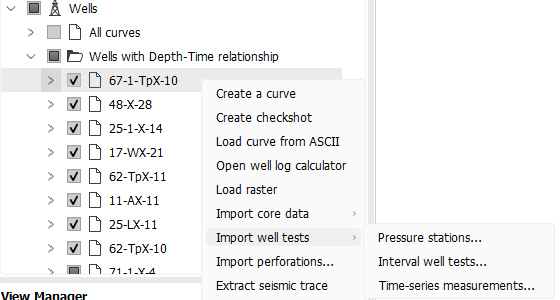
To import for several wells, right-click Wells in the Data Manager and choose Import > Well tests. Choose Pressure stations..., Interval well tests... or Time-series measurements..., then select One file containing several wells (wells identified by UWI and/or well name) or Several files, one well per file.
In single-file mode, select a CSV or TXT file and map UWI, Well name, or both to identify existing project wells. A UWI alone is sufficient; a well name alone must identify one well uniquely. When both are supplied, the name must agree with the well identified by the UWI. Ambiguous, unmatched or contradictory identifiers are rejected and their rows reported as skipped. For legacy files with a UWI under a Well column, map it to Well name: if no project well has that name, the value is tried as a UWI.
In bulk mode, select the CSV or TXT files together, with one well per file. The matching step shows File name, Detected well name, Detected UWI, Matched project well and Match status. Automatic matching uses the file's UWI and/or well name, checking agreement when both are present. Only when identifiers are absent does it try the filename without its extension as a well name or UWI. Correct the assignment in Matched project well, or clear Import to exclude a file. Every included file must be matched before you choose Continue to map columns.
In the import dialog, check Separator and Header row against the Preview, then assign each file column a Meaning under Columns. In bulk mode, the mapping is reused for files whose ordered headers match when read using the confirmed separator and header row; differences in header case or surrounding spaces do not require another mapping. Other structures are mapped separately. After file matching, Well name and UWI columns are optional. Rows with conflicting identifiers are skipped rather than imported into another well; manually matching a file does not override contradictory UWI and name values that identify different project wells.
For Pressure stations, identify wells as described above and assign Depth (MD) and Pressure. You can also map Test ID, Station ID, pressure uncertainty, mobility, temperature, quality, fluid sample, zone and comment. Separate Test IDs become separate station datasets. Recognised quality values are Good, Fair and Failed; other values appear as Unknown with the original text retained.
For Interval well tests, identify wells as described above and assign Test ID, Test type, Top MD and Bottom MD. Optional columns include start and end time, initial and final pressure, rate, fluid, status, zone and comment. Test types include DST, Buildup, Drawdown, Injection, Production and Other. Each row becomes an interval test; two tests may occupy the same depth interval.
For Time-series measurements, identify wells as described above and assign Test ID and Date/time; assign each measured column to Measured value. The well and Test ID match measurements to an interval test. Import interval tests before their measurements.
Check the Unit for every mapped depth, pressure, rate or other measured column. A recognised suffix in a column name proposes a unit, which you can correct; a missing unit blocks import. Well identifiers route rows to wells already in the project. Unmatched values are reported. If none match and you started from an individual well, you can choose to import all rows into that well.
A missing interval test type blocks import of that file; in bulk mode, other valid files can still be imported. Duplicate Test IDs and intervals with Top MD greater than or equal to Bottom MD are imported with flags; duplicate IDs leave a measurement link ambiguous. When a measurement Test ID has no matching interval test, a prompt names the unmatched IDs and lets you keep their tables unlinked or skip those rows. When a linked series has pressure measurements, a disagreement between its first or last pressure and the interval's initial or final pressure is flagged. The interval Rate is read from its own column, not calculated from the series; a negative value can represent injection.
Review the final import summary for the dataset count and validation messages. In bulk mode it lists imported files and their dataset counts, excluded files, failed files with reasons, and skipped rows with reasons by file. Files still requiring matching are reported as zero because every included file had to be matched before column mapping.
Open and manage datasets
Right-click a station dataset and choose Open to see its station table. Right-click Well Tests and choose Open interval tests table to see all interval tests for that well. Right-click an interval test and choose Open measurements for its linked table, or open a measurement dataset directly. You can edit existing table cells, but cannot add or remove rows or columns there. The interval table shows validation flags.
Use Rename or Remove on a dataset. Renaming an interval test does not break its measurement link. Remove asks for confirmation; removing an interval test leaves its measurement table in the folder, where it reports that its parent test is gone.
Display a Well Tests track
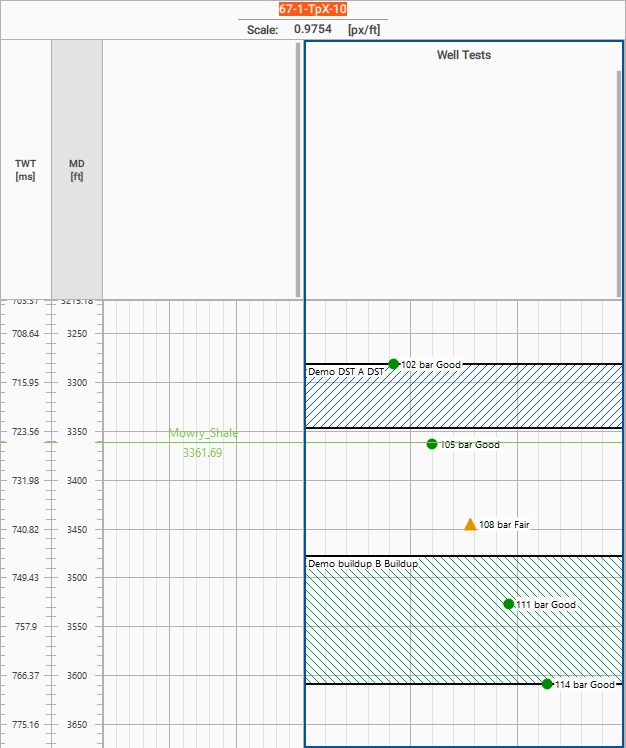
In a Well Log or Well Correlation view, add a track for a well and choose Advanced Track Settings.... Set Grid Type to Well Tests. Pressure stations appear at their measured depths and interval tests appear as blocks spanning their top and bottom depths. Both kinds can appear in one track. The same track settings and styling apply in well correlation for wells that have test data.
The example below shows synthetic demo data in Well Correlation: five pressure stations and the Demo DST A and Demo buildup B interval tests. The imported depths span 1000–1100 m MD; the displayed measured-depth axis uses feet (approximately 3281–3609 ft). Station pressures were imported as 102–114 bar, with the pressure scale set to 9.5–12 MPa.
In the Well Tests settings, use Show pressure stations to control pressure-station visibility.
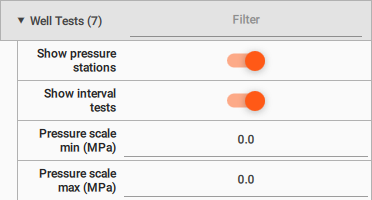
Use Show interval tests to control interval-test visibility.
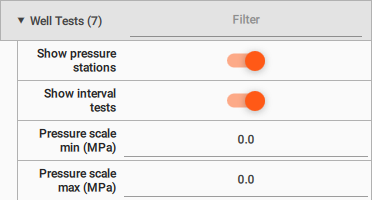
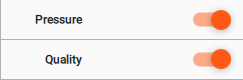
Station labels show Pressure and Quality by default.
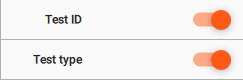
Interval labels show Test ID and Test type by default.
The other label switches, station pressure scale and Styling colours can be adjusted. Station quality uses distinct symbols, and interval types use different fills, so the display remains distinguishable without colour.
Hover over a station or interval for its in-track details. Right-click one to use Pressure Station Properties or Interval Test Properties; Open measurements appears for an interval with linked measurements. Time-series measurements can be opened as a table, but this view does not plot them against calendar time.
See Also