Modify traces in gather
Delete and/or change of polarity of selected traces
Theory
Modify Traces in Gather module is used to perform trace level edits within a seismic gather, with primary support for selective trace edits & polarity modification. It allows the users to correct, test, or standardize trace behavior while preserving the overall gather geometry and ordering.
This module is commonly applied during quality control and conditioning stages where individual traces within a gather require correction without reprocessing the entire dataset.
This module can be used to delete the selected traces or polarity reversal. These modifications are recorded in an ASCII file. The user can export this file and use it later within the same module or call the previously saved ASCII file and perform the tasks.
Input data
Input DataItem
Input gather
specify the input gather that should be edited (both trace edits and polarity reversal). This gather primarily a pre-stack data gather. Connect/reference to Output gather.
Parameters
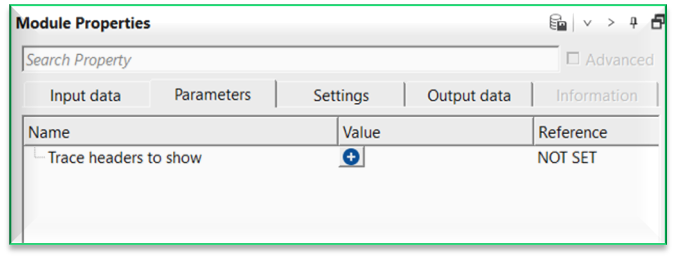
Trace headers to show - this option allows the user to choose the trace headers from the drop down menu. To add the trace headers, click on  icon. It will add multiple rows one after the other.
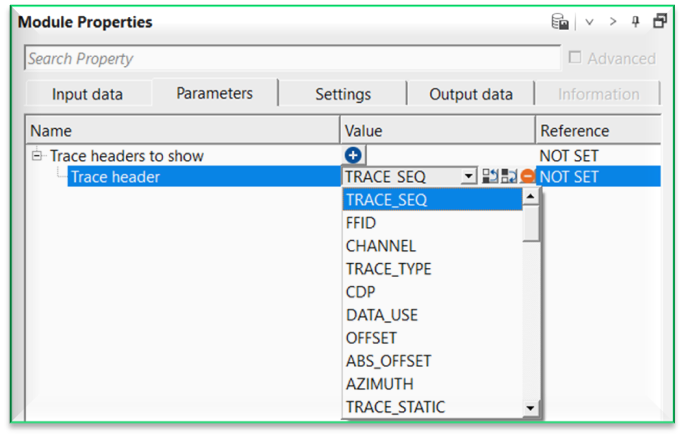
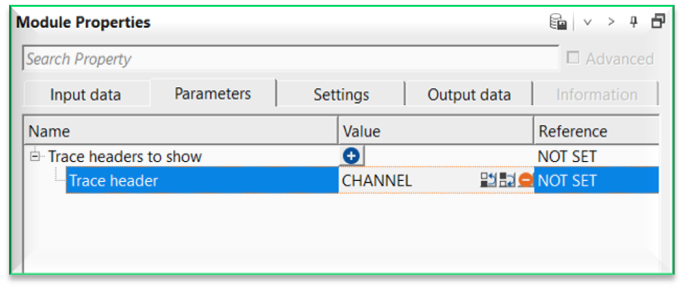
Trace header
displays the user selected trace header. For example, CHANNEL.
Settings
Auto-connection
By default, TRUE(Checked).It will automatically connects to the next module. To avoid auto-connect, the user should uncheck this option.
Bad data values option { Fix, Notify, Continue }
Bad value fix - This is applicable whenever there is a bad value or NaN (Not a Number) in the data. By default, Notify. While testing, it is good to opt as Notify option. Once we understand the root cause of it, the user can either choose the option Fix or Continue. In this way, the job won't stop/fail during the production.
Notify
It will notify the issue if there are any bad values or NaN. This will halt the workflow execution.
Fix
It will fix the bad values and continue executing the workflow.
Continue
This option will continue the execution of the workflow however if there are any bad values or NaN, it won't fix it.
Number of threads
One less than total no of nodes/threads to execute a job in multi-thread mode. Limit number of threads on main machine.
Skip
By default, FALSE(Unchecked). This option helps to bypass the module from the workflow.
Output data
Output DataItem
Output gather
outputs the updated/modified gather.
Information
There is no information available for this module.
Examples
In this example workflow, we are working on a pre-stack data. We use "Read seismic traces" module and set "Enable active location map" option as TRUE (Checked). This will allow us to select any shot gather from the location map. There are many places where the user can use this module like Seismic loop etc. In this example, we are demonstrating by using Read seismic traces module method for simplicity.
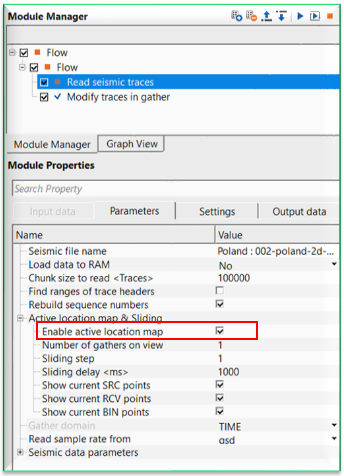
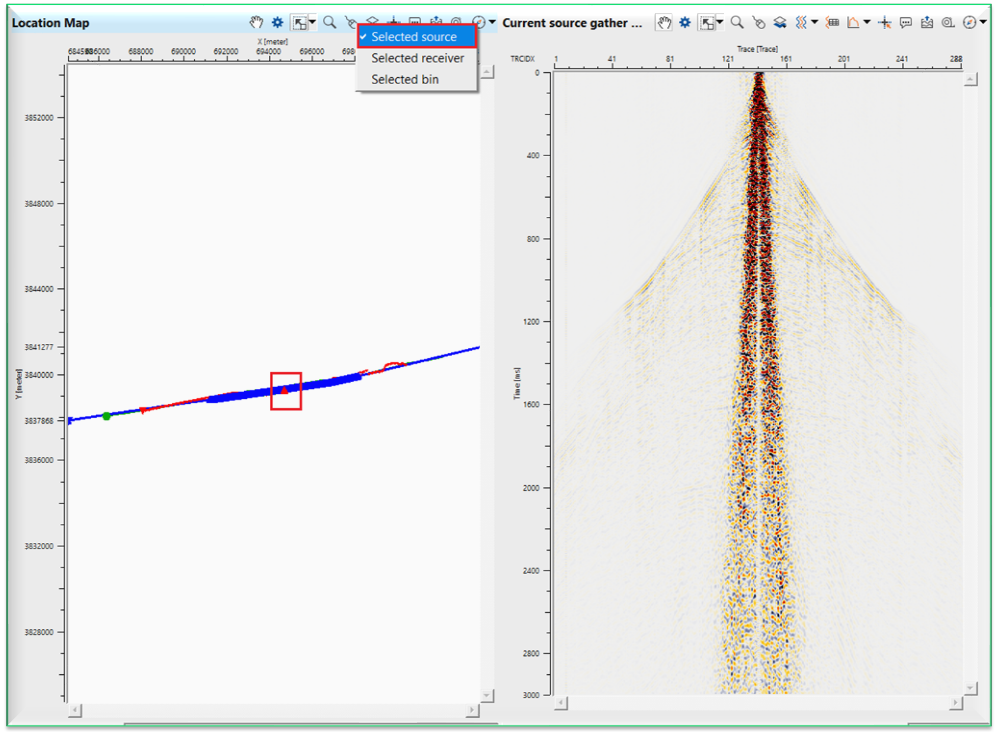
Launch the Vista items. Go to Control item and choose "Selected source" option. Randomly click and select any shot gather on the location map which is marked in RED square box. The corresponding shot gather displays in the Current source gather.
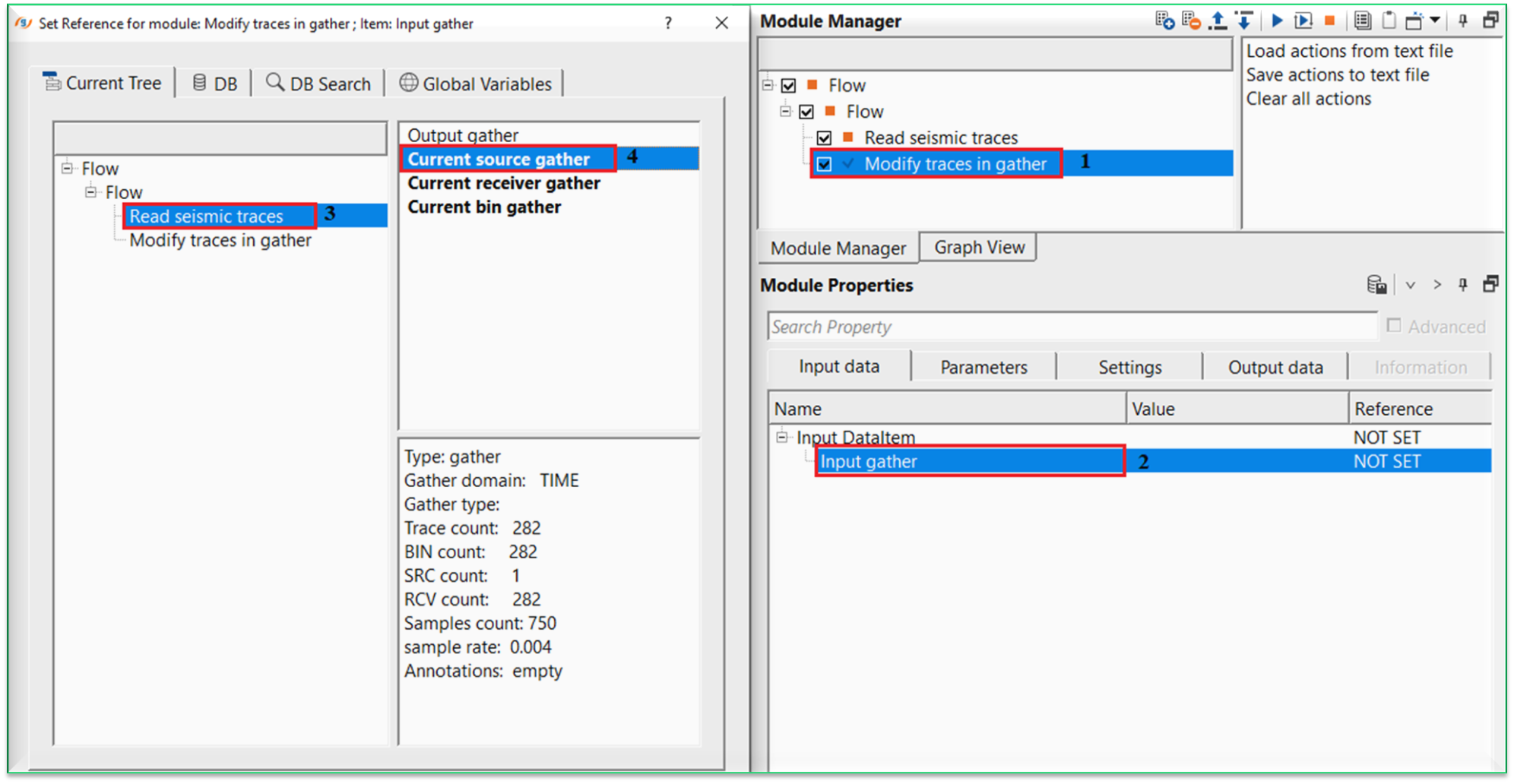
Connect/reference to Current source gather(in this case) or Output gather to Input gather of Modify traces in gather module.
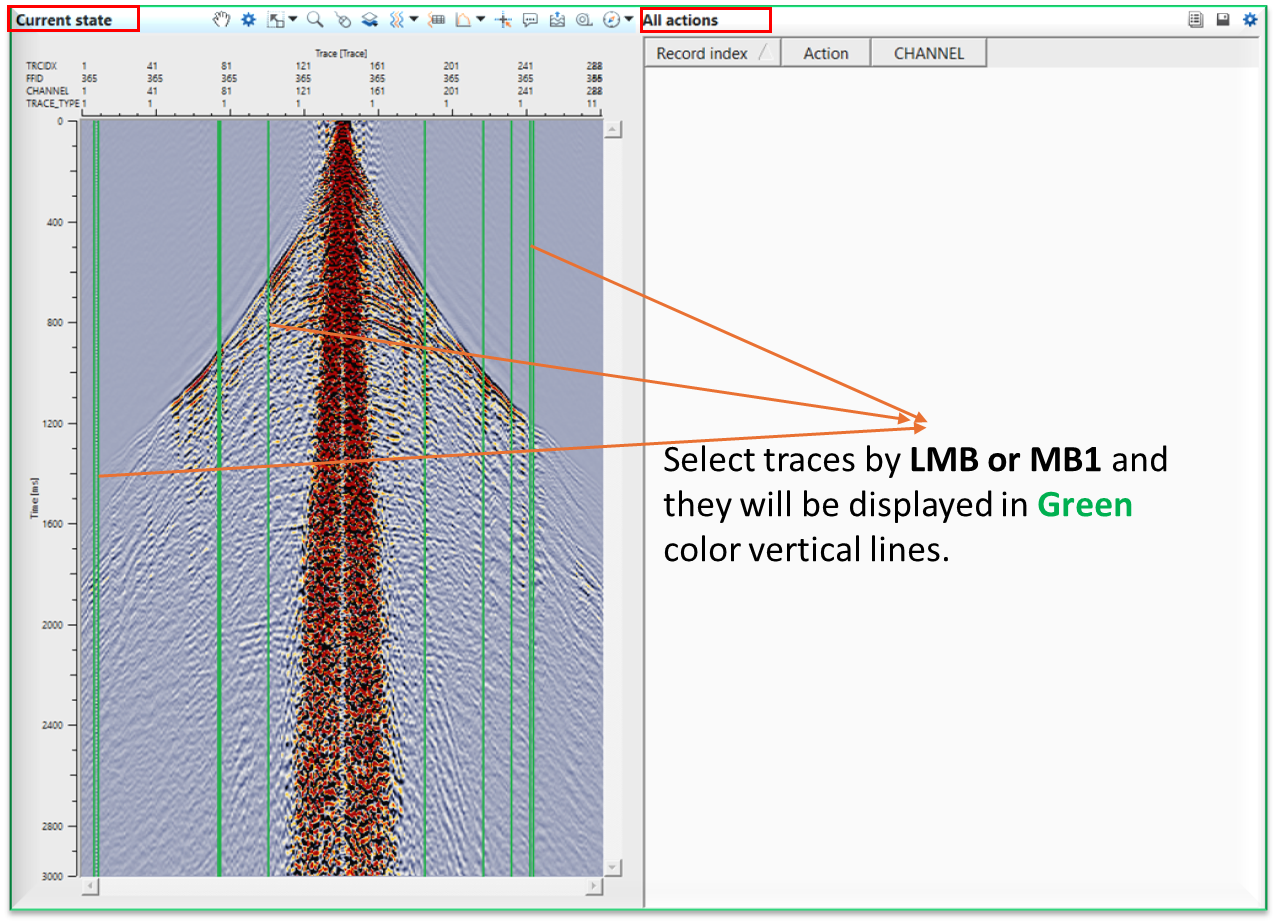
Now launch Vista items of Modify traces in gather module. There will Input gather, Output gather, Current state & All actions table.
To modify/edit any traces, the user must go to Current state.
Now hold ALT+RMB/MB3. There are few options appear.
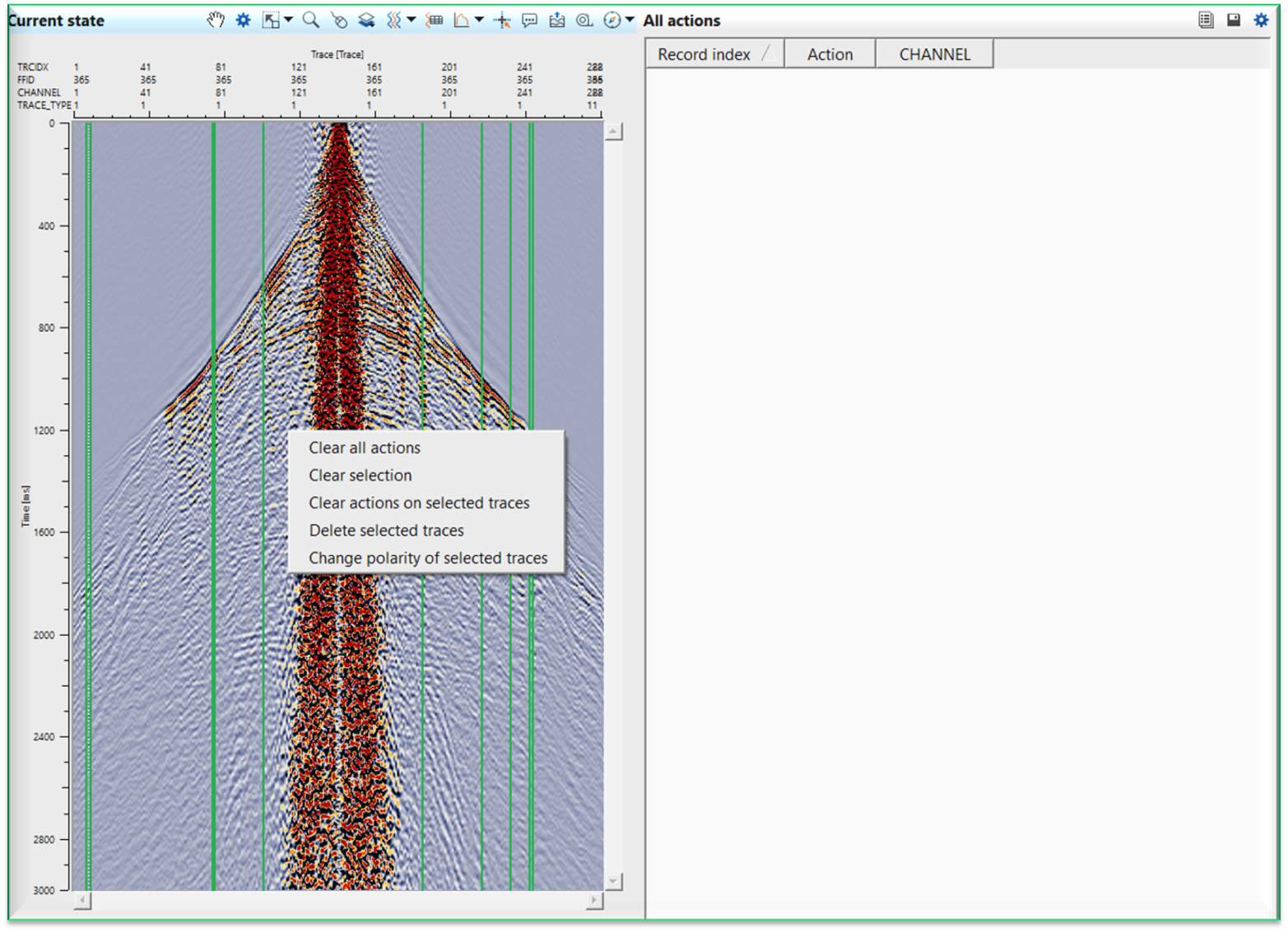
Now select one of the action from the listed items.
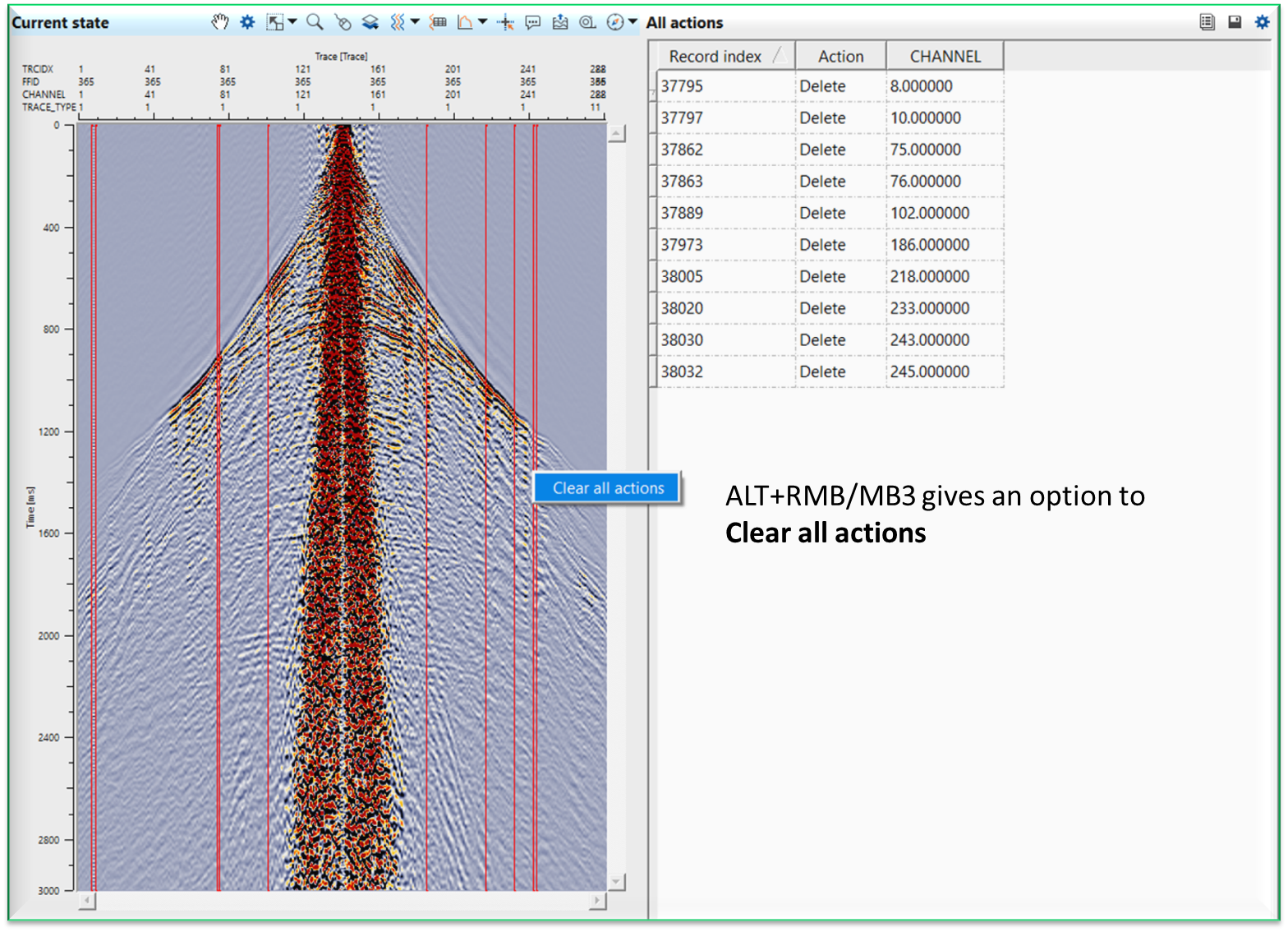
Clear all actions - this option will clear the user selected traces, trace deletes, trace polarity reversal
Clear selection - it will clear all the user selected traces
Clear actions on selected traces - this will overwrite the previously performed actions like trace delete or trace polarity reversal
Delete selected traces - it will delete the selected traces
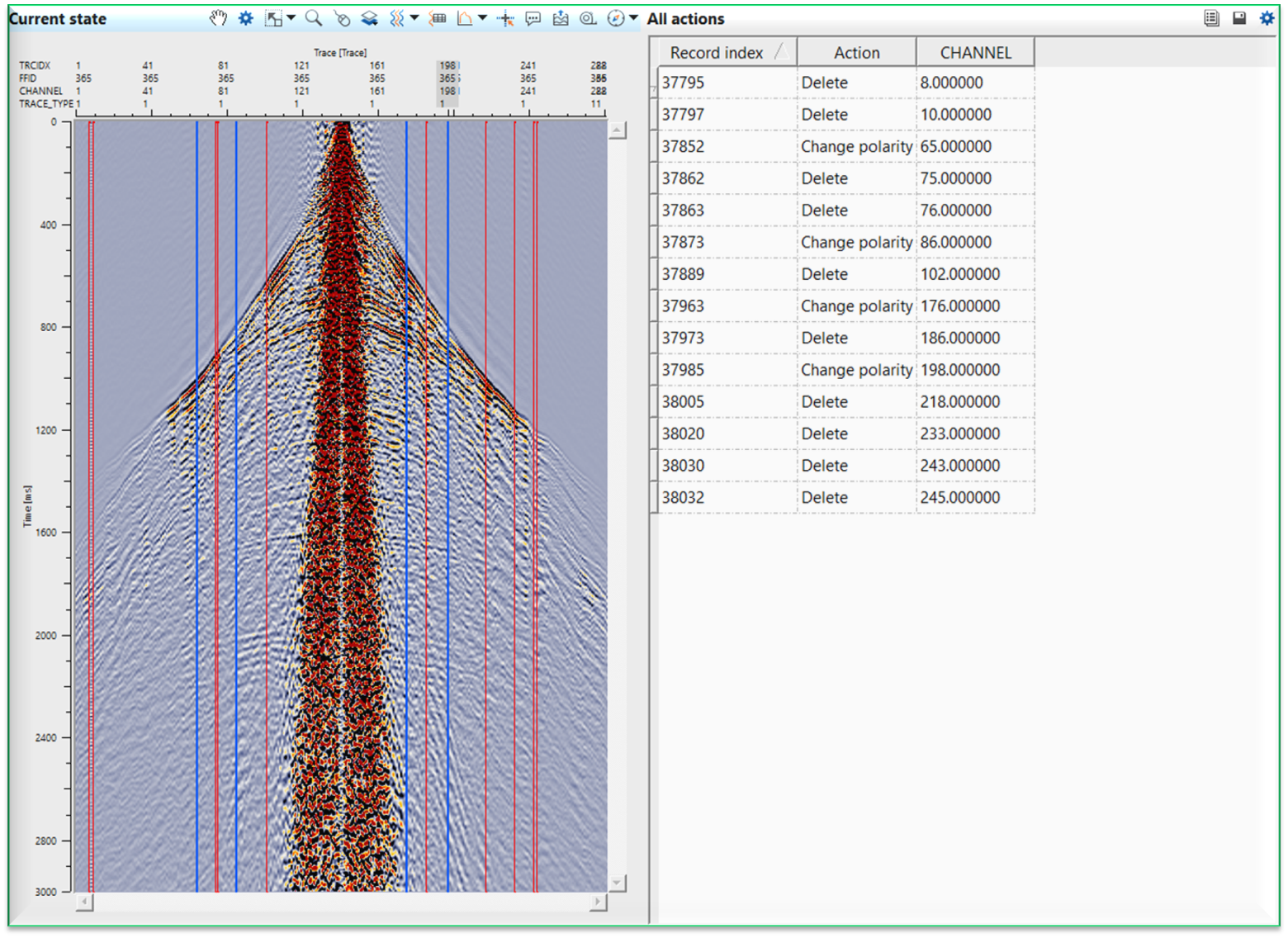
Change polarity of selected traces - this option allows the user to change the polarity of the selected trace.
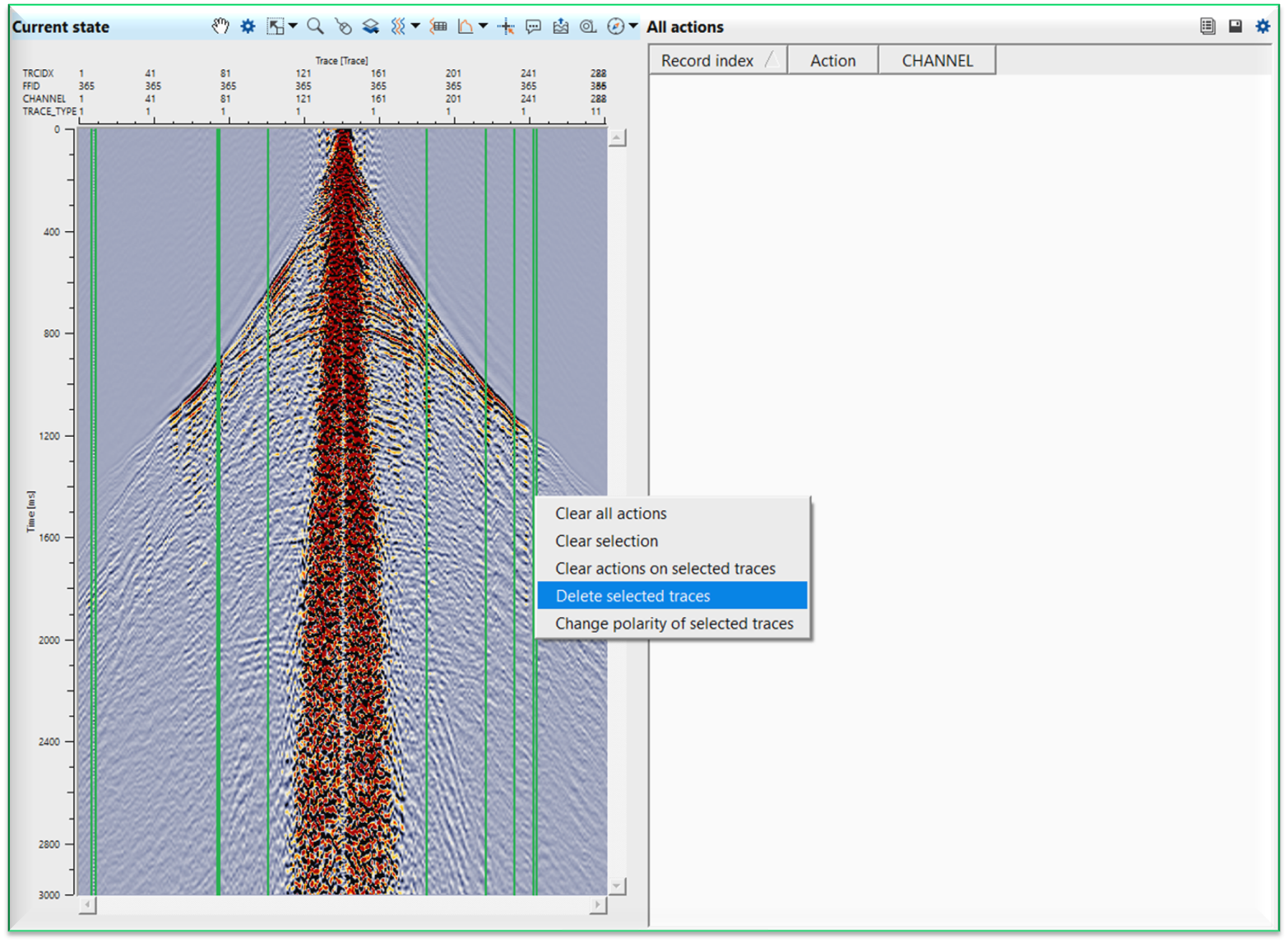
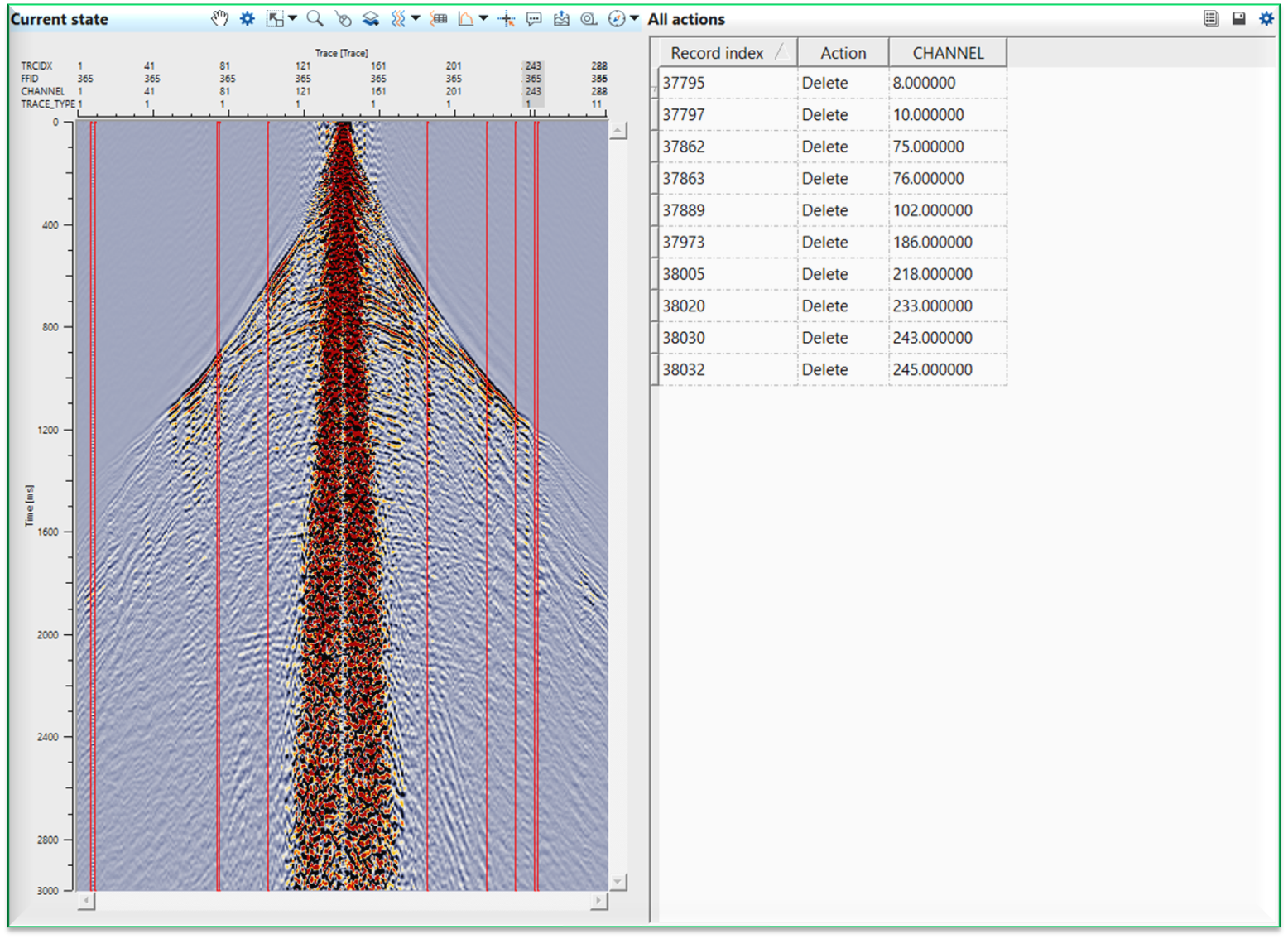
This option "Delete selected traces" changes the selected traces color from Green to Red and updates the "All actions" table. It will display the Record Index with the action and corresponding channel number.
Likewise, the user can select any item from the list and perform the task. Hold ALT+RMB/MB3 will clear all selected traces and their corresponding activity like deleting or polarity reversal of the selected traces.
Likewise, we've selected few other traces for polarity reversal and selected "change polarity of selected traces" option from the list. This option changes the polarity of the traces and changes the selected traces color from Green to Blue. Also, it will update the "All actions" table.
Actions
Load actions from text file
this allows the user to import previously prepared ASCII file to perform the trace edits.
Save actions to text file
this option allows the user to save the trace edits performed within the Modify traces in gather module.
Clear all actions
this will clear all the actions i.e. trace delete and polarity reversals of the traces.
Video lesson
YouTube video lesson, click here to open [VIDEO IN PROCESS...]
Related articles
Yilmaz. O., 1987, Seismic data processing: Society of Exploration Geophysicist
 * * * If you have any questions, please send an e-mail to: support@geomage.com * * *
